Files
Store and share documents, PDFs, and assets that teams across your network need to access.
Who Does What
Hubs upload and organize. Workspaces browse and download. Files behaves like a read-only library on the workspace side.
Files is the network-wide drive for everything that isn't a social post: training PDFs, operations manuals, brand guidelines, logo lockups, video sting libraries, and seasonal asset packs. The Hub uploads once, and every workspace sees the same library, organized by tag and folder.
Pick Your Side
You build the library and decide what each workspace sees.
Upload a File or Folder
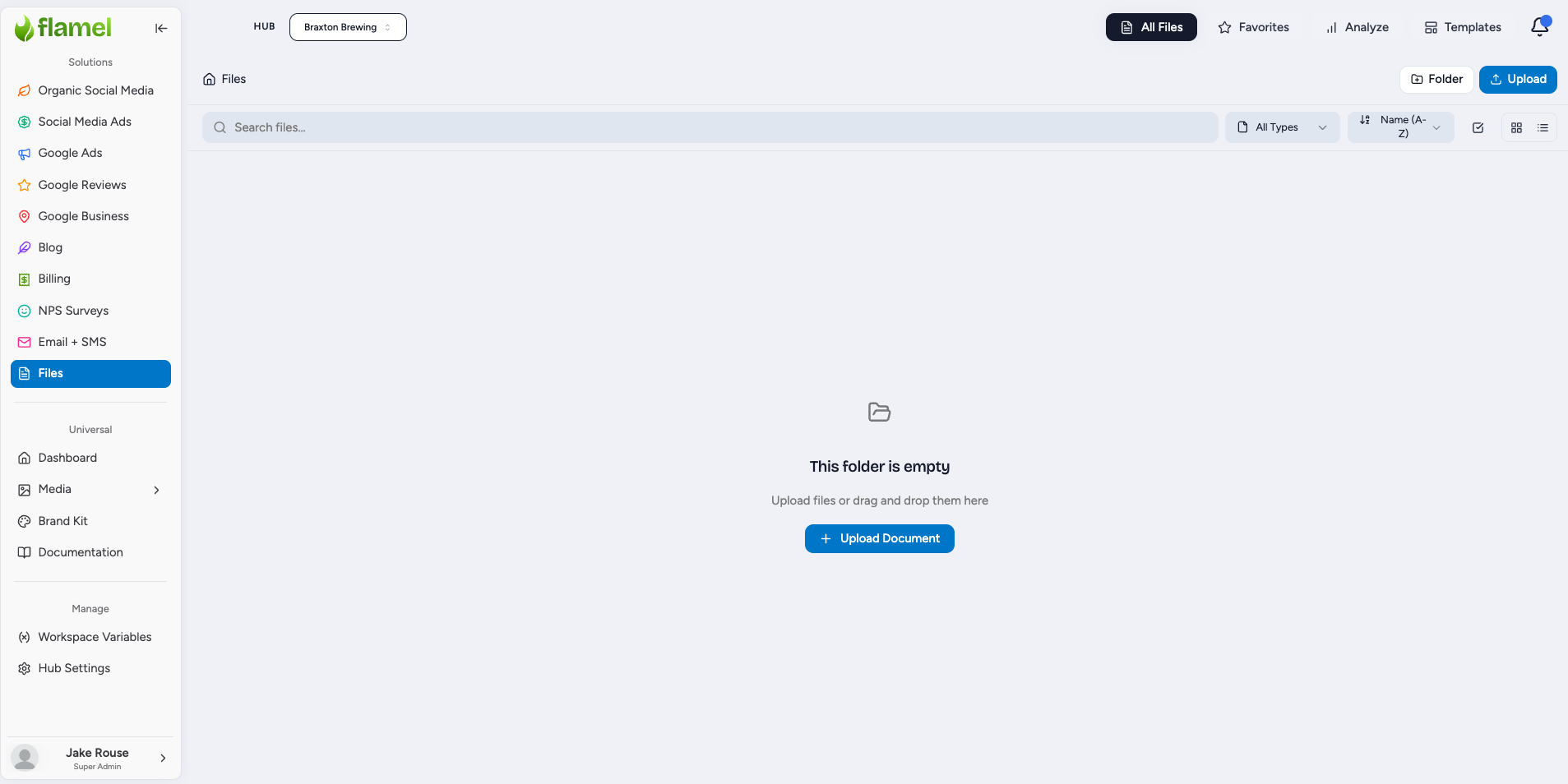
Go to Files and click Upload. Drop in a single file or a create a whole folder. The Hub uploads once and every workspace sees it.
Organize with Folders and Tags
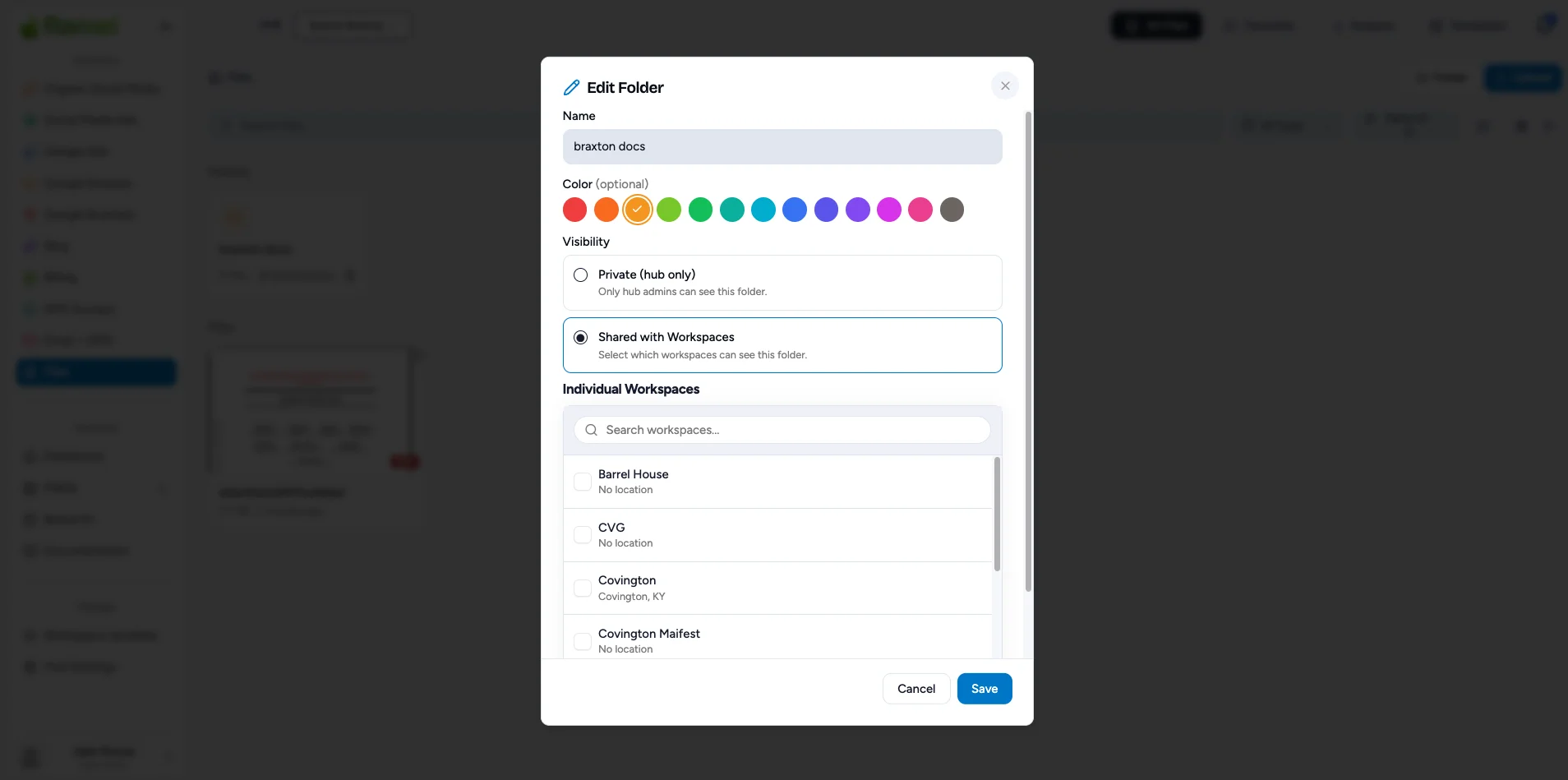
Open a folder, click the folder header, and choose Edit to rename it or restructure. Add tags so files surface in search even when buried in nested folders.
A folder can hold other folders. Drag a folder onto another folder to nest it, or drag it onto a breadcrumb to move it back out. Everything inside travels with it, and Flamel refuses a move into the folder itself or one of its subfolders.
To move one file, open its three-dot menu and choose Move to Folder. Flamel trims the spaces at the start and the end of a folder name when it saves, and two folders in the same place cannot share a name.
Folders behave the same way in the Media Library, which carries the full explanation.
Control Which Workspaces See a File
Set tags or workspace-group visibility on the file. This decides which locations the file appears for, so a regional asset pack only reaches the workspaces it belongs to.
Replace a File When it Changes
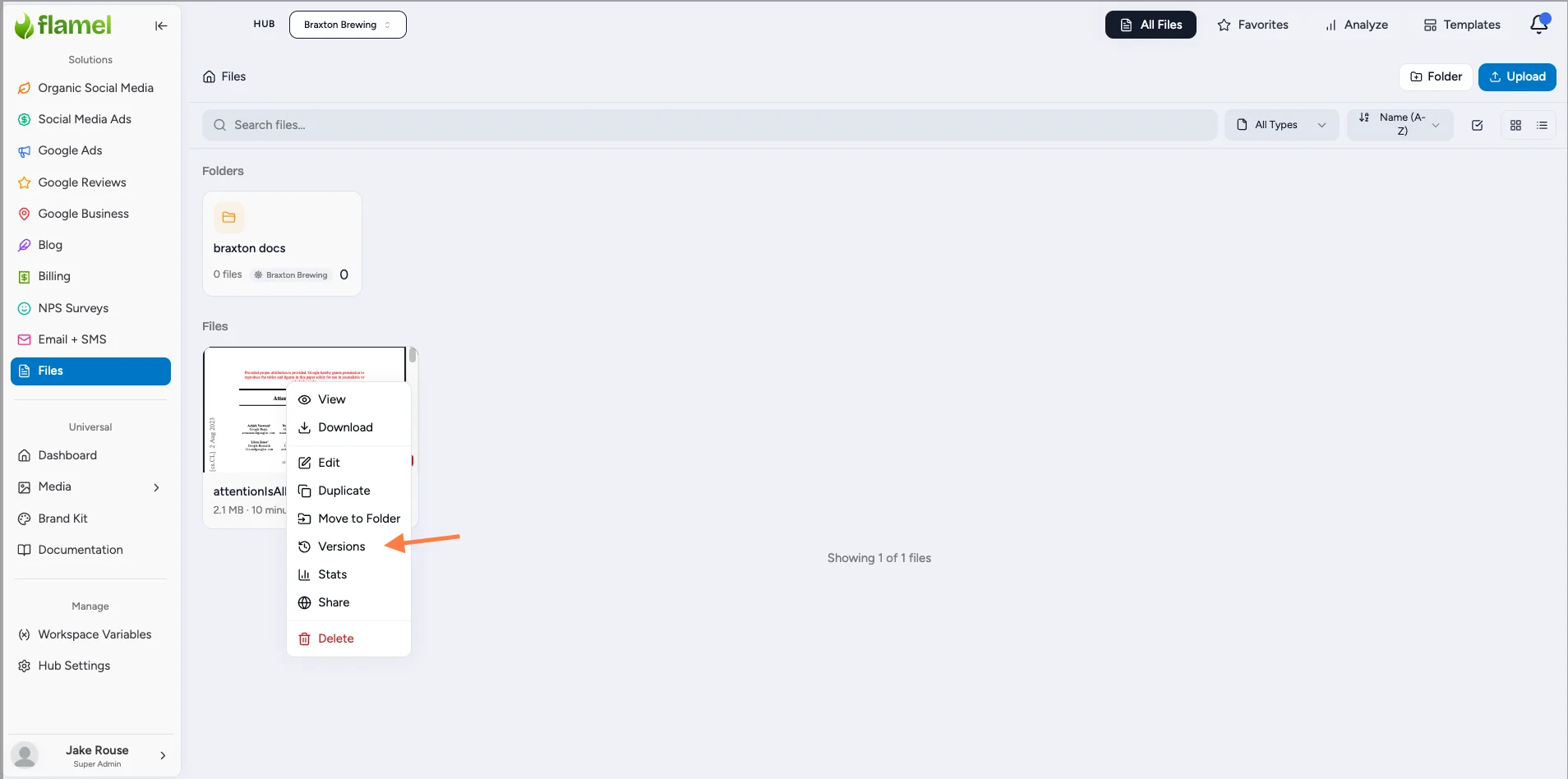
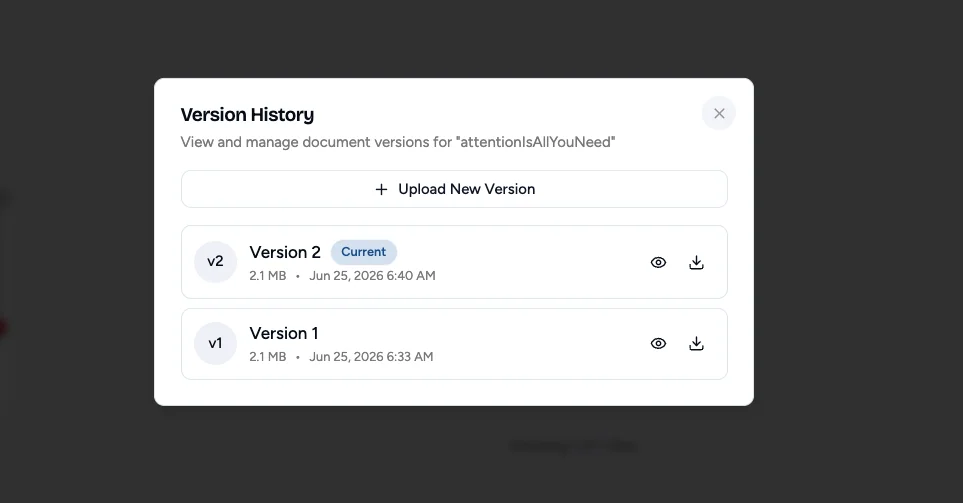
On the file row, click the three-dot (⋯) menu then Versions. The link and download count stay the same, so any bookmarks your workspaces saved keep working. The previous version is retained for 90 days in case you need to roll back.
Track Downloads
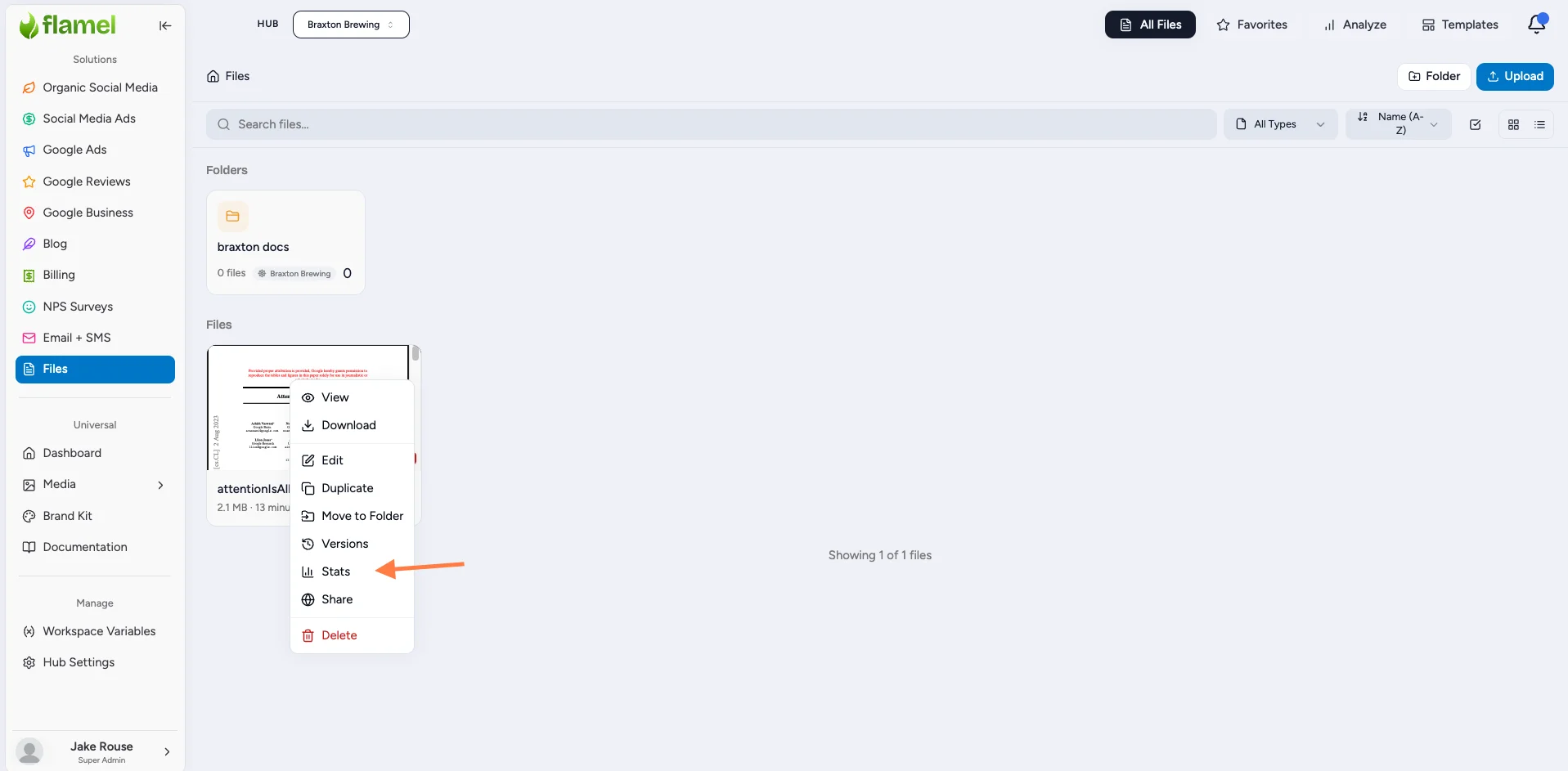
On the file row, open Stats to see who downloaded the file and when. Use this to confirm a new brand guideline actually reached your locations.
You browse, search, and download what your Hub publishes.
Find a File
Go to Files and use Search, or browse the folder tree. Search beats digging through folders once the library grows past a handful of files.
Download What You Need
On the file row, click Download to save the asset to your device.
Grab a Shareable Link
On the file row, click Copy link to get a URL you can paste into an email or message to a teammate.
See What's New
Open the Recent view in Files to catch the latest assets your Hub published, like a new seasonal pack or an updated checklist.
What Works Well Here
These are the asset types that belong in Files rather than the post editor.
| Asset Type | Why it Lives in Files |
|---|---|
| Brand guidelines PDF | Single source of truth for color, fonts, voice |
| Logo pack | Light and dark variants, file formats, clearspace rules |
| Training materials | Onboarding decks, SOPs, videos |
| Seasonal asset packs | Stock photos, video stings, audio beds tied to a campaign |
| Operational forms | Inspection sheets, opening and closing checklists, lease templates |
Files vs Media Library
For visual assets used inside the post editor (photos, video clips, GIFs), use the Media Library instead. Files is for everything else, anything a workspace owner would expect to download rather than embed in a post.
Best Practice
Mirror your network's actual folder structure rather than inventing one. Workspaces find files faster when the layout matches what they already know from email or shared drives. Tag liberally, since search beats nested folders every time once you have more than fifty files.