Connected Accounts
Connect Facebook, Instagram, LinkedIn, TikTok, and X to a Flamel workspace, monitor connection status, repair a lapsed Page, and reconnect expired logins.
Connected Accounts are the platform logins Flamel uses to publish content, pull analytics, and manage comments. Each workspace connects its own accounts, so Connected Accounts shows only the active workspace's platforms. Connect a platform's page before posting to it. Two workspaces can share one Page and ad account; see Two Locations, One Ad Account.
Use The Right Personal Login
Sign in with the personal account that already has admin access to the business page or profile you want to connect. If the wrong person authorizes the connection, the account usually has to be reconnected later.
Every platform follows the same basic pattern:
- click Connect
- sign in to the platform
- approve Flamel
- choose the business account or page
- confirm the status turns green in Connected Accounts
Before You Connect Anything
- Use a business account, not a personal one, wherever the platform requires it.
- Confirm you can already manage the page or profile directly in that platform.
- Finish connections before you try to schedule posts.
Connect Meta (Facebook and Instagram)
Meta handles Facebook and Instagram in one flow. This is the connection most people set up, so it gets the most detail.
The One Rule That Matters Most
When you connect Facebook, select every Page and account you use in any Flamel workspace, not just the one you are setting up right now.
Facebook authorization is global per Facebook login. Whatever you select becomes the complete list of what Flamel can access. So if you connect again later and select fewer Pages, Facebook removes access to everything you left out, across all your workspaces tied to that login.
Example
You connect Workspace A and select Page Alpha. Later you connect Workspace B and select only Page Beta. Facebook now thinks Flamel should only have Page Beta, so Workspace A loses Page Alpha even though you never touched it. The safe habit is to select all your Pages and accounts every time.
Instagram Needs Its Facebook Page
Only Instagram Business or Creator accounts that are linked to a Facebook Page can be connected. If you do not select that Page, Flamel cannot manage the Instagram account even if you select the account itself. Personal Instagram accounts cannot be used.
Step By Step
Start the Meta Connection
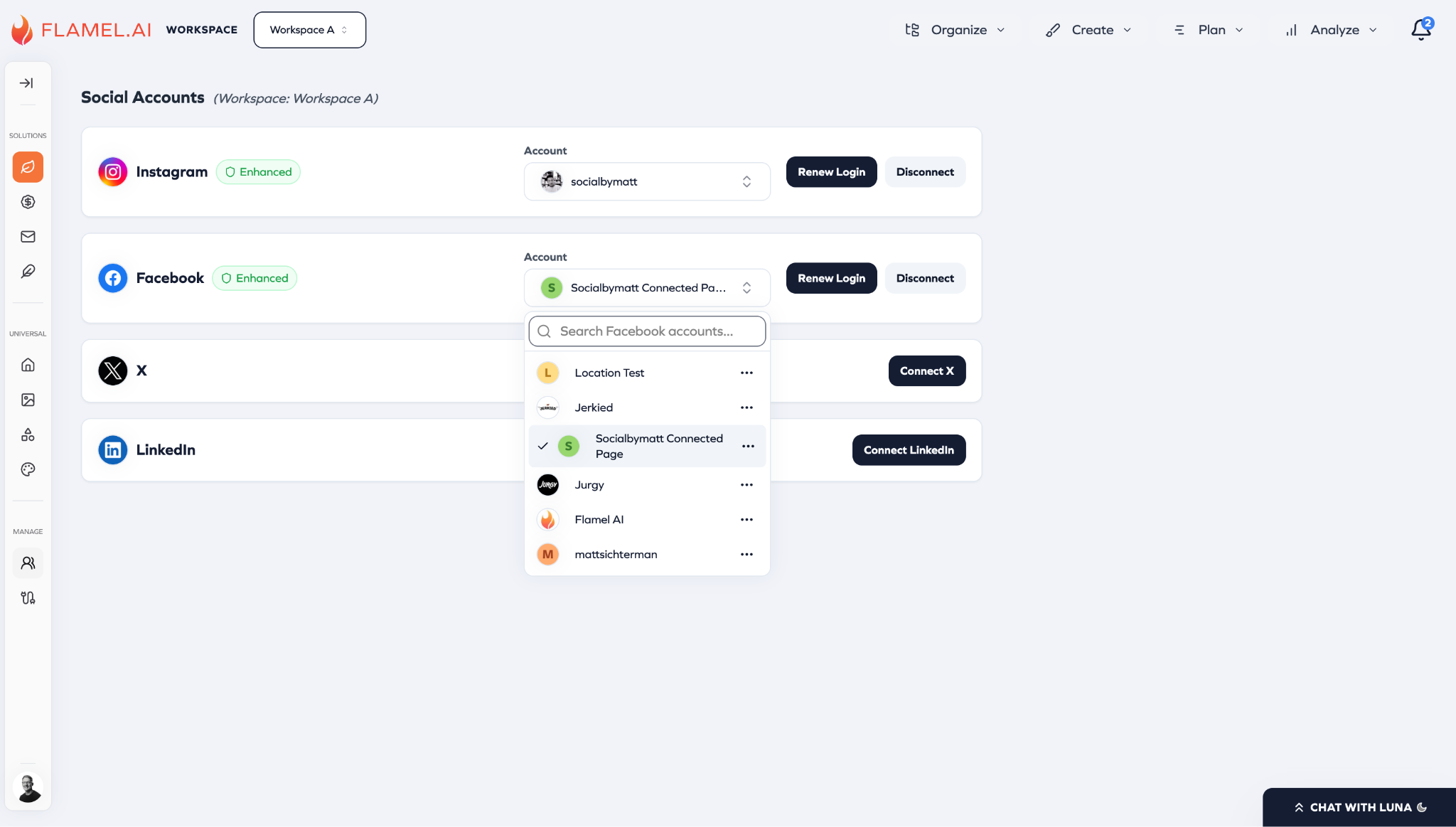
Open Connected Accounts and click Connect Facebook (or Renew Login on the Meta card if you are reconnecting).
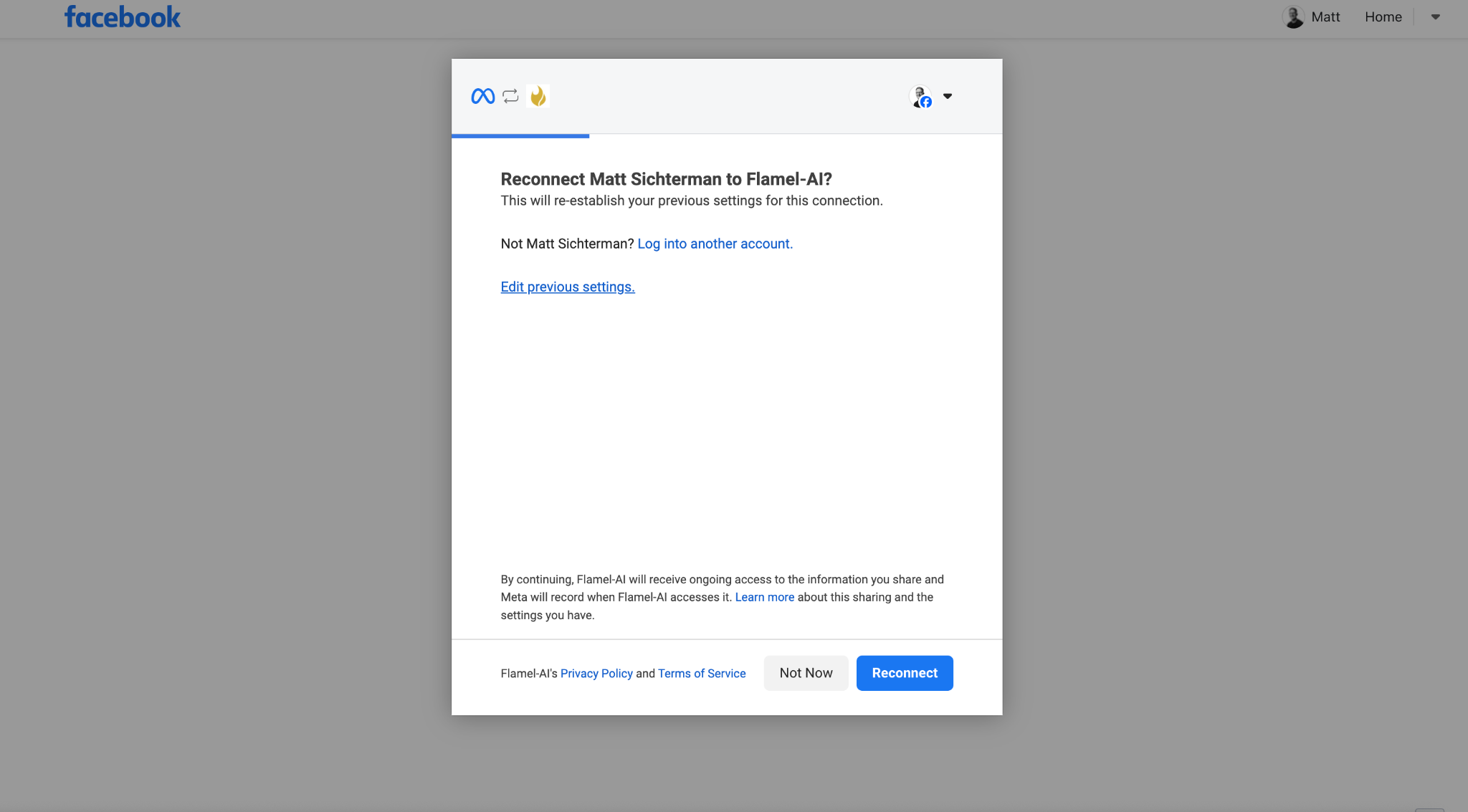
Reconnecting? Edit Your Previous Settings
If Meta offers to reconnect with your old settings, click Edit previous settings so you can re-open the full selection instead of silently reusing a narrower one.
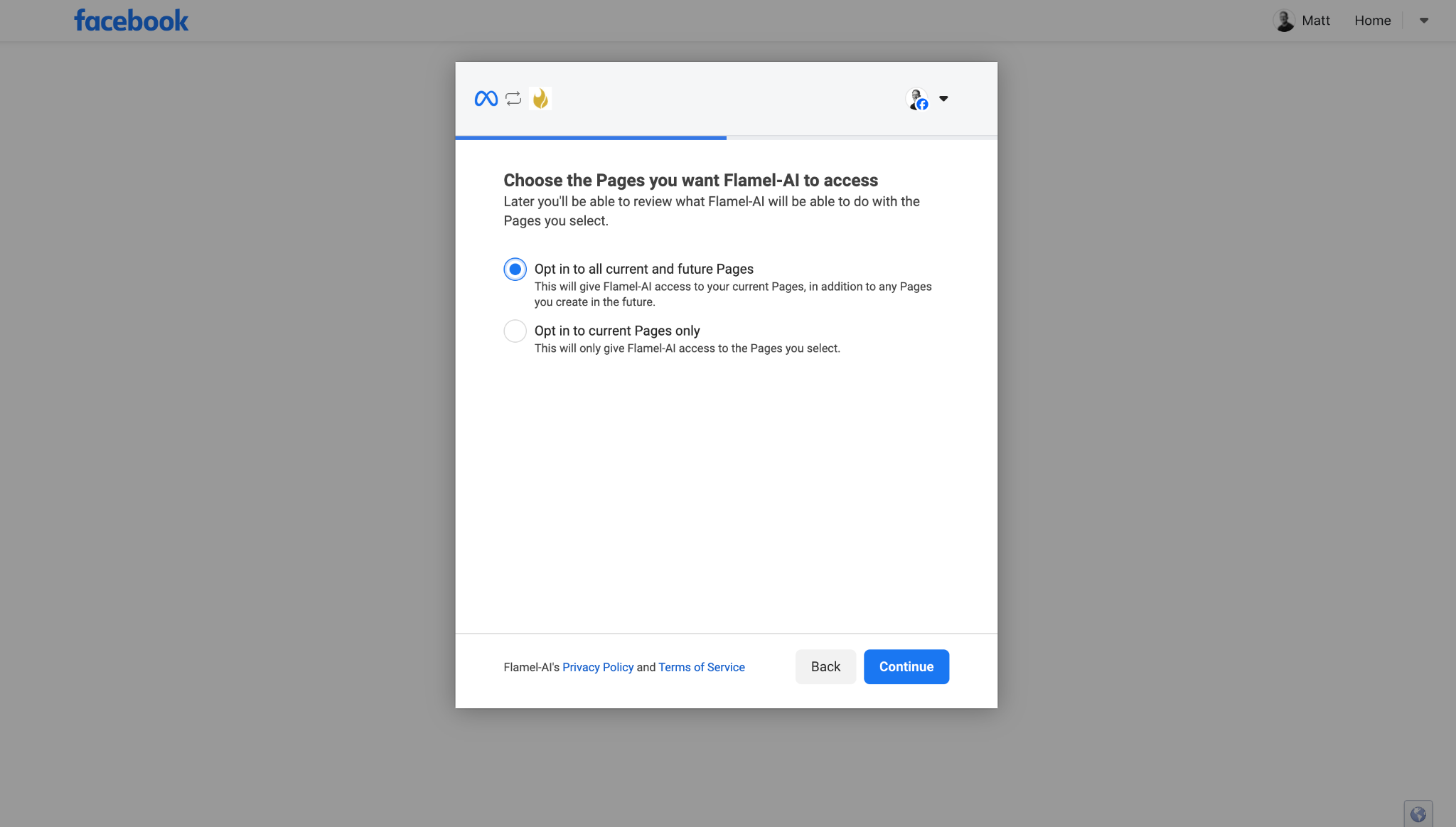
Select Your Pages
You have two options here. Pick one:
- Option 1, recommended (most flexible): Opt in to all current and future Pages. This covers every Page you manage now plus any you add later, so a future workspace never cuts off an existing one, and you never have to remember to re-select Pages.
- Option 2: Select Pages manually, but choose EVERY Page you want Flamel to access across all of your workspaces, not just the one you are setting up right now. Any Page you leave unchecked loses access.
Because Facebook authorization is global per login, whatever you select becomes the complete list of Pages Flamel can use. Option 1 is the safest; with Option 2 you must select all of them every time.
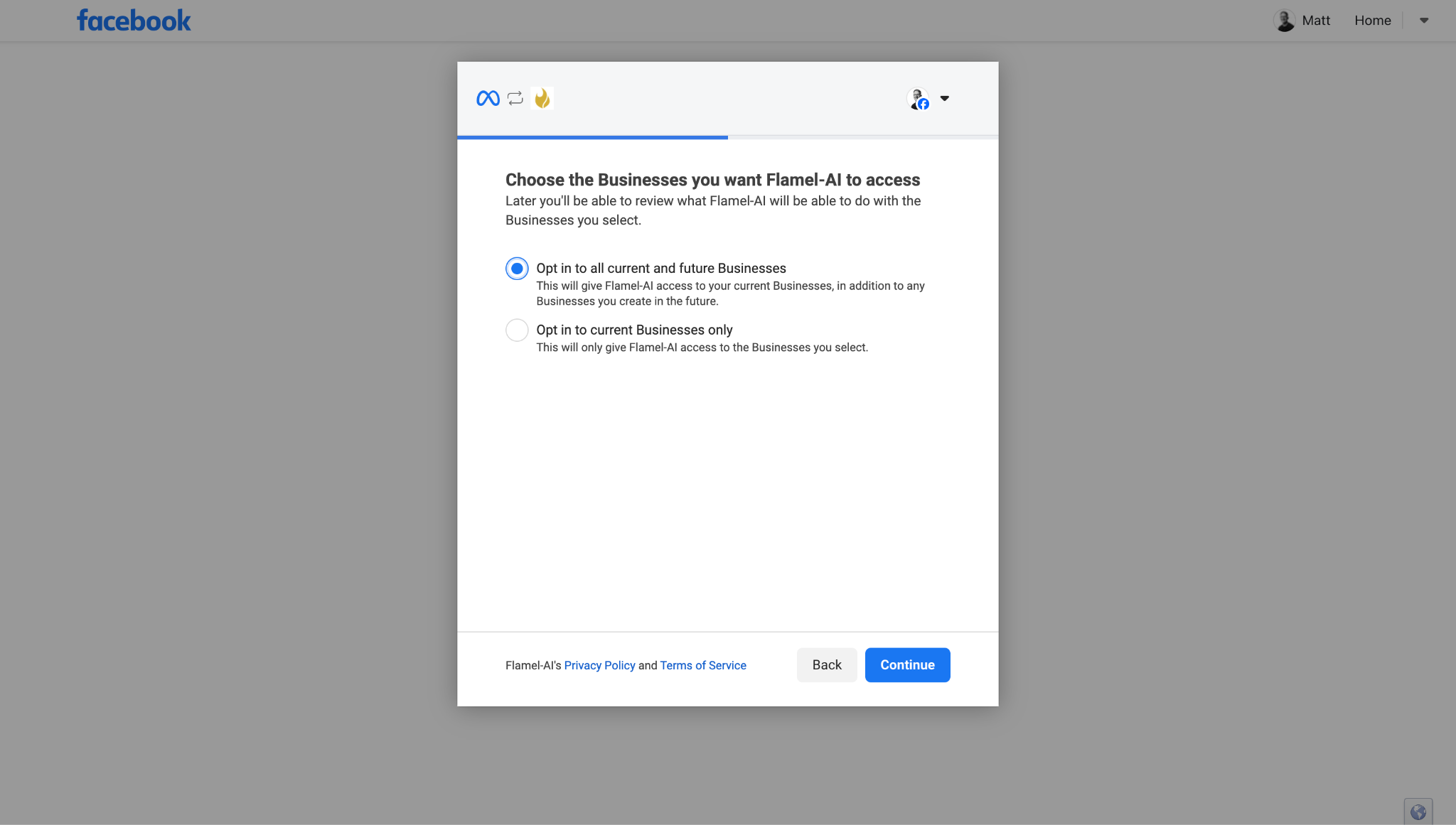
Select Your Businesses
The same two options appear on this screen:
- Option 1, recommended: Opt in to all current and future Businesses.
- Option 2: Select Businesses manually, but include every Business whose Pages or Instagram accounts you want Flamel to manage.
Leaving a Business unchecked hides every Page and account it owns, even if you selected them on another screen.
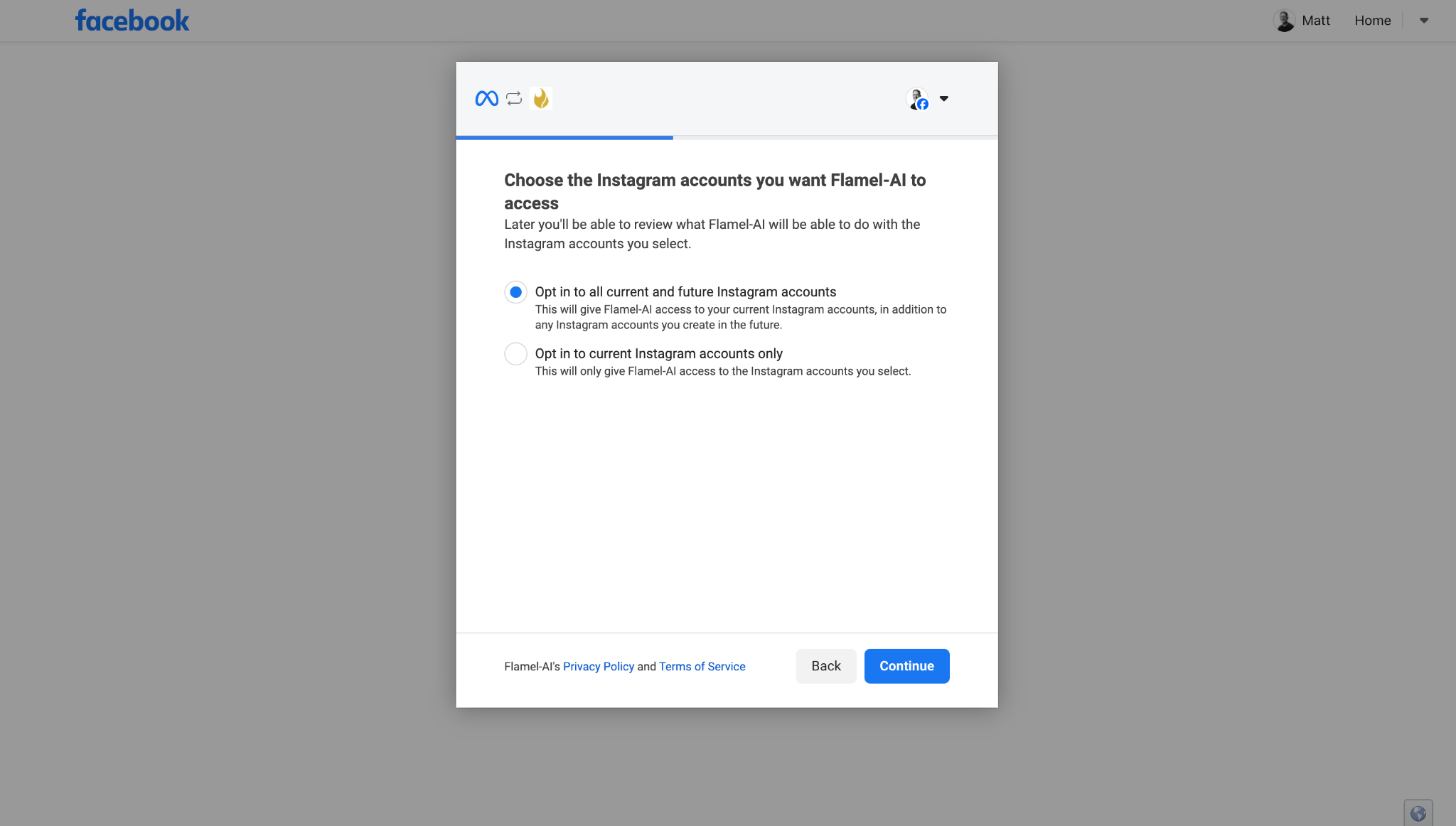
Select Your Instagram Accounts
The same two options appear here too:
- Option 1, recommended: Opt in to all current and future Instagram accounts.
- Option 2: Select accounts manually, but include every Instagram account you want Flamel to manage.
Each Instagram account still needs to be linked to a Facebook Page you selected above, or Flamel cannot manage it.
Approve and Finish
Approve the requested permissions to complete the connection, then return to Flamel and confirm the Pages and Instagram accounts you expect show a green status.
Verify And Clean Up
To remove a connection you no longer need, do it on the Flamel side (never by de-selecting it on Meta): open the account dropdown, click the ... next to the account, and choose Remove Account.
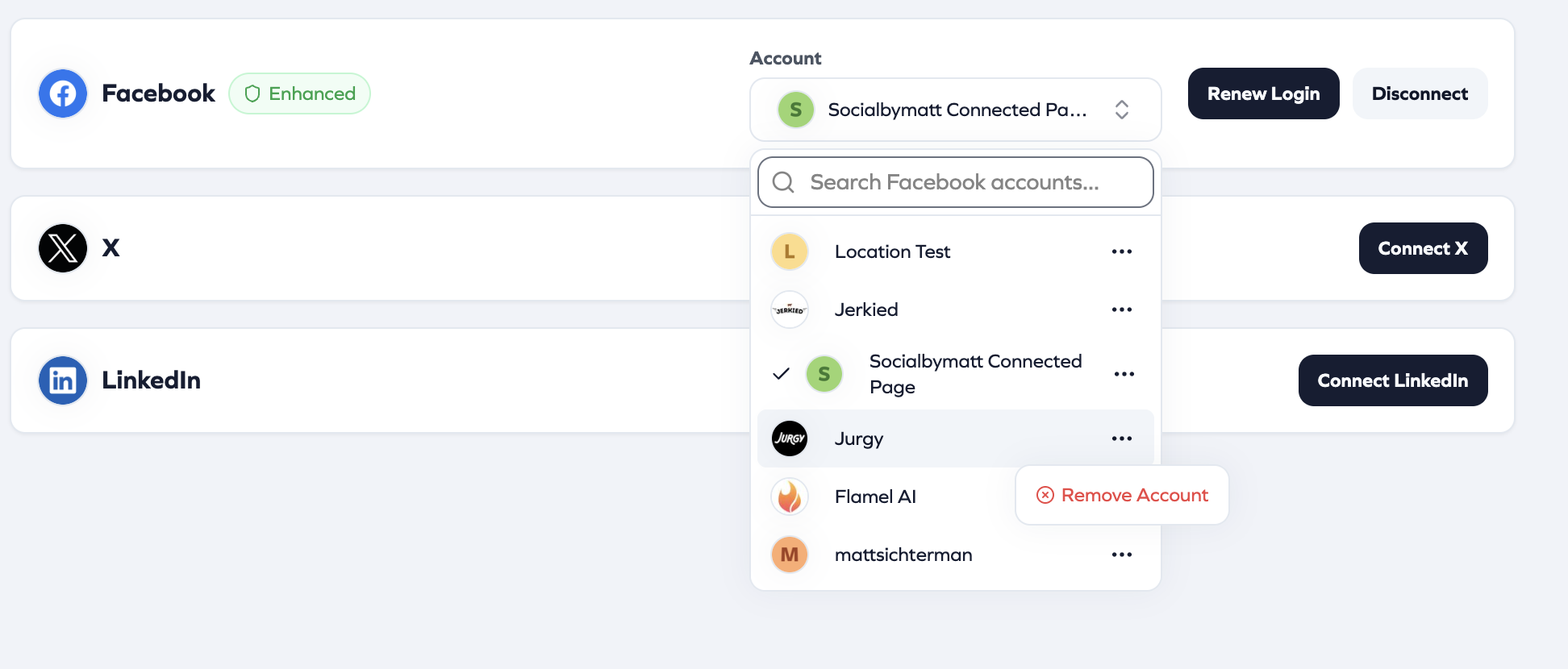
When you remove an account, Flamel pauses and hides that platform's future scheduled posts. It does not delete them. See Connection Expired for what comes back when you reconnect.
Most Failures Come Down to Admin Access
You must be an admin on each Page you connect, and each Instagram account must be linked to a Page in the same Business. See Meta's guide on assigning Business asset access if a Page or account does not appear.
Click Connect LinkedIn
Open Connected Accounts and choose Connect LinkedIn.
Sign in with a Company Page Admin Account
You need admin access to the Company Page. Personal profiles are not supported for posting.
Approve Access and Pick The Page
Authorize Flamel, then choose the Company Page you want available in the post editor.
TikTok
Click Connect TikTok
Start the connection from Connected Accounts.
Sign In and Approve Access
Authorize Flamel to publish to the account.
Check the Account is Ready For Video Posts
TikTok works best with vertical video. If a video does not meet platform rules, Flamel warns you before publishing.
X
Click Connect X
Start from Connected Accounts.
Sign In and Approve Access
Use the X account that owns the profile you want to publish from.
Confirm the Connection
Return to Flamel and confirm the account appears as connected.
Check The Connection After Setup
Look for these signals in Connected Accounts:
- the right business account name
- a green status indicator
- the linked Instagram account if you connected Facebook and Instagram together
- no warnings about limited permissions
Write Down Who Connected What
Keep a simple internal note with the name of the person whose login was used for each connection. It saves time when someone leaves or a token expires.
Reconnect An Expired Connection
Social platforms periodically expire OAuth tokens. When a connection turns red, posting stops until you re-authorize it.
If you are a hub admin, try the one-click repair in Pages That Need Connection first. A full reconnect is the next step when the repair cannot fix the account.
Reconnect With the Same Account
Always reconnect with the same Google, Meta, or LinkedIn account that was originally used. Reconnecting with a different account can create duplicate Pages, lose historical data, or break ad attribution.
Open Connected Accounts
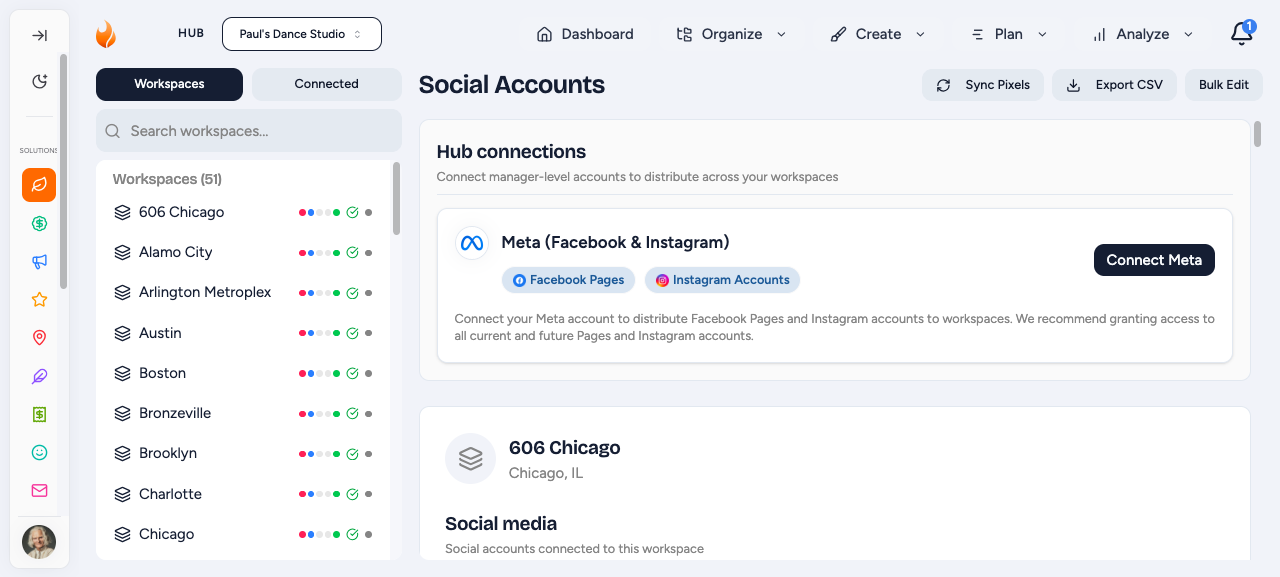
Switch into the affected workspace and open Connected Accounts.
Select the Platform Showing an Error
Click the platform with a red or yellow status indicator.
Re-Authorize
Sign in and approve access with the same account that originally connected the platform. The status returns to green once the connection is restored.
The Hub Connection Check
Flamel checks your Meta connections for you. When a hub admin opens Connected Accounts, Flamel asks Meta about the Facebook Page and the Instagram account that each workspace posts with. One check covers every workspace in the hub. While it runs, the top of the page shows Verifying Meta connections....
Each account card then shows the result of that check:
- Connected: Flamel holds a working login for the account.
- Needs reconnect: the login is missing, expired, or revoked on Meta's side. Posts and ads to that account fail until you repair or reconnect it.
A banner at the top of the page counts the workspaces that need a Meta reconnect. Open the banner to see each one, then click a workspace to jump to its card. Flamel keeps a recent result for a few hours, so it does not repeat a check on the same account every visit.
Flamel shows only whether a login is stored for an account. It never shows the login itself.
Hub Admins Only
Only hub admins can run the connection check and the repair actions. Other users still see each account status. Flamel does not start a new check for them, and a repair they start does not complete.
Pages That Need Connection
In a hub, open Connected Accounts and switch to the Connected tab. Under each platform Flamel splits your Pages into the ones it can post to and a Needs connection group. A Page shows up there when it is visible through your connected Business but Flamel holds no posting token for it, so posts and ads to that Page fail until you activate it.
This usually happens when the person who authorized Meta does not have a posting role on that specific Page, or the Page was left out when Pages were selected.
Fix It In One Click
Expand the Needs connection group and use the buttons at the top:
- Fix automatically mints a posting token from a connected admin who already manages the Page. This resolves most Pages instantly. Nobody signs in again, and you do not remove the account first.
- Reconnect Meta covers the rest: re-authorize and opt in to all current and future Pages so nothing is left out. Then click Fix automatically once more to activate any that are still pending.
Try Fix automatically before any full reconnect. It repairs the account in place, so your selections and history stay as they are.
Connection Status Reference
| Status | Meaning |
|---|---|
| Green | Active and working |
| Yellow | Connected but limited permissions. Reconnect to restore full access. |
| Red | Expired or revoked. Reconnect to resume posting. |
| Needs connection | Page is visible through the business but has no posting token. Click Fix automatically, or reconnect and opt in to all Pages. |
| Needs reconnect | The last check found no working login for the account. Repair it, or reconnect Meta. |
| Needs page access | Flamel cannot use the Facebook Page linked to this Instagram account. See Instagram (#10): account not connected. |