ChatGPT Ads
Build ChatGPT ad campaigns at the hub, opt your location in with its own budget, and track results down to one campaign or one location.
People now ask ChatGPT the questions they used to type into a search bar. "Where can I find a yoga studio near me?" ChatGPT Ads put your location in that answer.
ChatGPT Ads follows the same playbook and opt-in pattern you already use for Paid Social Ads and Google Ads. Your hub builds a playbook with campaigns, ad groups, and ads. Each location opts in with its own budget and dates.
Rolling out gradually
ChatGPT Ads must be enabled for your hub and connected to an ad account before it appears. It may not be turned on for you yet. Ask your Flamel contact to enable it. The account connects under Connected Accounts.
Where Everything Lives
Open ChatGPT Ads in the left navigation.
| Menu | What it holds |
|---|---|
| Dashboard | Quick links to the shop, Configuration, Analytics, and Command Center |
| Configuration | Target URL, custom audiences, location targeting, and conversion measurement |
| Organize > Playbooks | Every playbook for a hub admin. Your own opt-ins for a workspace |
| Create > New Playbook | The playbook builder. Hub admins only |
| Analyze > ChatGPT Ads Analytics | Spend, clicks, and conversions, with a drill-down to one campaign |
| Analyze > By Location | The same numbers per location. Hub admins only |
Opt Into a Campaign
Open the Shop
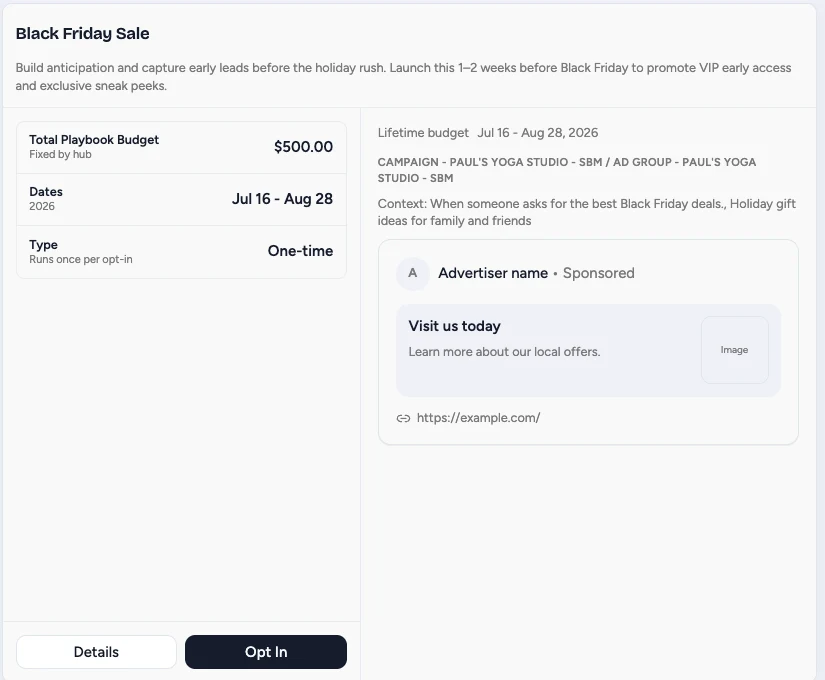
Go to ChatGPT Ads, then Shop Playbooks. Each card is a campaign your hub built and made available to you.
Read the description first. It tells you what the campaign is for and when to run it.
Check the Budget and Dates
Total Playbook Budget is what the campaign spends. When it reads Fixed by hub, you cannot change it.
Dates are the window the campaign runs. Type tells you whether it runs once per opt-in or repeats.
Read the Preview
The panel on the right shows the ad as someone will see it inside ChatGPT, along with the Context line: the kinds of questions that trigger it.
If those questions do not sound like your customers, this is the campaign to skip.
Opt In
Click Opt In, confirm your location, and the campaign deploys on its start date.
Click Details first if you want the full breakdown before committing.
Track What You Opted Into
Open My Opt-Ins to see every campaign you have joined, its budget, its dates, and whether it is running.
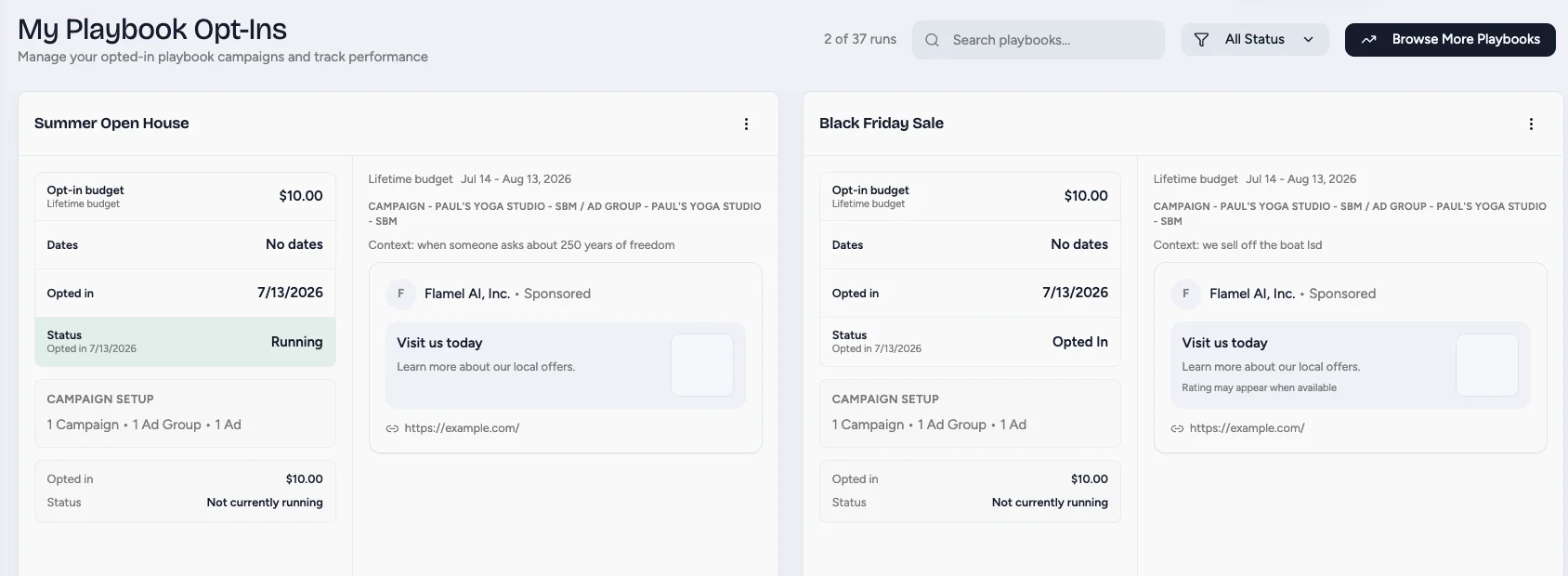
Opted in means you have joined and the campaign is waiting for its start date. Running means it is live and spending.
Filter by status when the list gets long, and use Browse More Playbooks to get back to the shop.
Set the Target URL and Custom Audiences
This setting moved
The target URL used to live on the hub playbook, so every location sent its clicks to the same page. It now lives in Configuration, with a hub default and a workspace override. The playbook builder has no target URL field. Do not look for it there.
Open ChatGPT Ads, then Configuration. Select the workspace in the list on the left.
Hub Defaults
A hub admin opens the Hub Defaults panel at the top of the page. Flamel applies these values to any workspace that sets nothing of its own.
| Field | What it does |
|---|---|
| Default target URL | Where clicks go. It accepts variables, such as {{website_url}} |
| Default context hints | The topics that make your ads eligible, separated by commas |
| Default max bid (micros) | The starting bid for new ad groups |
| Default locations | The places the ads reach |
| Default excluded locations | The places the ads avoid |
| Default included custom audiences | The OpenAI custom audiences the ads target |
| Default excluded custom audiences | The OpenAI custom audiences the ads skip |
Workspace Settings
The panel below holds the same settings for one location. A value here overrides the hub default.
- Target URL sends this location's clicks to its own page, such as its booking page.
- Location targeting picks the places this location reaches. ChatGPT Ads does not support radius targeting. The default uses the store ZIP code when Flamel has one.
- Excluded locations become available only after Flamel confirms the account supports them. Click Check capabilities under Conversion measurement first.
- Included custom audiences and Excluded custom audiences list the audiences in the connected account. Build the audiences in OpenAI Ads Manager first. One audience cannot be included and excluded at the same time.
Each workspace panel has a Default tab and one tab for each audience type. Use Copy from another audience to bring targeting and the target URL across instead of typing them again. Read Custom Audiences for how audiences work across solutions.
What a Deploy Uses
Flamel resolves each setting when the playbook deploys to a location.
| Setting | Order Flamel follows |
|---|---|
| Target URL | The workspace value, then the hub default, then the workspace website |
| Custom audiences | The workspace value, then the hub default, then the playbook value |
| Locations | The playbook value, then the workspace value, then the hub default |
The workspace website comes from Workspace Variables. If Flamel finds no target URL and no workspace website, the launch stops and tells you what to set.
Use Variables in Your Ad Copy
Campaign names, ad group names, titles, body, price, and context hints accept variables. Type {{ in any of these fields to open the picker. The variable becomes a chip in the field, and the chip shows what that variable becomes for that workspace.
The picker offers the workspace values: Workspace name, Business name, Phone number, Contact email, and Website URL. Product template creative also offers the product feed tokens.
Before a location opts in, the shop preview and the playbook review replace every variable with that location's real values. Read Workspace Variables to see where those values come from.
Build a Playbook
Hub admins open Create, then New Playbook. The builder has four steps.
Campaign Setup
Set the Campaign name and the budget. The budget field reads Daily budget or Lifetime budget, and Flamel shows the OpenAI minimum below it.
Objective sets how OpenAI bills the campaign: Platform default, Reach, Clicks, or Conversions. Choose Conversions and a Conversion goal field appears.
Campaign type is Standard (chat cards) or Product feed. The type cannot change after launch.
Ad Group Setup
Set the Ad group name and the bid. The bid field reads Max CPM bid, Max CPC bid, or CPA bid cap, to match the objective.
Add Context hints, one per row. A hint describes when your product or service is useful, so ChatGPT knows when to show your ad.
Ad Creative
Write the Title and the Body, and choose a Creative image. Chat cards use a square image. The minimum size is 256 by 256 pixels. Use 512 by 512 pixels or larger for sharper display.
The Preview panel beside the fields shows the card as a customer sees it.
Review & Create
Check the budget, the ad groups, and the ads. Then create the playbook and make it available to your locations.
Product Feed Campaigns
Set Campaign type to Product feed when one campaign should cover a whole catalog. The catalog is registered in OpenAI Ads Manager.
On the creative step, set Creative type to Product template (one per ad group). The Title, Body, and Price fields then accept the product feed tokens, so each product keeps its own details in the ad copy. A product feed campaign cannot use conversion bidding.
Track What an Ad Produced
Open ChatGPT Ads, then Configuration, and find Conversion measurement. Create the conversion setup through Flamel, or import an existing OpenAI pixel and its Conversions API key.
Conversion events lists the event settings on the account. Standard, active settings are eligible for conversion bidding. Attribution is fixed at 30 days.
Analytics then reports Conversions, Conversion rate, and Cost / conversion beside spend. When an account cannot report conversions, Flamel shows N/A. It never reports zero conversions that it cannot confirm.
Ads That Wait for Review
OpenAI reviews every new ad before it serves. Flamel checks each ad that waits for a verdict once every hour and records the result.
When OpenAI rejects an ad, the rejection appears on the playbook against the workspace that ran it, and a notification reaches the Flamel team. Correct the creative, then deploy again.
Pause or Adjust Live Campaigns
Open the ChatGPT Ads Dashboard and click Command Center. The table lists every campaign in the connected account, with the workspace each one belongs to.
Select one campaign or many, then use the toolbar to:
- Activate or pause the selection.
- Change the budget. Enter an amount, or a percent of the current budget.
Each row also links out to OpenAI Ads Manager. Command Center works the same way for your other paid solutions.
Analytics
Open Analyze, then ChatGPT Ads Analytics. The cards across the top show Spend, Impressions, Clicks, CTR, CPC, CPM, Conversions, Conversion rate, and Cost / conversion.
Pick a date range at the top right, or click Refresh to pull fresh numbers. The Daily trend chart plots any one of those metrics. The Campaigns table lists each campaign, and a campaign opens to its ad group and ad breakdown.
Hub admins also open By Location, which rolls the same numbers up per location.
Shared Ad Accounts
A hub can share one ad account across many locations. Flamel still reports per location, because it attributes each campaign through the opt-in that created it.
- Spend that belongs to no opt-in collects in an Unattributed row at the bottom of the By Location table.
- Inside a workspace, Flamel shows only the campaigns attributed to that workspace. No workspace sees another workspace's campaigns.