Connect Flamel to Claude
Add Flamel as a custom connector in Claude so you can check opt-ins, update workspace data, and manage playbooks from a chat.
Who Sees What?
Anyone with a Flamel login can connect. Claude can only see and change what your own Flamel role allows, and only in the hubs and workspaces you grant to the connection.
The Flamel connector lets Claude work in your Flamel account from a chat. Ask about running opt-ins, fix a live campaign's landing page, or fill in workspace variables from your website, and Claude uses Flamel's own tools to do it.
Connect in Claude
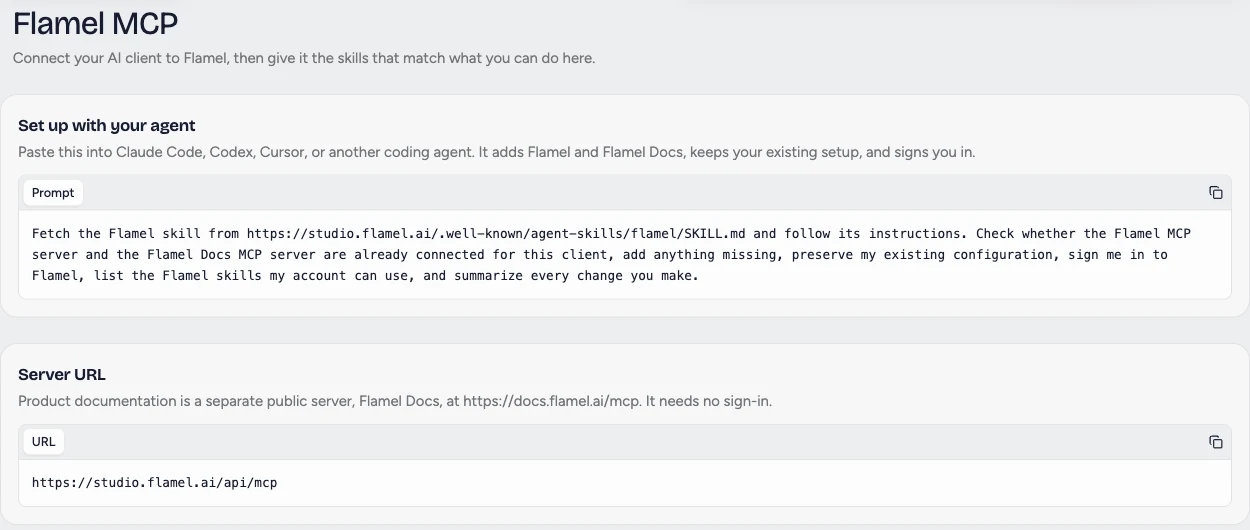
Copy the server URL
Use https://studio.flamel.ai/api/mcp, or copy Server URL from the Flamel MCP page.
Add a custom connector
In Claude, click Customize in the left sidebar, then Connectors. Click Add, then Add custom connector. Enter Flamel as the Name, paste the server URL into MCP server URL, and click Continue. Flamel is not yet in Claude's connector directory, so it is added as a custom connector.
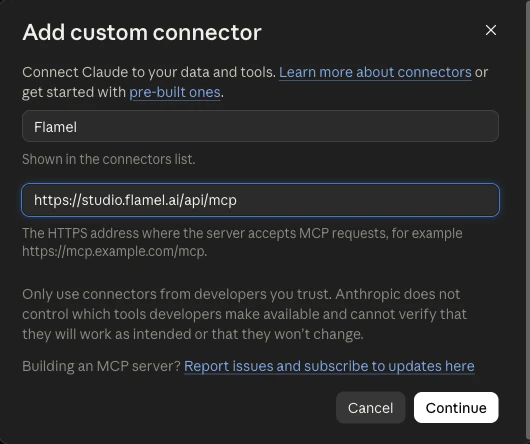
If Claude says a connector with this URL already exists in your organization, someone already added Flamel. Use that connector instead.
Sign in and choose the scope
Click Connect and sign in with your Flamel account. Choose which hub or workspaces the connection can reach, and whether Claude can only read or can also make changes. Choose read-only if you only want answers.
Turn it on in a chat
Open a new chat, enable Flamel from the tools menu, and ask a question such as "What playbook opt-ins are running this week?"
What to Ask
| Task | Example request |
|---|---|
| Review campaigns | "List active opt-ins for the 99-day playbook and the landing page each one uses." |
| Fix a running campaign | "The Montgomery membership opt-in points at the old page. Swap it to the new membership URL." |
| Update location data | "Read our locations page and fill in each workspace's phone number and website in Flamel." |
| Check targeting | "Which audience types in Cincinnati include a retargeting audience?" |
Claude shows a preview before any change and waits for your yes. If the connection covers several hubs or workspaces, name the location in your request, or Claude will ask.
Manage Your Connections
Open the Flamel MCP page to see your Connections and the Signed-in clients on each one. Click Edit scope to change which hubs and workspaces a connection reaches. The change applies to every client signed in with it.
The same page shows setup commands for Claude Code and Codex. For a server-to-server integration without a person signing in, use a hub API key. See Hub API.