Brand Kit
Store approved logos, colors and fonts so every workspace stays on-brand without manual enforcement.
Who Owns the Brand Kit?
The Hub (your franchisor or HQ) defines the Brand Kit, and the settings flow down to every Workspace automatically. Workspaces use what the Hub sets, meaning they can view the kit but typically cannot edit it.
Brand Kit settings show up throughout Flamel: color pickers, font selectors, Luna AI prompts, the design editor, and templates. Configure it once and it follows your content everywhere.
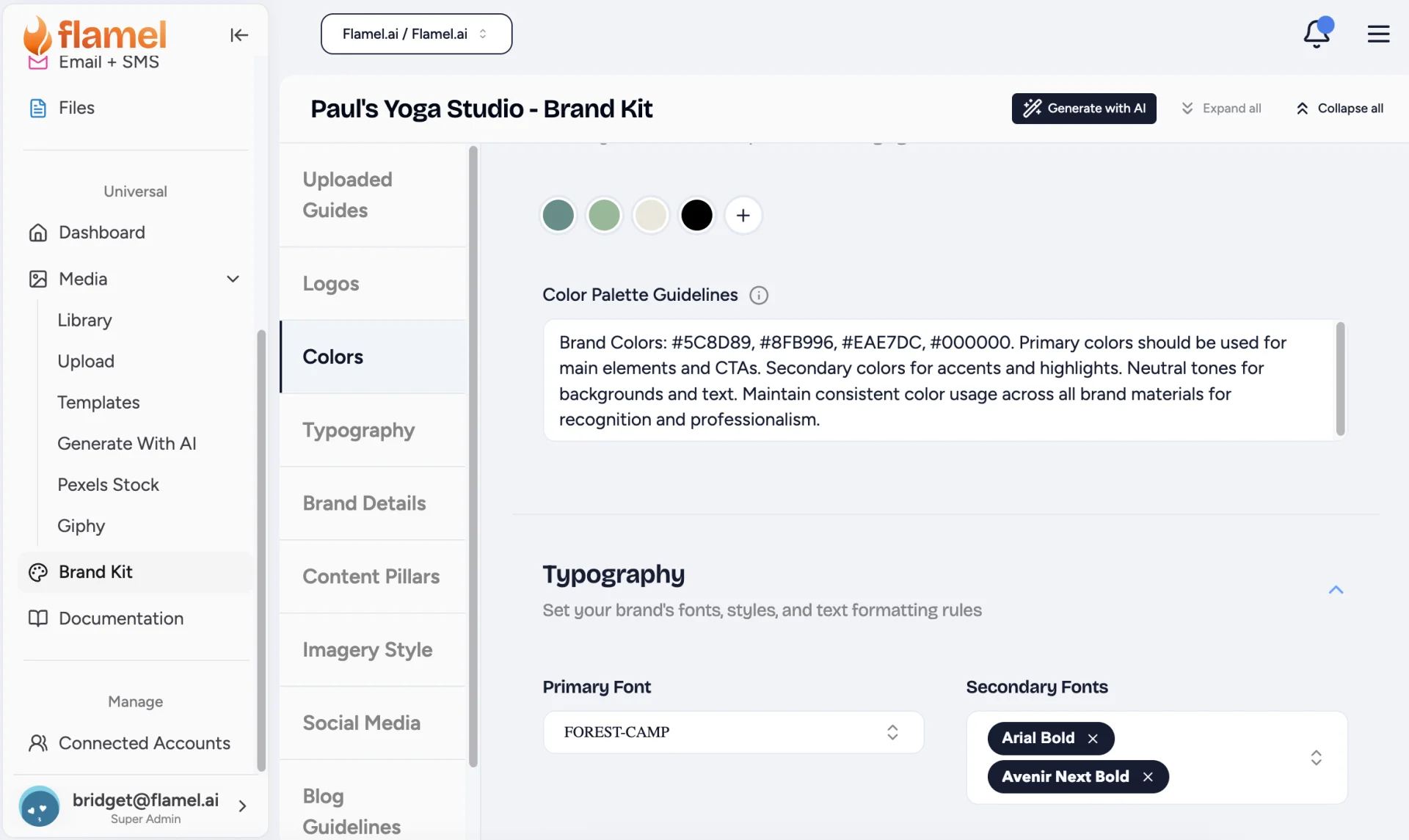
You build and maintain the Brand Kit. Everything you set here becomes the default across every Workspace in your network. We'll take you through the four Brand Kitareas below in order: Visual Identity, Brand Voice, Content Guidelines and (optionally) AI brand analysis.
You inherit the Brand Kit your Hub, fully configured. Brand colors, fonts, logos, voice guidelines and content rules appear automatically in your editors and in Luna AI. You can view the Brand Kit to understand its standards, but editing is reserved for the Hub. If something looks incorrect, contact your Hub admin.
Where Your Brand Kit Shows Up
The products below pull from the Brand Kit automatically once it is configured.
| Surface | What You'll See |
|---|---|
| Design editor | Brand colors at top of the color picker, brand fonts in the font selector |
| Templates | Brand elements pre-applied where the template uses "brand color" |
| Luna AI | Voice guidelines inform caption suggestions automatically |
| Post editor | Quick access to brand logos when adding media |
Build Your Visual Identity
These are the visual building blocks every piece of content draws from. Work through each one.
Upload Your Brand Guides (Optional But Recommended)
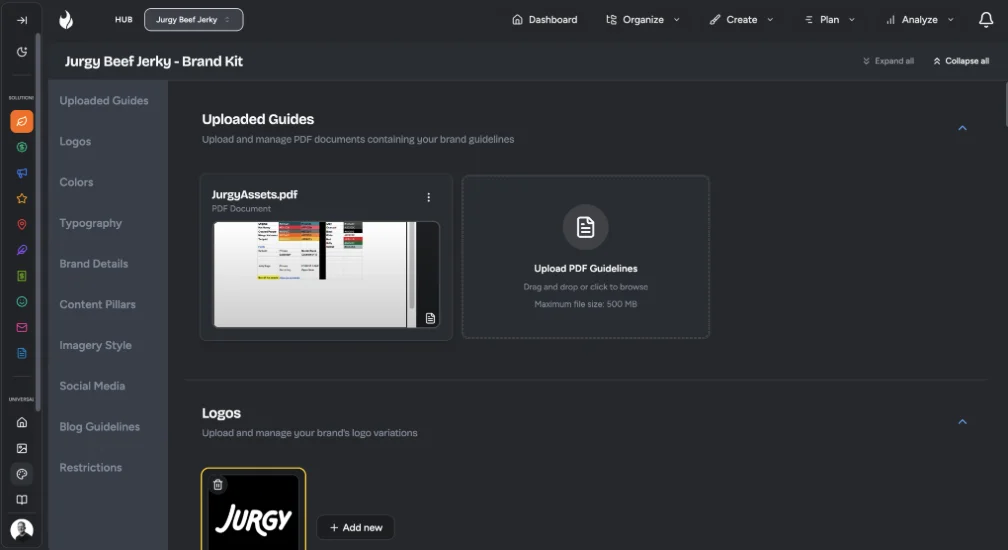
If you already have a style guide or brand book, upload the PDFs first. Flamel's AI can read them and extract colors, voice and content patterns for you later (see "Let AI analyze your brand" below).
Add Logos
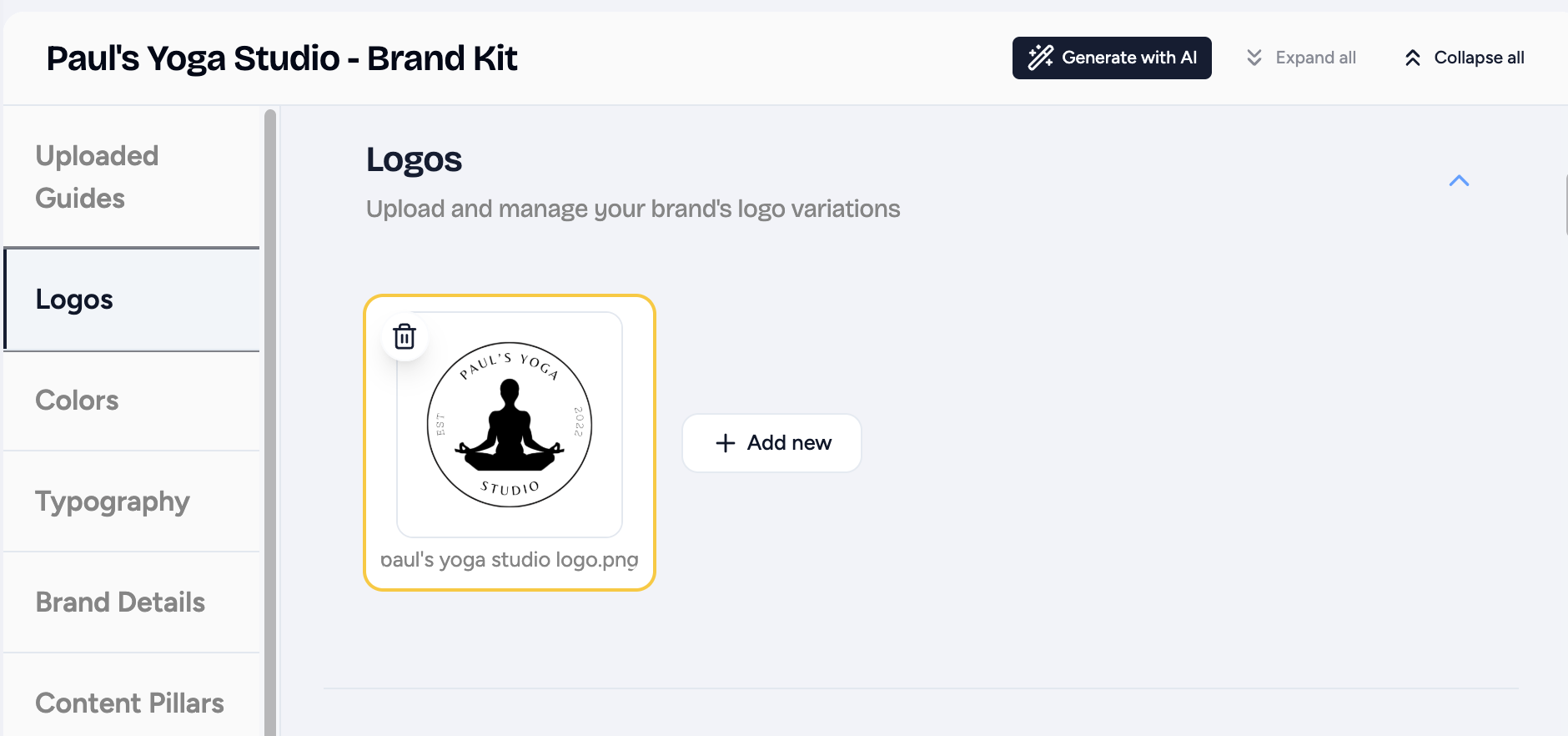
Include the variations you actually use day-to-day. Use the table below to decide which ones to upload.
| Variation | Purpose |
|---|---|
| Primary | Full logo with text and icon, for most uses |
| Icon only | Compact spaces (favicons, profile pictures) |
| Light version | For dark backgrounds |
| Dark version | For light backgrounds |
| Horizontal | Wide headers |
| Stacked | Vertical layouts |
Logo File Specs
Upload PNG files with a transparent background.
Enter Your Brand Colors
Add the exact hex codes from your brand guide (not approximations) for every brand color you use. A typical structure looks like this:
| Color | Use |
|---|---|
| Primary | Main brand color, CTAs, headers |
| Secondary | Supporting elements, backgrounds |
| Accent | Highlights, emphasis |
| Neutral | Text, backgrounds, borders |
| Success / Error | Status indicators |
Most brands work well with 3 to 5 core colors. Label each one clearly (for example, Primary Blue, not Color 1).
Set Your Typography
Choose a primary font for headlines and emphasis, and a secondary font for body text.
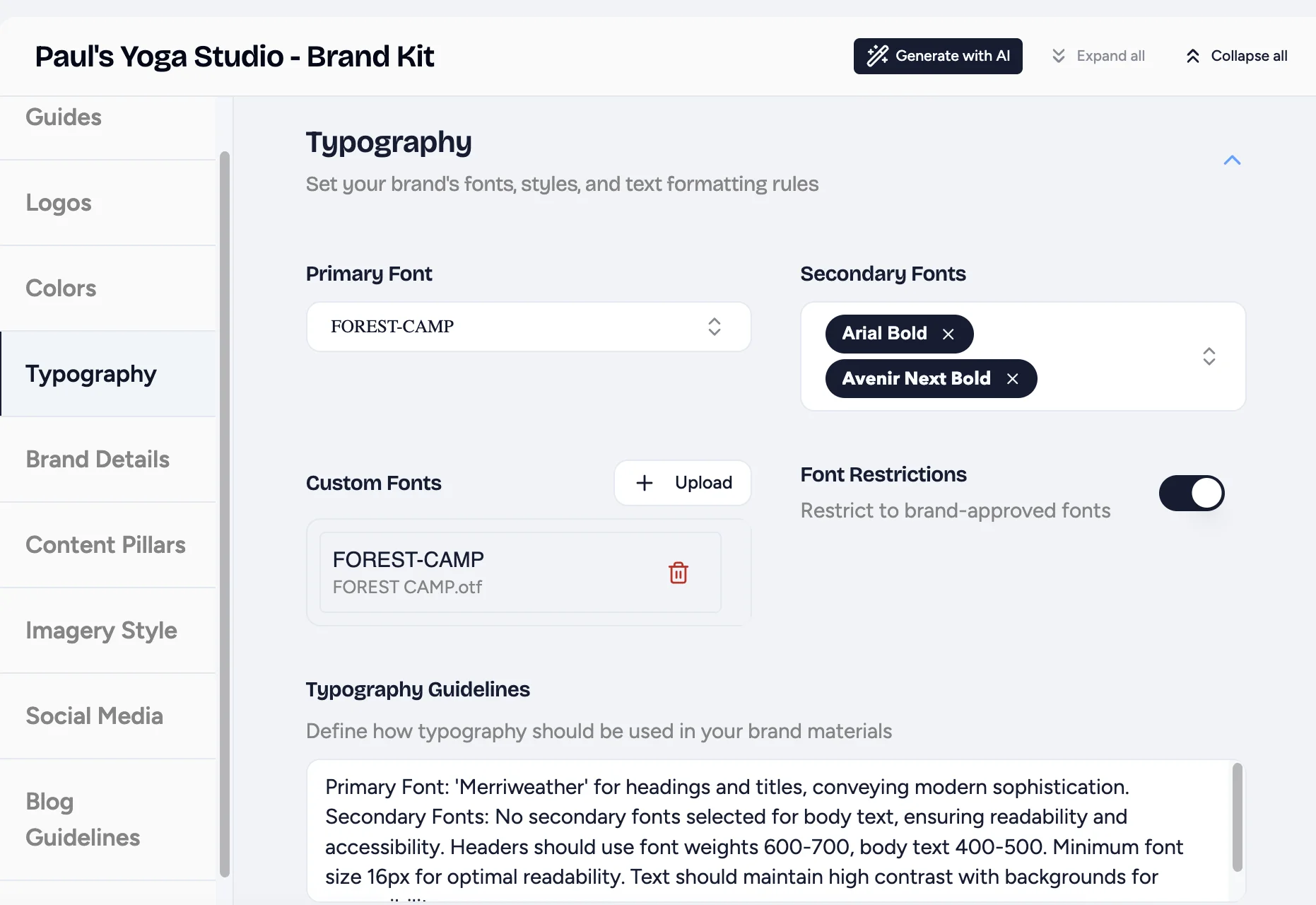
Common web fonts (Open Sans, Roboto, Lato, Montserrat) work out of the box. For custom fonts, upload TTF, OTF or WOFF files in the Typography section. Toggle Font Restrictions to make your brand fonts the default.
Define your Brand Voice
Brand Voice tells Luna AI how your brand speaks, so generated captions stay on-brand across the whole network.
Need Some Extra Help?
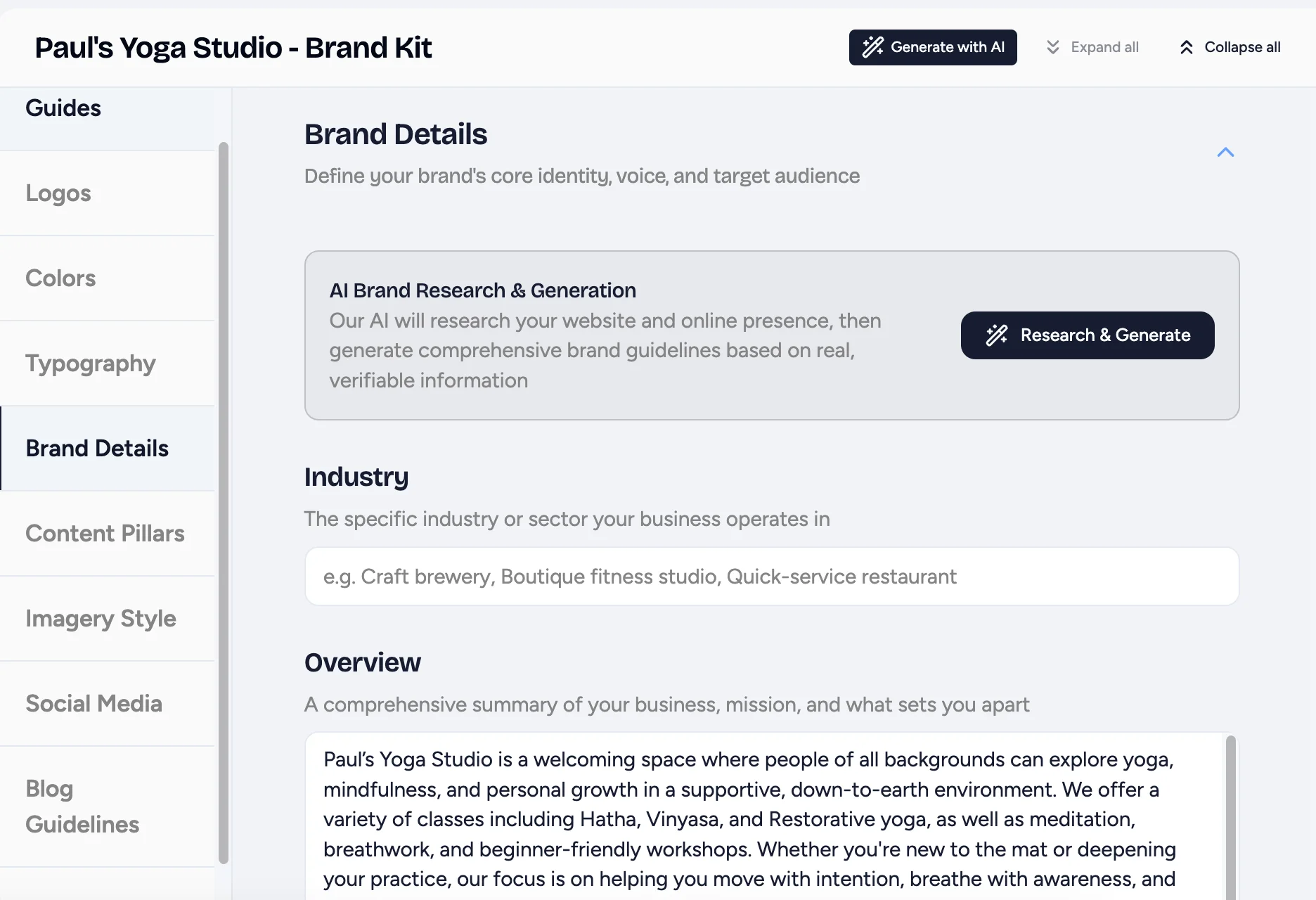
Use AI Brand Research & Generation for Faster Results
Our AI will research your website and online presence, then generate comprehensive brand guidelines based on real, verifiable information.
Write a Brand Description
Keep it concise. Describe what your brand does, who you serve and what makes you different.
Capture Voice & Tone
Describe how your brand voice sounds. The clearer you are, the more consistent Luna's output will be.
| Aspect | Example Phrasing |
|---|---|
| Tone | "Friendly, approachable, like a knowledgeable neighbor giving advice" |
| Personality | "Confident but humble, expertise without condescension" |
| Language level | "Plain English, avoid jargon" |
Describe Your Target Audience
Combine demographics, psychographics, locations and what your audience wants from your brand. The more specific you are, the better Luna's output.
Choose Your Content Pillars
Pick the 3 to 5 main themes that structure your content strategy. Common pillars include:
| Pillar | Description |
|---|---|
| Educational | Tips, how-tos, industry insights |
| Behind the scenes | Team culture, process, company news |
| Customer stories | Testimonials, case studies, success |
| Product / service | Features, benefits, use cases |
| Community | User-generated content, engagement, events |
Let AI Suggest Pillars
Click AI Generate Pillars for suggestions based on the brand details you've already entered.
Set Restrictions
List what franchisees need to avoid such as specific words (competitor names, jargon your audience doesn't know), tone pitfalls ("too salesy"), claims you can't make ("unverified statistics") and formatting rules ("no all-caps").
Set Content Guidelines
These are the standard franchisees need to follow when creating specific content types like imagery, post captions and blogs.
Define Your Imagery Style
Spell out the look and feel of your visuals, so every image or video stays on-brand.
| Element | Define |
|---|---|
| Subjects | People, products, environments, abstract |
| Mood | Bright and energetic, calm and professional, bold and dramatic |
| Composition | Centered, rule of thirds, negative space |
| Lighting | Natural, studio, dramatic shadows |
| Color treatment | Vibrant, muted, warm, cool |
| Avoid | Stock-photo cliches, low-quality, off-brand filters |
Set Social Guidelines
Describe your per-platform aesthetics and strategy (Instagram visuals, LinkedIn tone shift, TikTok content style, X cadence) plus your engagement rules (response time, escalation, hashtag count and placement and branded hashtags to always use).
Set Blog Guidelines
Cover four areas:
- Topics - core expertise areas, audience questions, trends and topics to avoid
- SEO keywords - primary, long-tail and local keywords, plus keywords to avoid
- Internal links - important pages to link to (services, about, contact) with consistent anchor text
- Style preferences - target word count, heading structure, image use and CTA placement
Let AI Analyze Your Brand
Already have a brand book? You can shortcut most of the aforementioned setup.
Generate With AI
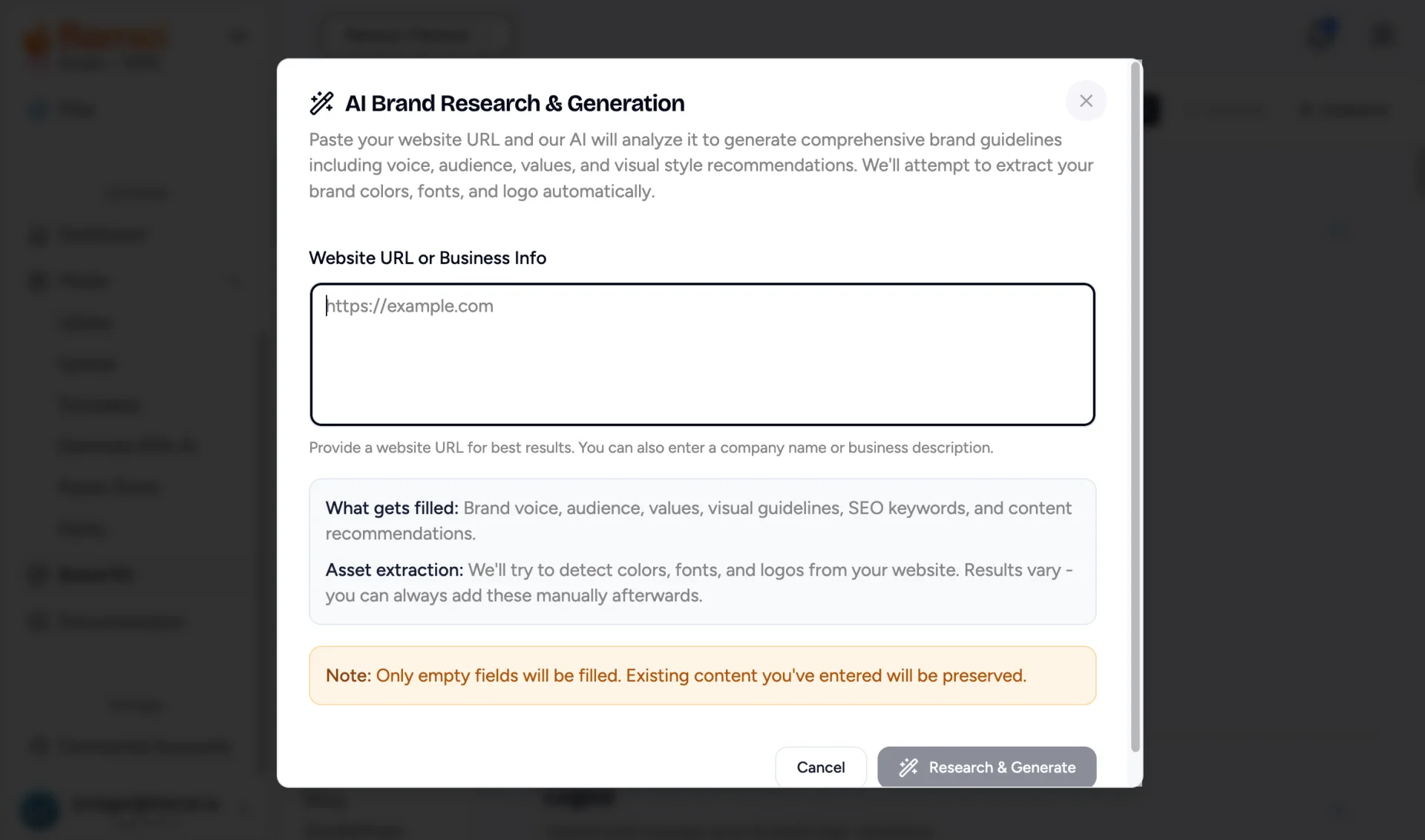
Click the Generate With AI button at the top of the Brand Kit page. Add your website URL and business information into the pop-up window.
Run Research & Generate
Click Research & Generate. The AI extracts colors, voice, content pillars and themes from your existing materials.
Review & Refine
Treat the result as a strong starting point, not the final word. Check every value against your real brand guide and adjust before saving.
Keep Your Brand Kit Healthy
Best Practices
- Be precise. Use the exact hex codes from your brand guide, not "close enough."
- Don't overload. 3 to 5 colors, 2 fonts and 3 to 5 pillars is plenty.
- Keep it current. Outdated guidelines create inconsistent content, so review the kit periodically.
- Test before rollout. Hub admins should test changes in a Workspace context before broad rollouts.
Custom Login Page (Hub admins)
Give your franchisees a branded sign-in page: your colors and a custom URL slug instead of the default Flamel login. Configure it in the Brand Kit.
Enable the Custom Login Page
Toggle Custom Login Page on to unlock the URL and color fields.
Set Your URL Slug
Enter a slug and Flamel builds the full address, for example https://studio.flamel.ai/login/your-slug. Use lowercase letters, numbers, and hyphens; keep it short and unique. Changing it later breaks existing bookmarks, so choose carefully.
Choose Your Colors
Set a primary color (buttons, links, accents) and a background color to match your brand.
Save and Preview
Save, then open the branded URL in a new tab to confirm the slug and colors render before sharing it with your network.
Related Articles
See how voice guidelines shape AI caption suggestions.
Use your brand colors, fonts and logos while creating content.
Apply brand elements automatically across reusable layouts.
Review social media posts against your brand guidelines before they are published.