Templates
Apply reusable on-brand layouts and caption structures to a post, or build your own to keep content consistent and fast.
Templates help you create consistent, on-brand content faster. Use pre-built layouts, graphics, and caption structures to create posts without starting from scratch.
Before You Start
Templates use colors, fonts, and branding from your Brand Kit. Images can be replaced using the Media Library. For best results, make sure both are configured before applying a template.
Applying a Template
Open the Template Library
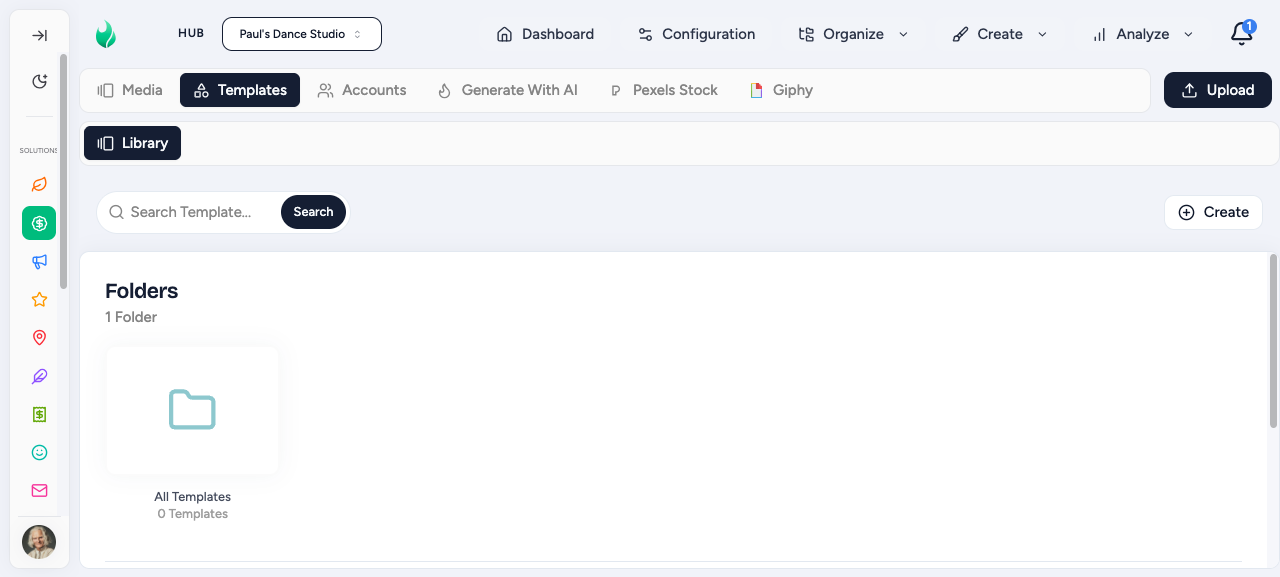
When creating a post, click Templates in the Post Editor to browse available templates.
Find a Template
Filter by platform to see templates sized for Instagram versus LinkedIn, or search by keyword to find templates for a specific purpose.
Preview and Apply
Click a template to preview it, then apply it to your post.
Customize the Content
Replace images, update text, and edit captions while maintaining the approved template structure.
Customizing Content
The Brand Kit colors and fonts stay locked unless your Hub allows editing them.
For Workspace Users
Hub-created templates appear alongside templates created within your workspace. You can customize the content while keeping the approved design structure or keep it as-is.
Create a Template
Hub Admins can create templates for the entire network. Workspace Owners can create templates for their own workspace.
Users with the right permissions can build templates for their own workspace.
Open Templates
Navigate to Templates in the sidebar.
Start a New Template
Click Create Template and design your layout and caption in the editor.
Define What Can Be Edited
Lock elements that should stay consistent (colors, logo) and make elements easy to edit that change each time (headlines, images).
Save the Template
Mark the template as reusable and save. It is now available the next time you create a post in this workspace.
Build a template once and distribute it to every workspace in your network. Hub templates appear in every workspace's library, keeping the brand consistent across the entire network.
Open Templates
Navigate to Templates in the sidebar.
Start a New Template
Click Create Template and design your layout and caption in the editor.
Define What Can Be Edited
Lock down the elements that should stay consistent (brand colors, logo placement, font choices) and make frequently changed elements easy to edit (headlines, images, specific details).
Save the Template
Mark the template as reusable and save. It then appears in every workspace's library across your network.
Template Design Tips
Effective templates provide enough flexibility for local customization while maintaining brand consistency.
Template Types
Flamel supports three template types. Pick the one that fits the job.
| Type | What it contains | Best for |
|---|---|---|
| Image template | Pre-designed graphic with editable text areas | Recurring promotions, announcements, quote posts |
| Caption template | Pre-written text structure with placeholder sections | Consistent messaging when different people post |
| Full Template | Image design plus caption text, ready to customize | Getting content out the door as fast as possible |
Best Practices
Create templates for recurring content such as promotions, events, testimonials, or monthly campaigns.
| Practice | Why it Help |
|---|---|
| Build templates for your most common content types | Weekly promotions or monthly spotlights pay back the setup time fast |
| Keep templates current | Outdated branding, discontinued products, or expired promo language create problems; review and retire periodically |
| Match types to ownership | Hubs distribute network-wide templates; workspaces build local ones that appear alongside them |