Creating Posts
Create and publish content across your connected social media accounts using the Post Editor.
Add media, write a caption, choose where the post publishes, then schedule or publish it.
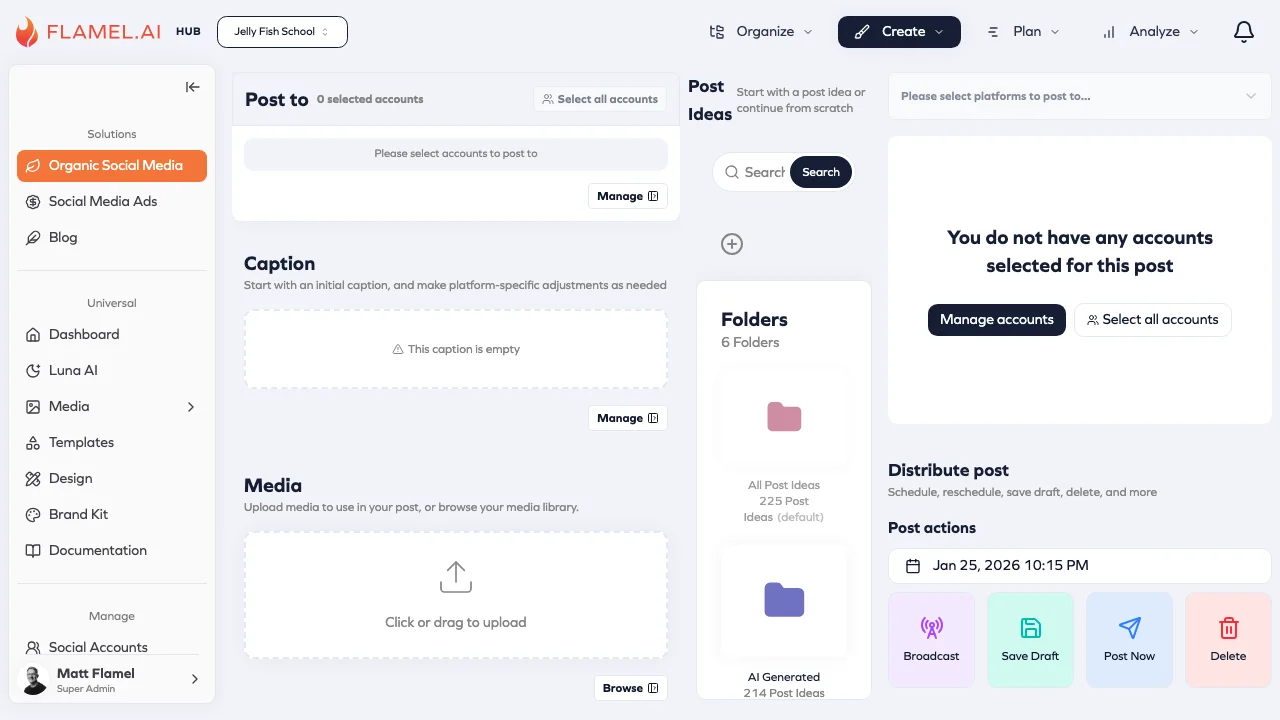
Add Media
Upload images or videos to begin building your post.
Media Guidelines:
- Images can be combined into a carousel
- Videos are one per post
- Drag thumbnails to reorder a carousel
- Use the image edit icon to crop or add text
Write Your Caption
Enter the caption that will appear with your post.
You can:
- Write the caption manually.
- Use Luna to generate ideas, rewrites, hashtags, or caption variations.
- Customize captions for specific platforms if needed.
Watch the Character Count
Each platform has its own limits. If you get a warning, shorten the caption before publishing.
Hub Broadcasts Variables
When creating a broadcast, you can personalize content using variables that automatically populate location-specific information.
Examples include:
- Location Name
- City
- Phone Number
- Custom Offer Text
This allows each workspace to receive localized content while using a single broadcast.
Choose Where to Post
Choose the account types and the workspaces that should receive the broadcast.
Choose from the connected accounts that belong to your workspace.
Configure Platform Settings
Some platforms support additional publishing options.
Available settings may include:
- Alt text
- Tags
- Location
Preview Your Post
Review your content before publishing or scheduling.
Check that:
- The layout appears correctly
- The caption displays as expected
- Carousel images are in the correct order
- Video thumbnails look appropriate
Distribute Post
Choose when your content should be published. Available actions include:
- Broadcast the post to multiple workspaces (Hub Admins)
- Save as Draft to finish later
- Publish Now to post immediately
- Delete the post
This makes it easier to scan the Content Calendar.