Posting Stories
Create and publish Stories to your connected social media accounts using the Post Editor.
Stories share timely updates, promotions, behind-the-scenes content, and other short-form media. Create, schedule, and publish them from the same Post Editor you use for regular posts.
Before You Start
Before creating a Story:
- Connect the social media accounts you want to publish to.
- Make sure your media meets the platform's Story requirements. Vertical images and videos (9:16) generally provide the best results.
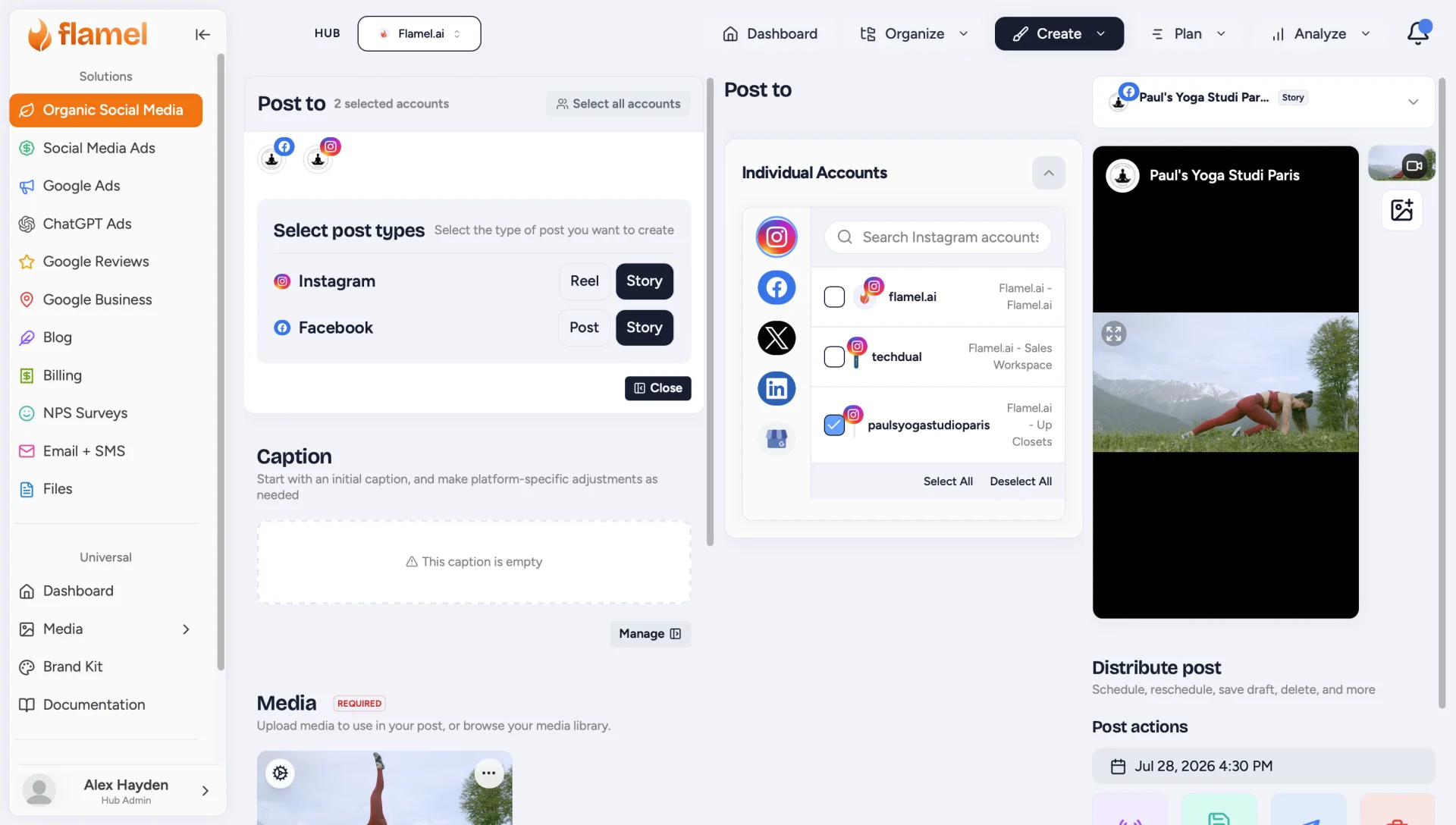
Create a Story
Open the Post Editor
Open the Post Editor by clicking Create, then New Post, or by selecting an empty day on the Content Calendar.
Upload Your Media
Upload an image or video, or select existing media from your Media Library.
Note
Stories require media. You cannot publish a Story without an image or video.
Choose Where to Publish
In the Post To section:
- Select the social media accounts you want to publish to.
- Choose the supported platform(s).
- Change the Post Type to Story.
Preview Your Story
Review your Story to make sure your media appears correctly before publishing.
Schedule or Publish
When you're ready, choose one of the following:
- Publish Now to post immediately.
- Schedule to publish at a future date and time.
- Save as Draft to finish your Story later.
Best Practices
- Use vertical media whenever possible for the best viewing experience.
- Keep text easy to read and avoid placing important information near the edges of the image.
- Use Stories for timely updates, promotions, events, and behind-the-scenes content.