Broadcasts
Create a single post and distribute it across multiple workspaces from your Hub.
For Hub admins
Workspaces cannot edit broadcasts. They appear read-only on the workspace calendar. If you want workspaces to customize the content, use a Template instead.
How Broadcasts Work
A broadcast lets you write one post and send it to many workspaces at once.
- A Hub Admin creates a broadcast in the Post Editor.
- Flamel distributes a copy of the post to each selected workspace.
- Each workspace publishes the post using its own connected social accounts.
- Variables are replaced with location-specific information before publishing.
Creating a Broadcast
The broadcast editor works like the regular post editor, with three extra options: who receives it, which account types it targets, and when it publishes.
Open the Broadcast Editor
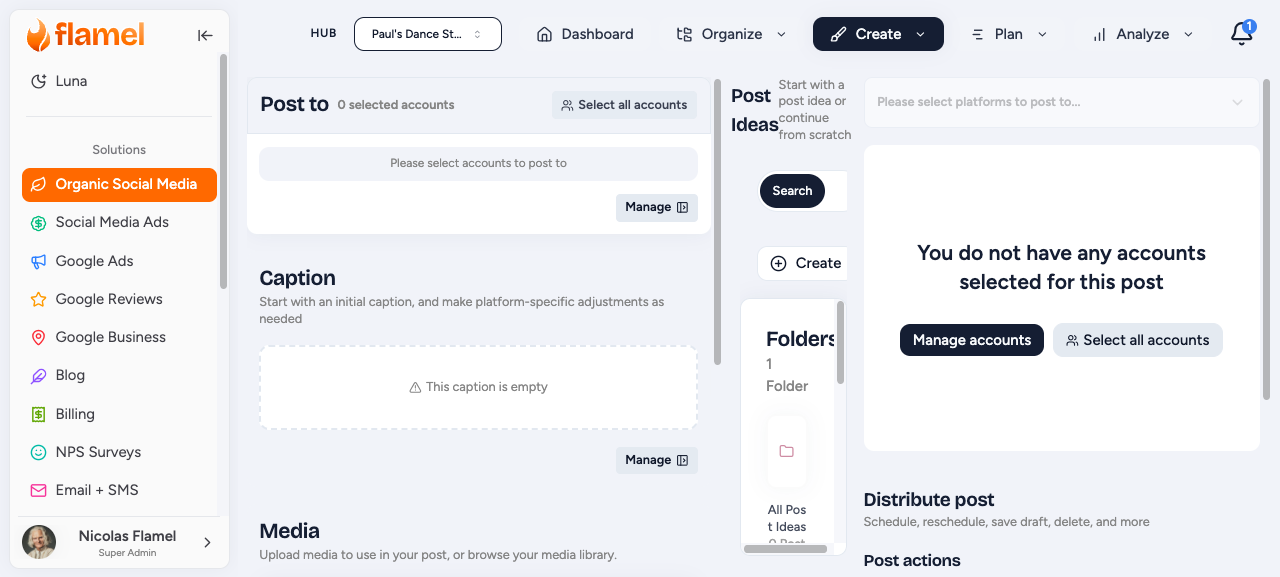
Click New Broadcast
Click Create in the top navigation and select New Broadcast.
This opens the Post Editor, along with additional options for selecting recipients, account types, and publishing schedules.
Choose Which Workspaces Receive It
Pick your audience for this broadcast:
- All workspaces for network-wide announcements.
- Specific groups for region-specific or tier-specific campaigns.
- Selected workspaces for one-off, targeted broadcasts.
- Exclude to remove specific workspaces from any of the selections above.
Choose the Account Types
You pick account types (Instagram, Facebook, LinkedIn), not specific accounts. Each workspace's account of that type receives the broadcast.
Missing Platforms Are Skipped
If a workspace does not have a selected platform connected, that version of the broadcast will be skipped for that workspace.
Set the Timing
Choose how the broadcast publishes across your workspaces:
- Same Time: Publish simultaneously across all workspaces.
- Staggered: Spread publishing over a selected time window. This avoids an "obviously automated" feel across the network.
- Local Time: Publish at the same local time in each workspace's timezone.
Variables Section
Use variables in your copy so each workspace's version fills in its own details at publish time:
code{{location.name}} {{location.city}} {{location.state}}{{location.phone}} {{location.address}} {{location.website}}{{custom.<field_key>}}
For example, this template:
codeVisit {{location.name}} in {{location.city}} for our summer sale!Call {{location.phone}} to learn more.
resolves for the Downtown Store in Chicago as:
"Visit Downtown Store in Chicago for our summer sale! Call 312-555-0100 to learn more."
See Custom variables for the full list of fields you can use.
Preview Variables
When adding variables click any variable to preview how it will resolve for different workspaces. If a workspace variable is missing or incorrect, Hub admins can update it directly from the preview without leaving the editor.
Preview Before Sending
Click Preview, then pick a workspace to see exactly what that location will post. Confirm the variables resolve correctly for a few different workspaces before you schedule or send.
Broadcast Statuses
After scheduling or publishing a broadcast, you can monitor its progress using the following statuses:
| Status | Meaning |
|---|---|
| Scheduled | Waiting to publish |
| Publishing | Sending to workspaces |
| Published | Done |
| Partial | Some workspaces failed (usually expired connections) |
| Failed | Couldn't complete |
Troubleshooting Partial Failures
Open the broadcast to see which workspaces failed. The most likely cause is an expired connection. Ask those owners to reconnect, then optionally retry just the failed workspaces.
Broadcasts vs Templates
Both push Hub content to workspaces, but they serve different goals. Use this comparison to decide which fits your campaign:
| Broadcast | Template |
|---|---|
| Hub controls content | Workspace customizes |
| Auto-distributed | Workspace chooses to use |
| Same message everywhere | Adapted per location |
| Hub-driven campaigns | Workspace creativity |
Not sure whether to use a Broadcast or Template?
Use a Broadcast when the Hub should control the final content.
Use a Template when locations should customize the content before publishing.
Workspace Broadcast Permissions
Regional managers, who run multiple sub-workspaces, can be granted permission to create broadcasts for their own sub-workspaces.
To enable this setting:
- Navigate to Hub Settings.
- Select Permissions.
- Enable Allow Workspace Broadcasts.