How to Change Tags and Alt Text
Add or update tags and alt text for your media to make content easier to organize, search, and publish.
Edit tags and alt text when you upload media, in the Media Library, or while creating a post.
Edit from the Media Library
Use this option to update media you've already uploaded.
Open the Media Library
Go to Organize > Media.
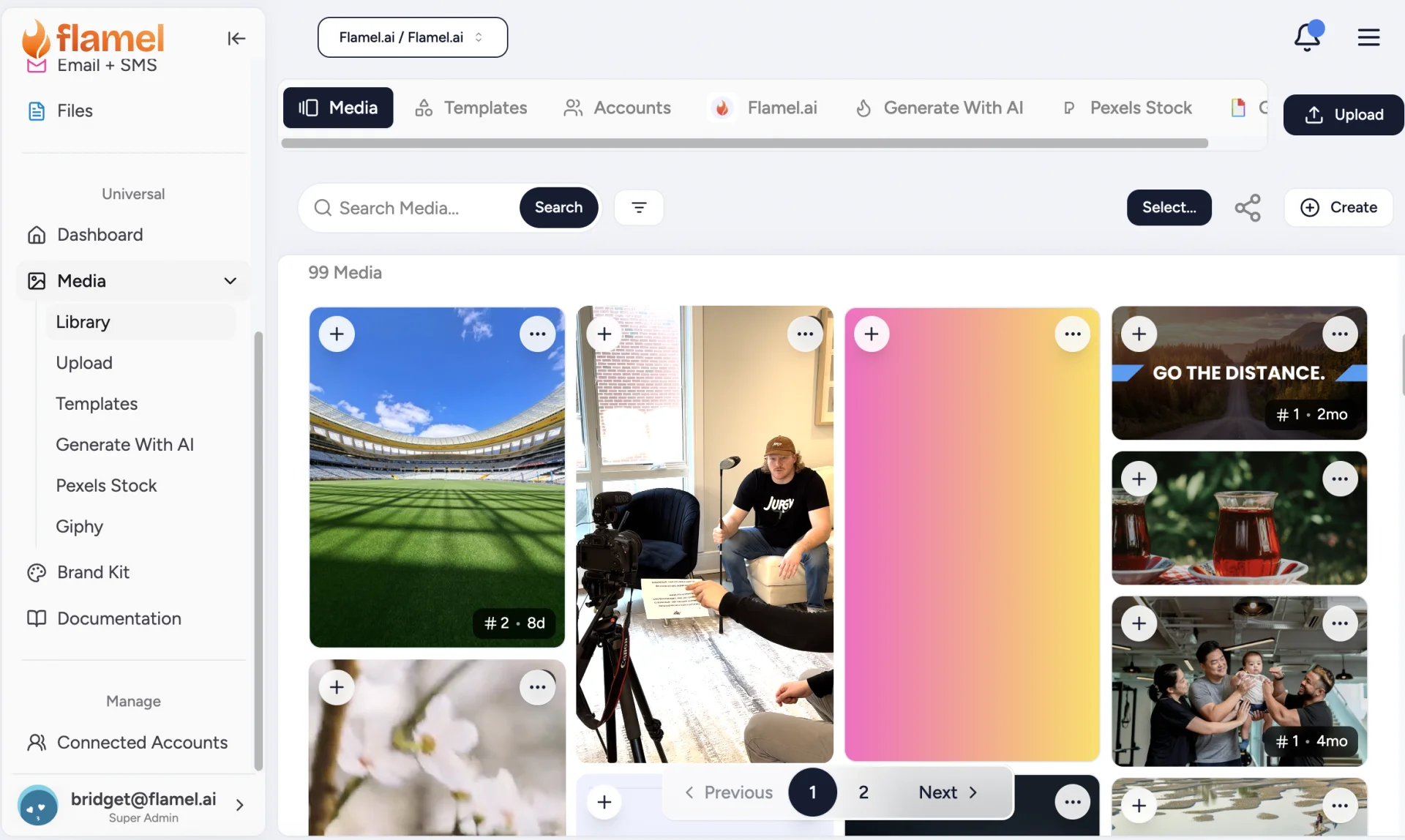
Open the Media
Find the image or video you want to edit. Click the three-dot menu in the top-right corner of the media, then select View Full Size.
Edit Tags and Alt Text
Update the Tags and Alt Text fields as needed.
Save Your Changes
Save your changes before closing the media.
Edit While Creating a Post
Use this option when adding media to a new post.
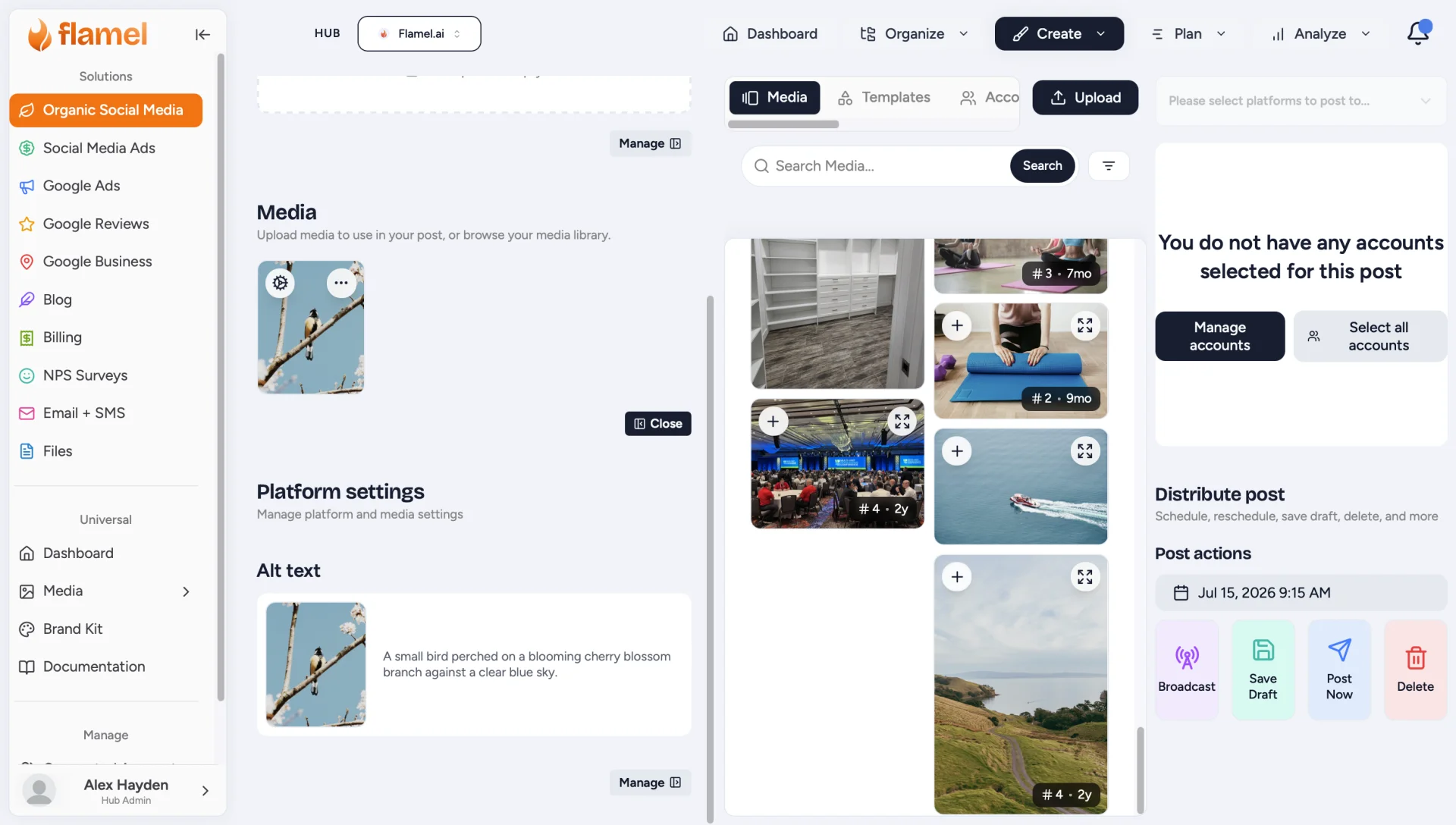
Add Your Media
Upload new media or select existing media from your Media Library.
Open Platform Settings
Select the platform you're publishing to, then open the Platform Settings section.
Edit the Alt Text
Enter or update the Alt Text for the selected media.
Add Tags and Alt Text During Upload
Use this option when uploading new media to your library.
Open the Media Library
Go to Organize > Media.
Upload Media
Click Upload and select the images or videos you want to add.
Add Tags and Alt Text
After the upload finishes, enter Tags and Alt Text for each file.
Save
Click Save All to add the media to your library.
Why Use Tags and Alt Text?
Tags:
- Organize your media library.
- Make images and videos easier to find with search.
- Group similar content together.
Alt Text:
- Improves accessibility for people using screen readers.
- Provides a description of your media for supported social media platforms.
- Helps ensure your content is more inclusive.