Post Editor
Build, schedule, and publish posts across every connected platform from one composer.
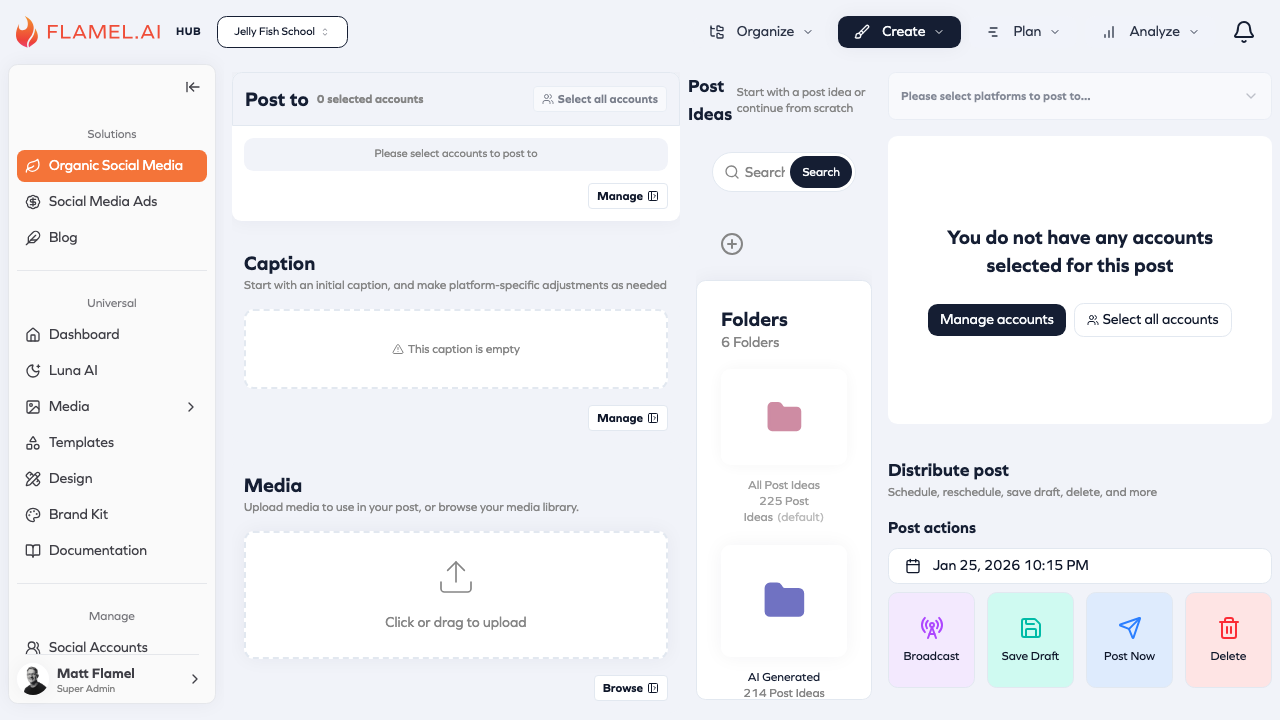
The Post Editor creates, schedules, and publishes posts across your connected social accounts. Add media, write captions, pick where it posts, preview it, and choose when it goes live.
Before You Start
Connect the social media accounts you want to publish to before creating a post. See Social Accounts for instructions on connecting Facebook, Instagram, and other platforms.
Navigating the Post Editor
Opening The Post Editor
- Click an empty day on the Content Calendar to open the post editor with that date already filled in.
- Click "Create" on the top bar and then click "New Broadcast" on the drop down menu.
Post To Section
Select the social media accounts and platforms you want to publish to. Depending on the platform and post type, additional options such as alt text, tags, locations, or platform-specific settings may be available.
Captions Section
Write the caption and hashtags for your post. Customize the caption per platform if needed.
Media Section
Upload images or videos directly, or select existing media from your media library.
Preview Section
Preview how your content will appear on each platform before publishing or scheduling.
Distribute Post Section
Choose when your content should be published. Available actions include:
- Broadcast the post to multiple workspaces (Hub Admins)
- Save as Draft to finish later
- Publish Now to post immediately
- Delete the post
This makes it easier to scan the Content Calendar.
Related Articles
Learn how to create, schedule, and publish content using the Post Editor.
Manage platform-specific options such as alt text, tags, locations, and cross-posting settings.
Hub admins: Create one post and distribute it across multiple workspaces using location variables.
Save unfinished posts and come back to them when they're ready.