Design Editor
Crop, add text, apply filters and edit images on brand without leaving Flamel.
Before You Start
Save your colors and fonts in your Brand Kit first. They appear automatically in the editor's pickers, so everything you design stays on-brand without extra setup. Start from a high-resolution source image too, since the editor can crop and adjust but cannot invent detail that was not there.
The Design Editor lets you crop, add text, filter, and decorate an image without leaving Flamel. Follow the full edit below, then use the crop presets and tool list for quick lookup.
Edit an Image
Open the Editor
There are two ways in, so pick whichever matches where you already are:
- From the Media Library: Open the library, click the three dot menu any image, then click Edit.
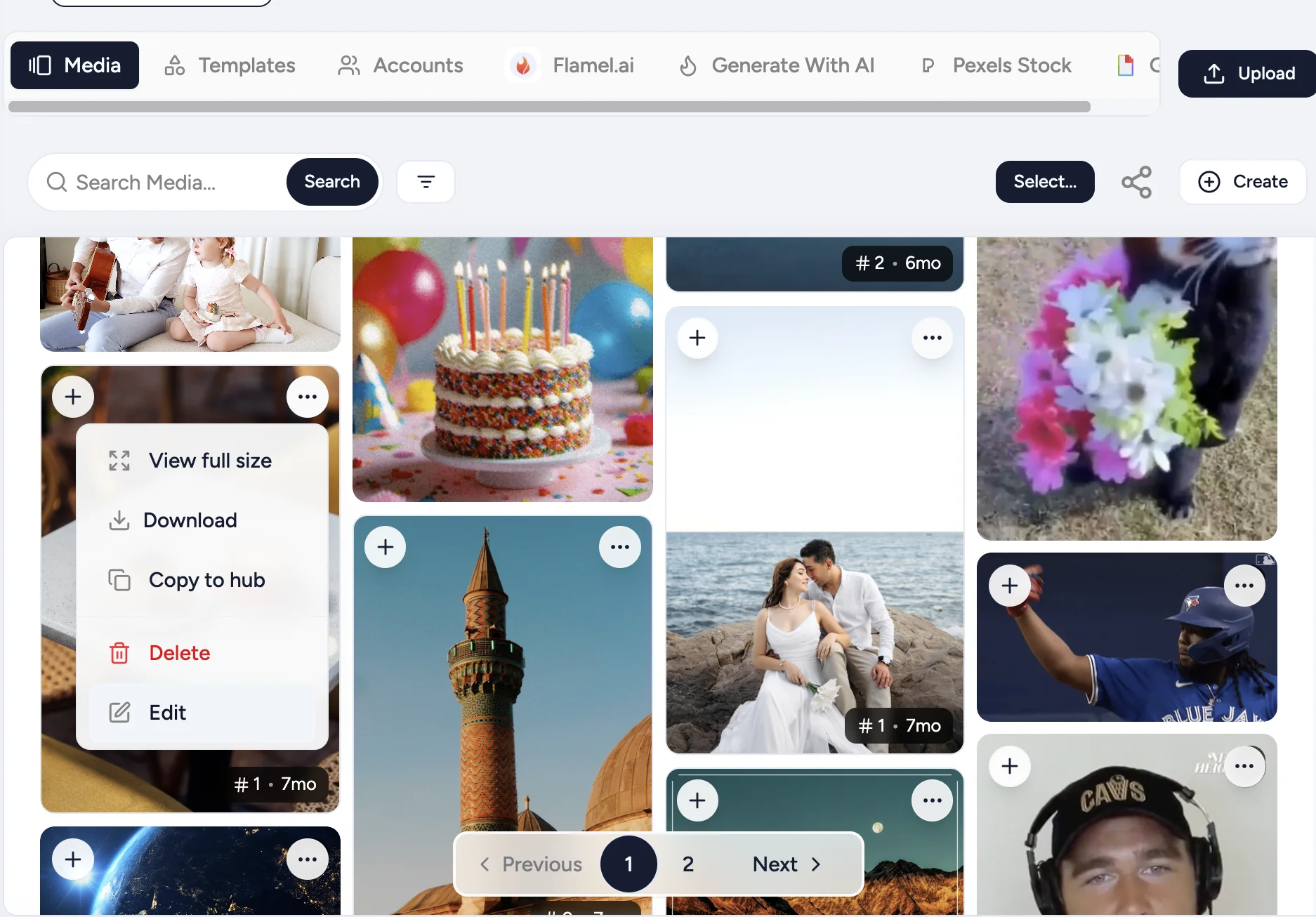
- From a post or template: While editing the post, click the Edit icon on any attached image to open it with that image loaded.
Crop to the Right Size
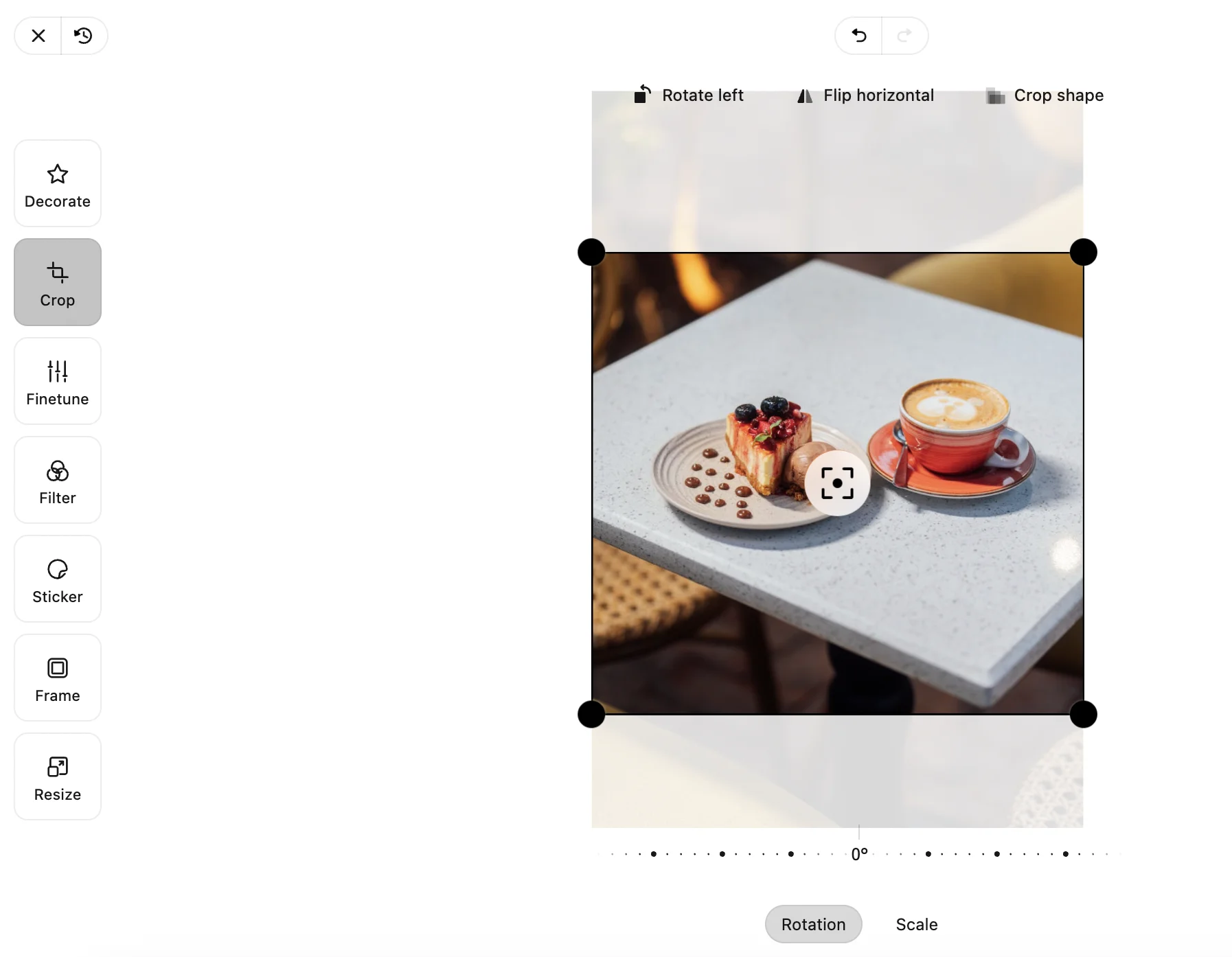
Drag the crop handles to frame the shot by hand, or pick a preset to match a platform's preferred dimensions. See the crop presets below for the full list.
Add & Style Text
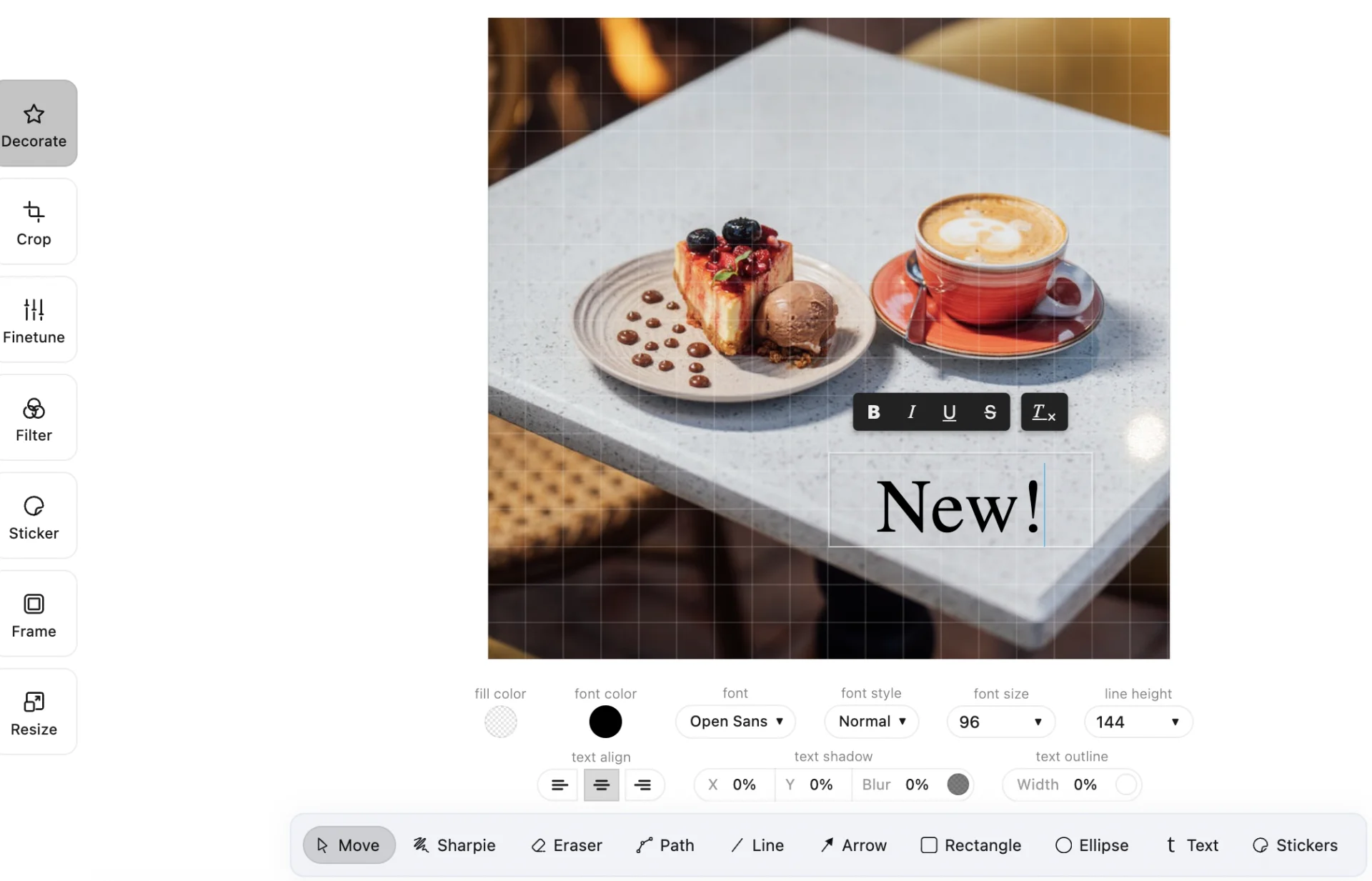
Click the text tool, type your copy, then drag the layer into position. Choose one of your brand fonts (pulled from your Brand Kit) or a web font. Add a shadow or outline so text stays legible over busy backgrounds, and size it larger than you think you need, since mobile screens are small.
Apply Filters & Adjustments
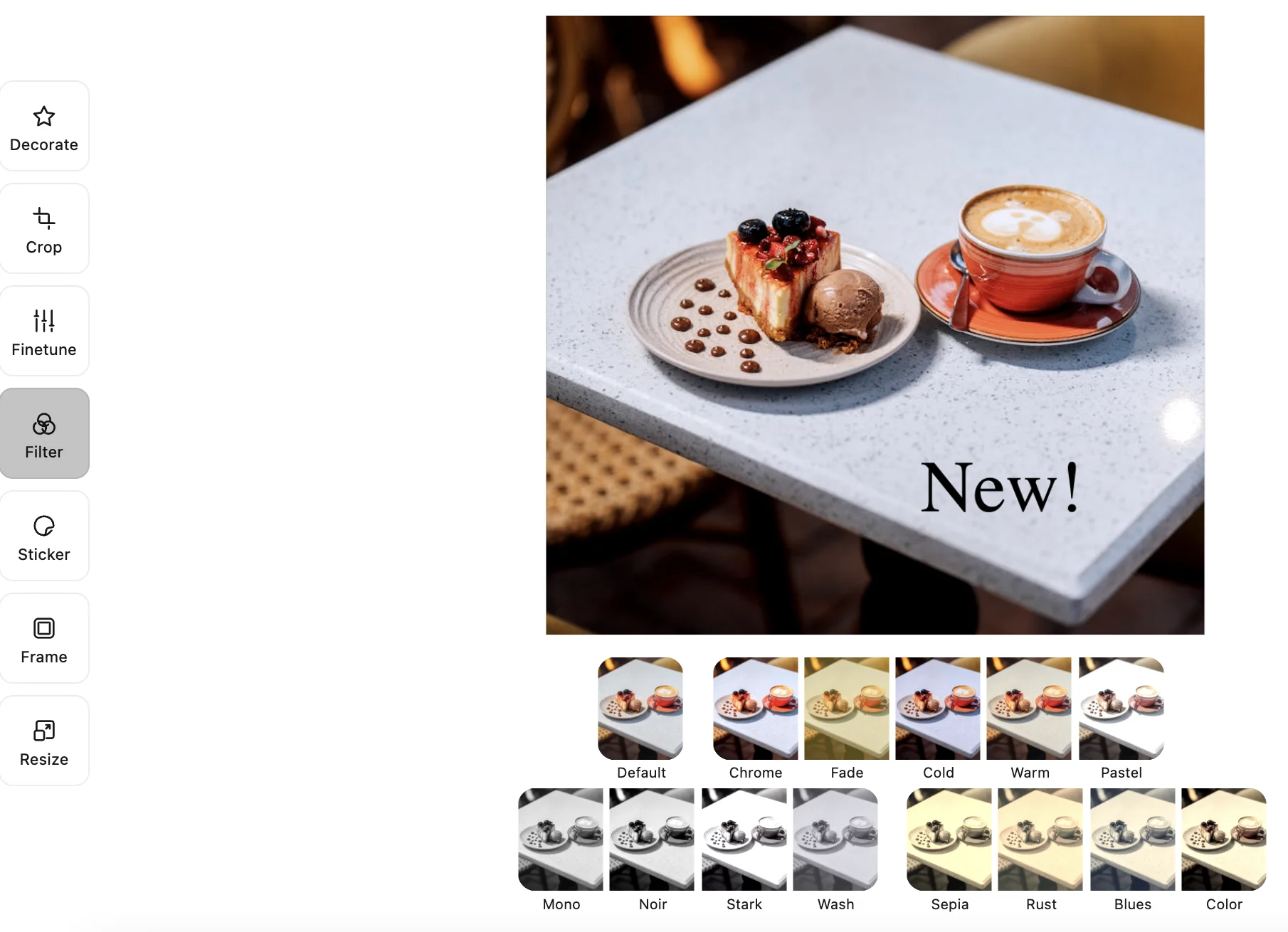
Use a preset filter for an instant mood, or open the manual sliders to fine-tune brightness, contrast, saturation and warmth. Once you find a combination you like, reuse it across your posts for a consistent look across the feed.
Add Shapes, Stickers & Drawings
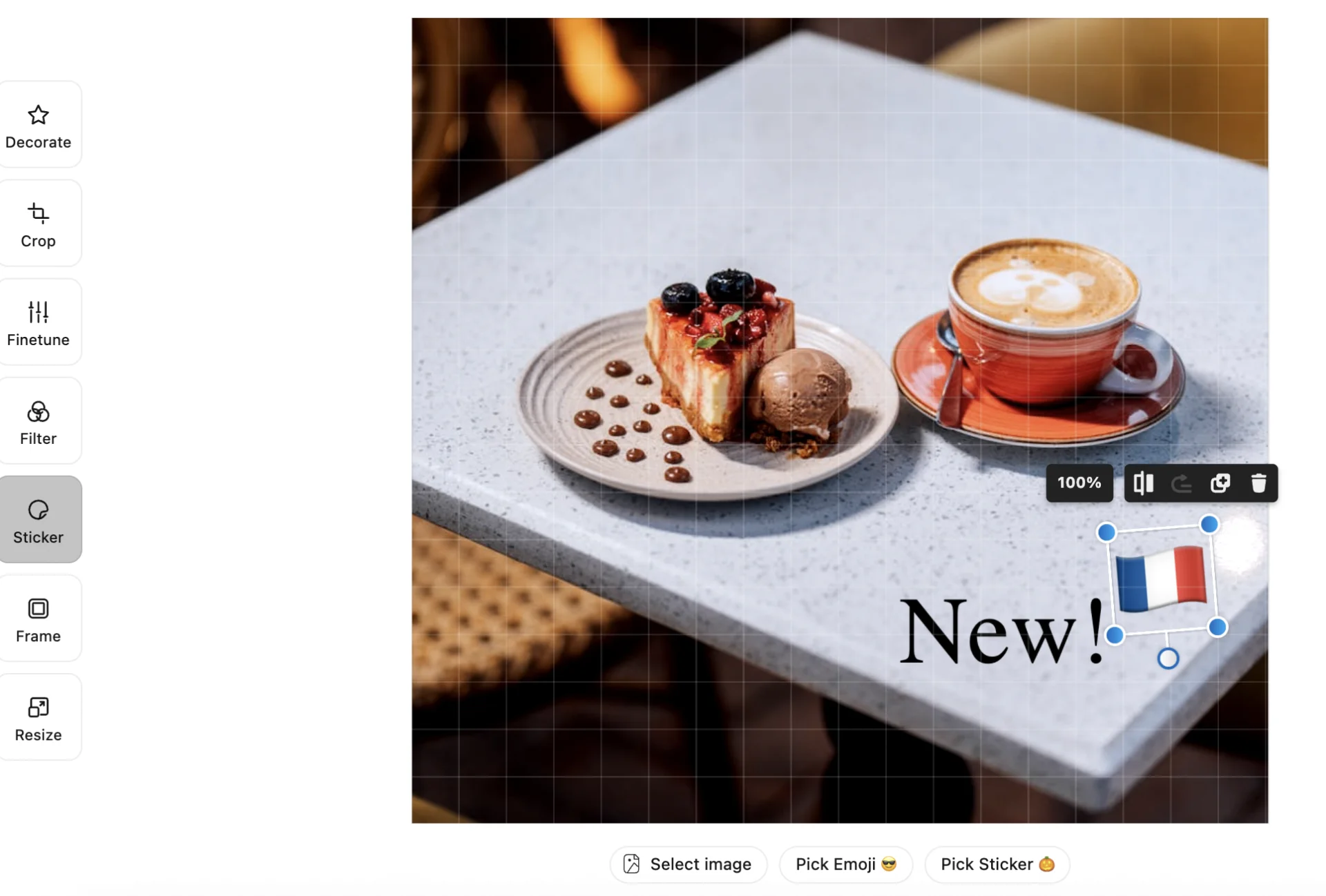
Drop in geometric elements for frames or highlights, add pre-made stickers or use freehand drawing for annotations and signatures. Layer elements with bring-forward and send-backward to control what sits on top.
Save Your Work
When you are done, click Save Media and the new image will be added to your Media Library.
Edit the Same Thing Often? Build a Template!
If you make the same kind of edit again and again, save it as a Template instead of redoing it by hand each time.
Design Reference Guide
Crop Presets
| Preset | Ratio | Use For |
|---|---|---|
| Square | 1:1 | Instagram feed, Facebook profile |
| Portrait | 4:5 | Tall Instagram |
| Story | 9:16 | Stories, Reels, TikTok |
| Landscape | 16:9 | YouTube thumbnail, X |
| Facebook link | 1.91:1 | Facebook link previews, LinkedIn |
Editing Tool Lingo
| Tool | What It Does |
|---|---|
| Crop | Reframe by hand or to a platform preset |
| Text | Add styled text layers in brand fonts |
| Filters | Preset moods plus manual brightness, contrast, saturation and warmth sliders |
| Shapes and stickers | Geometric frames, highlights and pre-made stickers |
| Drawing | Freehand annotations and signatures |
| Layers | Bring-forward and send-backward ordering |