Profile Settings
Set your password, update your name, email, and picture, manage notification emails, and control app preferences from your personal Profile page.
These settings are yours alone. Everything on this page is per user, not workspace wide, so changing yours never affects anyone else.
Open your profile picture at the bottom of the left sidebar, then select Profile. The page is split into two columns: your account details on the left, your email and app preferences on the right.
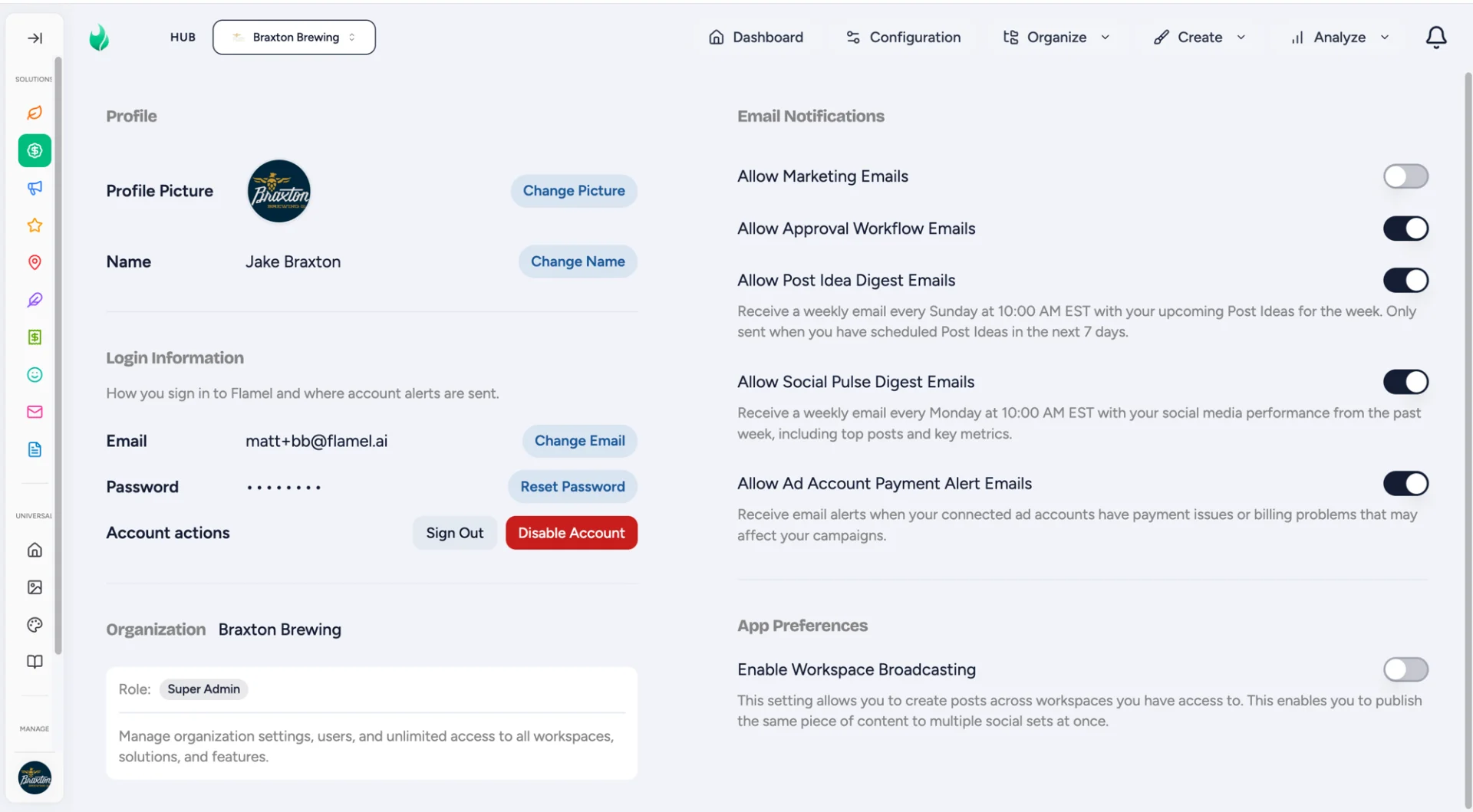
Profile
The top of the left column is your identity in Flamel: how teammates see you across the app.
Change Your Profile Picture
Click Change Picture
Next to your current picture, click Change Picture and choose an image file.
Crop and Save
Position and crop the image in the editor, then save. Square images look best because Flamel displays your picture as a circle.
Change Your Name
Click Change Name next to your display name, update your first and last name, and save. This is the name that appears on your posts, approvals, and anywhere your account shows up for teammates.
Login Information
This section controls how you sign in and where account alerts are sent.
Change Your Email
Your email is both your login and the address where important account notifications land, so it has to stay unique.
Click Change Email
In the Email row, click Change Email and enter your new address.
Save
If the address is already in use by another Flamel account, you will see an inline error and the form stays open so you can try another. Otherwise your email updates right away.
Reset Your Password
Click Reset Password in the Password row, enter a new password, and save. If you skipped password setup on your first sign-in, set one here. Use something strong and unique, and change it any time you think it has been shared.
Can't sign in at all?
If you are locked out before you reach this page, see Sign-in Links and Login Help to recover access.
Account Actions
Two buttons sit at the bottom of this section:
- Sign Out logs you out of Flamel on this device. Your account and all your content stay exactly as they are.
- Disable Account deactivates your account. To confirm, you type your email address into the prompt. Reactivating later means re-verifying your email, so only use this if you really mean to leave.
Hub
This card shows which hub you belong to, your role, and what that role can do. Most people only ever belong to one hub.
- Role appears as a badge (for example, Super Admin), with a short description of the access it grants underneath.
- If you are not the hub owner, a Leave button appears. Leaving removes your access, and you would need a fresh invite to return, so it asks you to confirm with your email first.
Hub owners do not see a Leave button, since a hub always needs an owner.
Email Notifications
The right column is where you decide which emails Flamel sends you. Each setting is a simple on or off toggle. Turning one off stops only that type of email, never the others.
- Allow Marketing Emails turns on product news and promotional emails. This one is off by default.
- Allow Approval Workflow Emails sends a message when content is submitted to you for review or when your own submission moves through the approval flow.
- Allow Post Idea Digest Emails sends a weekly summary every Sunday at 10:00 AM EST of the Post Ideas you have scheduled for the coming week. It only arrives when you actually have ideas scheduled in the next 7 days.
- Allow Social Pulse Digest Emails sends a weekly recap every Monday at 10:00 AM EST of your social performance from the past week, including top posts and key metrics.
- Allow Ad Account Payment Alert Emails warns you when a connected ad account has a payment or billing problem that could pause your campaigns.
Some Toggles Depend on Your Access
The Post Idea and Social Pulse digests only appear if your account has organic social management enabled. If you do not see them, your plan or workspace does not include that feature.
App Preferences
Enable Workspace Broadcasting
Turn this on to create a single post and publish it across multiple workspaces you have access to at once, instead of rebuilding the same content in each one. It is off by default. Leave it off if you only ever post to one workspace at a time.
More In The Profile Menu
A few related controls live alongside Profile in the same profile picture menu at the bottom of the left sidebar:
- Theme switches between Light, Dark, and System (matches your device). Your choice is saved to your account and follows you across devices.
- Report a Bug opens a form to tell us when something breaks. The best reports say what you were trying to do, what happened instead, the steps to reproduce it, your browser and version, and a screenshot if the issue is visual.