Drafts
Save unfinished posts, return to them later, and manage draft content before publishing.
Drafts save work in progress without scheduling or publishing it. Use them to collaborate, gather approvals, or finish a post later.
Before you start
Drafts are only visible within the workspace where they were created.
Saved drafts appear gray on the Content Calendar.
Save a Draft
Create or Edit a Post
Begin creating a post in the Post Editor.
Save as Draft
Click "Save as Draft" to save your work.
The post will be stored in your Drafts library until you publish or delete it.
Auto-Save
Flamel automatically saves your work periodically while you are editing a post.
Find and Edit Drafts
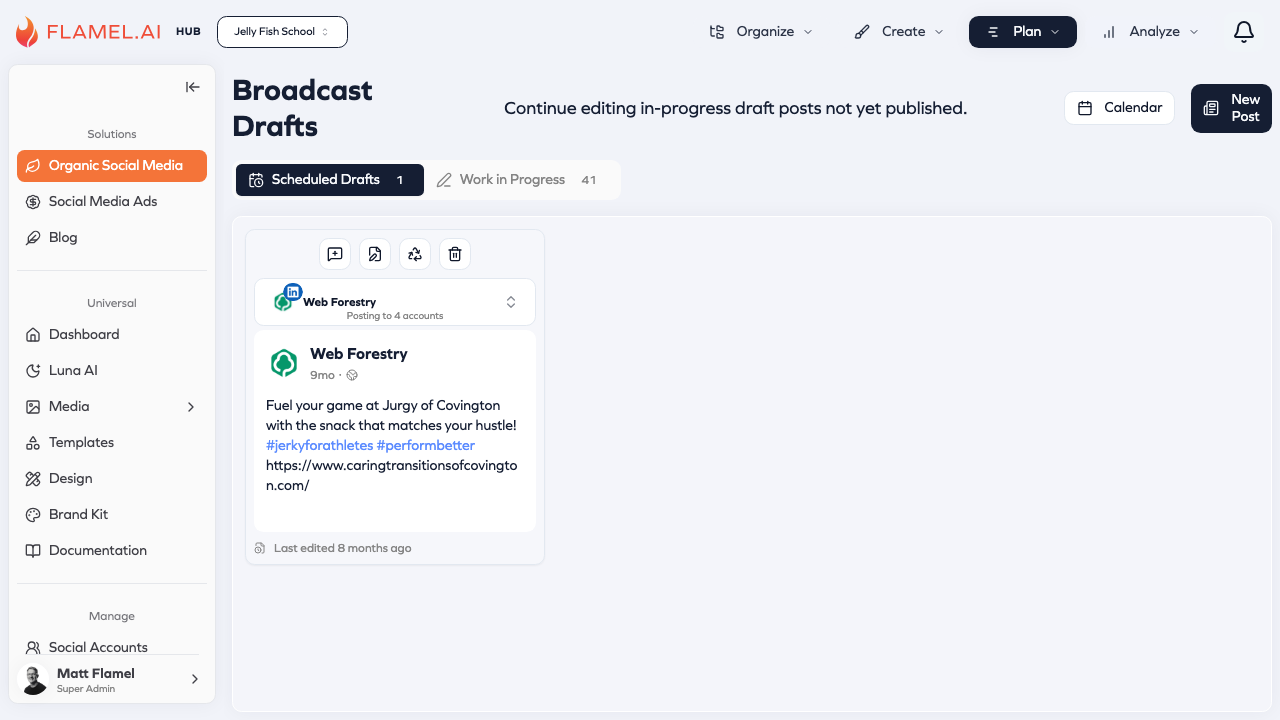
Open Drafts
Navigate to:**** Organic Social > Plan > Drafts
Search and Filter
Use search and filters to quickly find drafts by content or creation date.
Continue Editing
Select any draft to reopen it in the Post Editor.
All previously saved content, media, and settings will remain intact.
When finished, you can:
- Save as Draft again
- Schedule the post
- Publish immediately
Delete a Draft
How you remove a post depends on its current state. Pick the right path below.
Open the Draft
Find the draft in Plan, then Drafts and click it to open it in the Post Editor.
Delete and Confirm
Click the delete option, then confirm.
Drafts Delete Permanently
Deleted drafts are permanently removed and cannot be recovered.
Find the Scheduled Post
Locate the post on your Content Calendar or in the post list.
Open and Delete
Click the post to open it, then click delete.
Confirm
Confirm when prompted.
Deleted Scheduled Posts go to Trash
Deleted scheduled posts move to Trash, so you can recover them if you change your mind.
Delete it on the Social Platform
Posts that have published cannot be deleted from Flamel's calendar because they now live on the social platform itself.
Delete the post directly on the social platform (Facebook, Instagram, etc.).
The post still appears in your Flamel history for reporting purposes, even after you remove it from the platform.
Recover Scheduled Posts
If you accidentally delete a scheduled post, you can get it back from Trash.
Go to Trash
Navigate to: Plan > Trash
Find and Restore
Find the post you want to recover and click Restore.
Trash Retention
Posts remain in Trash for up to 30 days before being permanently deleted.
Post Recovery Reference
Where each post goes when it's deleted.
| Post Type | When Deleted | Can It Be Recovered? |
|---|---|---|
| Draft | Permanently removed | No |
| Scheduled (not yet published) | Moved to Trash for 30 days | Yes |
| Published | Remains in Flamel history for reporting | No |