Integrations
Connect a third-party system once, keep the sync healthy, and know what each status means.
For Hub Admins
Integrations are configured at the Hub level. When you connect a tool here, the connection supports the whole network.
Use Integrations when you want Flamel to pull in customer, location, or scheduling data from another system instead of managing it manually.
Connect an Integration
Open Integrations
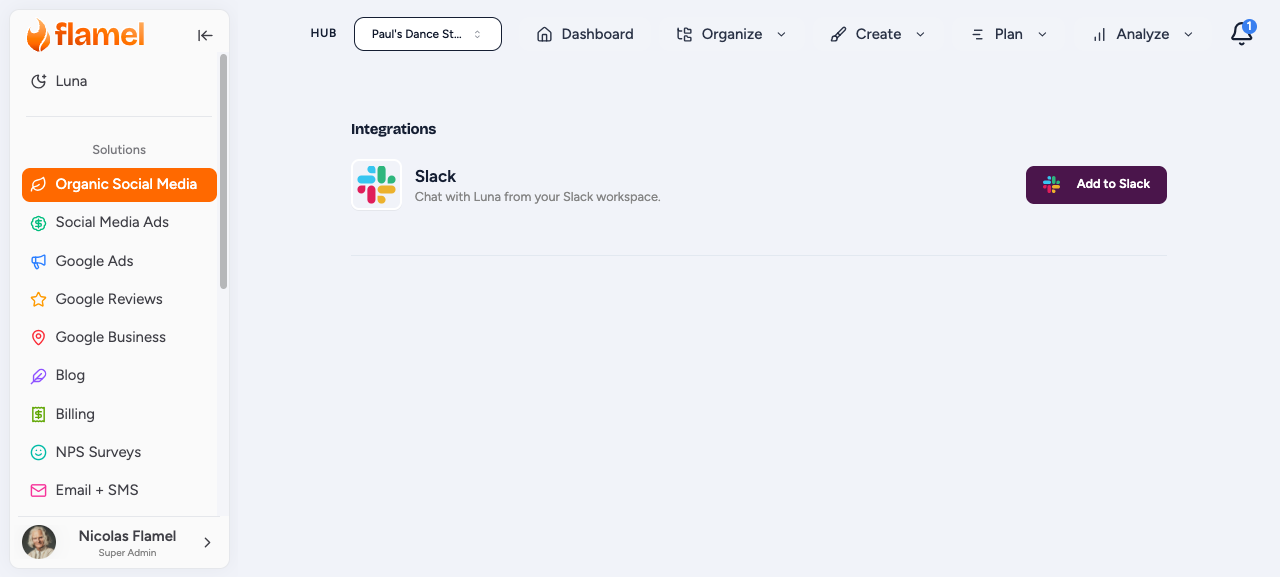
Go to Manage, then Integrations, choose the tool, and click Connect.
Sign in to the External System
Flamel sends you to the external service so you can approve access with the account that owns that system.
Choose What Should Sync
Set the sync options, cadence, and any field mapping the integration asks for.
Confirm the Status Turns Active
When setup is complete, the integration should show Active.
Check the First Sync
Come back a few minutes later and confirm the integration still shows Active with no errors.
What Integrations Usually Do
Most integrations help in one or more of these ways:
- pull customer or membership data into Flamel audiences
- keep location records current
- make it easier to target or report on the right people
Keep The Sync Healthy
- use Sync Now when you need fresh data immediately
- review field mapping if the first sync fails
- check the integration detail page whenever the status changes
Disconnect an Integration
Open the Integration
Select the connected tool from Manage, then Integrations.
Click Disconnect
Future syncs stop. Data already brought into Flamel stays available unless you remove it separately.
Status Guide
- Active: syncing normally
- Needs Attention: something failed and you should open the integration for details
- Disconnected: it is off or authorization expired