Bulk upload locations
Import or update many locations at once via CSV.
For Hub admins
For a single location, just click Add Location. Use bulk upload when you have 5 or more to add or update at once.
Run the import
Open the importer
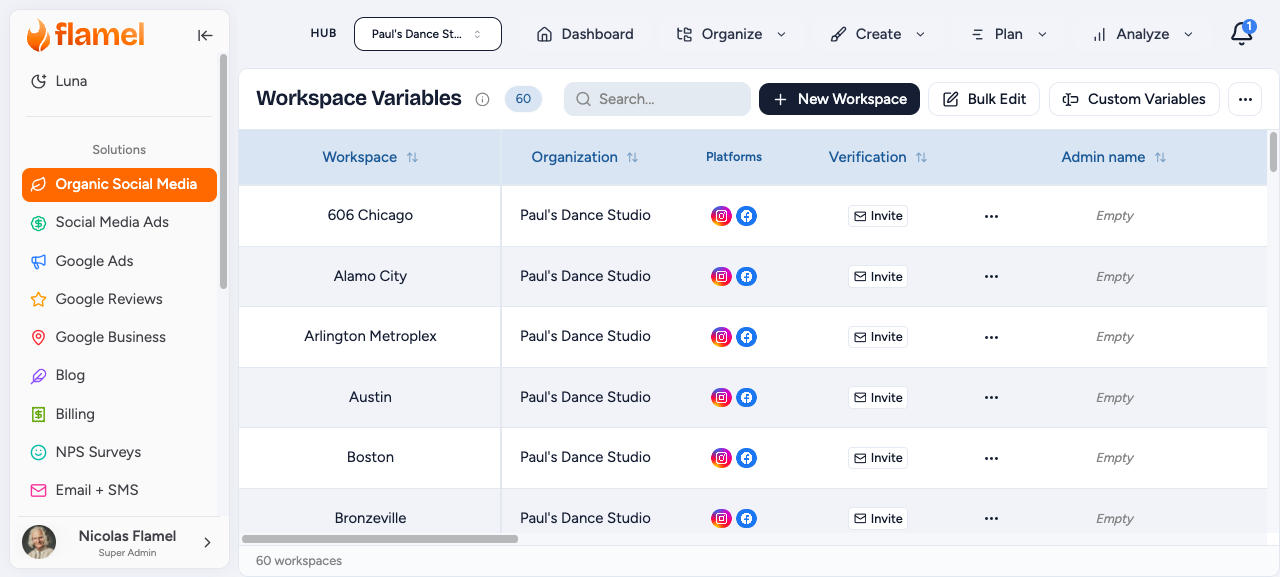
Go to Manage, then Locations, then Import.
Download the template
Click Download Template. The file includes every standard field plus any Custom Variables you have defined. Only add columns that appear in the template.
Fill in the CSV
Add one row per location. Save the file as CSV (UTF-8). Each row either creates a new location or updates an existing one based on the _id column.
Updating existing locations
To update locations you already have, click Export first, edit the CSV while keeping the _id values intact, then re-import. Rows with a matching _id update; rows without one create new locations.
Upload and validate
Drag and drop the file, or click Choose File. The preview highlights errors in red. Click a cell to edit inline and re-validate without uploading again.
Import
Click Import Locations. Review the success and error counts when it finishes. Any rows with errors are skipped — fix them and re-import just those rows.
Fields
| Field | Required | Notes |
|---|---|---|
_id | No | Existing location ID. Present means update; absent means create. |
name | Yes | Display name |
admin_name / admin_email | No | Location manager |
address / city / state / zip | No | Physical address |
contact_email / phone_number | No | Public contact |
website_url | No | Must include protocol (https://) or be a valid domain |
time_zone | No | IANA format, e.g. America/New_York |
| Custom variables | Depends | Marked * if required. Use field key names as headers. |
Custom variable column formats
| Type | Format |
|---|---|
| Text / Email / Phone / URL | Plain string |
| Number | Numeric only |
| Boolean | true or false |
| Select | One of the predefined options |
Validation rules
| Field | Valid | Invalid |
|---|---|---|
sarah@example.com | sarah@, sarah.example.com | |
| Phone | 5551234567, +15551234567, 555-123-4567 | 123, 555-CALL-US |
| Zip | US 94102, Canada M5V 2T6, UK SW1A 1AA | Typos or wrong format |
| URL | https://example.com, www.example.com | example (no TLD) |
Troubleshooting
- File will not upload: save as .csv (UTF-8) and check the file size is reasonable.
- Headers not recognized: match the field names exactly, with no extra whitespace.
- Special characters look wrong: use "Save As, CSV UTF-8" from your spreadsheet app.
- Partial import: review the error report, fix the flagged rows, then re-import just those rows.
Exporting
Go to Manage, then Locations, then Export to download all standard fields as a CSV. Use it for backups, external tools, or as a starting point for bulk updates.