Custom variables
Add per-location data fields and reference them dynamically in posts and ads.
For Hub admins
Custom variables show up in workspace context as resolved values. Workspaces cannot create or rename them.
Use custom variables to personalize content at scale. Examples: local offer, store manager name, regional specialty, trial pricing.
Create a custom variable
Open the field editor
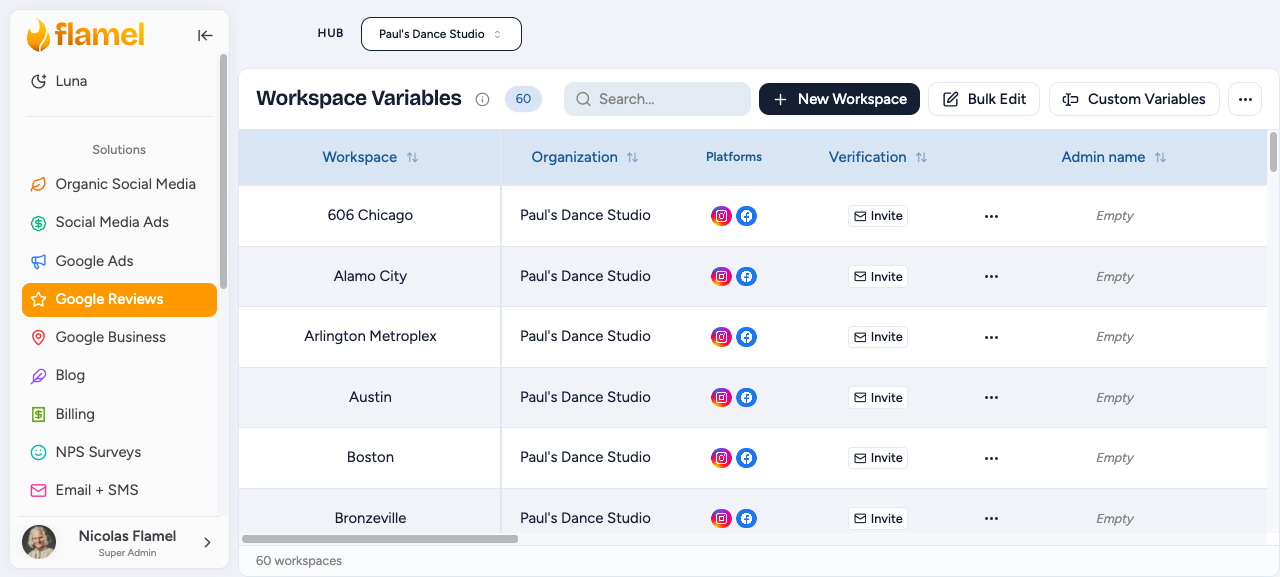
Go to Manage, then Locations, then Custom Fields, then click Add Field.
Configure the field
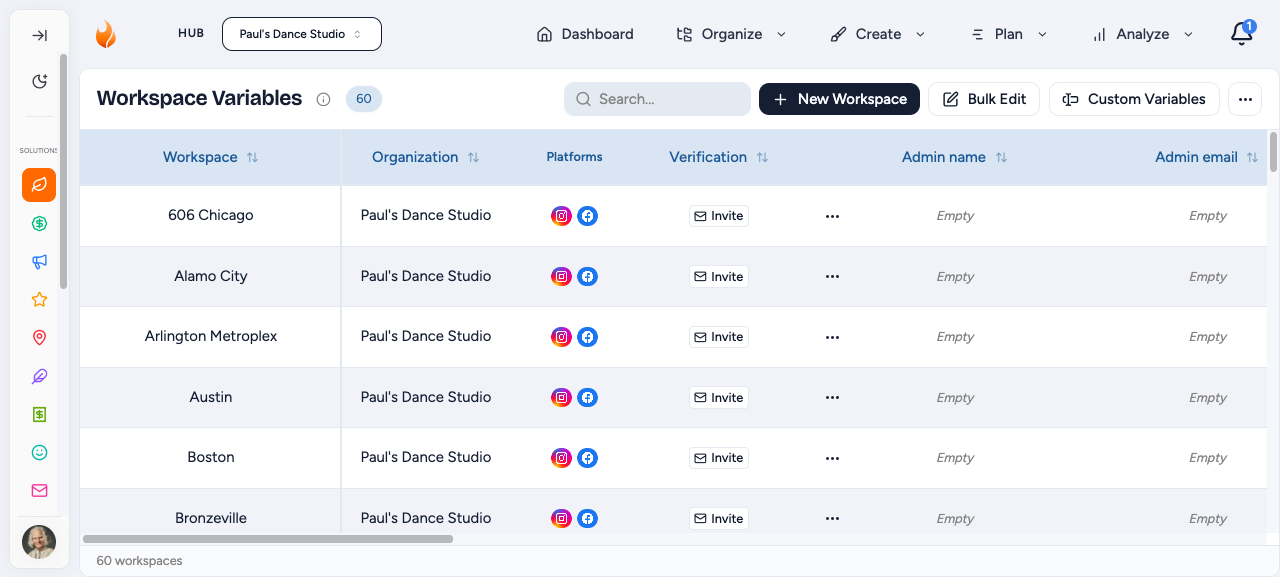
Set each property for the new field:
- Field Key: the internal name (for example
store_manager). No spaces. - Display Name: the human label (for example
Store Manager). - Field Type: the kind of data this field holds (see Field types below).
- Required: when on, every location must have a value.
- Is Array: turn on for fields that hold multiple values.
Fill values per location
Back on the Locations table, the new column appears. Click to edit inline, or open the location's detail to edit it alongside everything else. For many locations at once, use Bulk upload.
Field types
Choose the type that matches the data you want to store:
Text stores any free-form string, such as a manager name or tagline. Email stores a local contact email address. Phone stores a direct store line. Number stores a numeric value such as years in business, capacity, or trial price. URL stores a local booking or landing page link. Select stores a value chosen from a dropdown of options you define, useful for region or store tier. Boolean stores a true/false flag such as "has parking" or "offers delivery". Address stores an alternative address for the location. Object stores complex structured data when none of the other types fit.
Use in posts
Insert a variable in your caption
In the post editor, place your cursor where the value should appear, then type {{ (or click Variables) and pick from the list. Variables are wrapped in double curly braces and resolve at publish time, per workspace.
Standard variables are always available:
{{location_name}}  {{address}}  {{city}}  {{state}}  {{zip}}
{{admin_name}}     {{contact_email}}  {{phone_number}}  {{website_url}}
Your custom variables use the custom. prefix plus the field key:
{{custom.store_manager}}
{{custom.local_offer}}
{{custom.specialty_dish}}
Confirm how it resolves
A caption written with variables fills in each location's values at publish time. For example, this caption:
Welcome to {{location_name}}! Ask for {{custom.store_manager}} and mention this post for {{custom.local_offer}}.
Visit us at {{address}}, {{city}}, {{state}} {{zip}}. Call {{phone_number}}.
resolves per location to:
Welcome to Downtown Studio! Ask for Sarah Johnson and mention this post for 15% off your first class. Visit us at 123 Main St, San Francisco, CA 94102. Call (555) 123-4567.
Use in paid ads
Custom variables work in Playbook ad copy: headlines, primary text, descriptions, and CTA URLs. Use the same {{custom.field_key}} syntax. In the playbook editor, variables appear as styled pills. Use Preview to confirm rendering per workspace.
Common patterns: use {{custom.local_offer}} at {{location_name}} in a headline to localize the offer, Visit {{location_name}}, led by {{custom.store_manager}}. in primary text to personalize the pitch, and {{custom.tagline}} - {{phone_number}} in a description to anchor the copy to the location.
Troubleshooting
Variable not resolving as expected
- Variable not resolving: check the field key is exact, the location has a value, and the field is not archived.
- Preview shows the placeholder: that workspace has no value for the field. Try another workspace or fill in the value.
- Variable not in the selector: you must be in Hub context. Workspace context only renders values, it does not list the variables.