Connecting Platforms
Step-by-step instructions for connecting each social media platform to your workspace.
Each social platform has its own connection process, but they all follow the same basic pattern: click Connect, log in to the platform, authorize Flamel, then select which accounts to manage.
Before you start
Make sure you are logged into the correct personal account, the one that has admin access to the business Pages or accounts you want to connect. Editor-only access is not enough to authorize a third-party app.
Facebook and Instagram
Meta handles Facebook and Instagram connections together, since Instagram Business accounts are managed through Facebook.
Instagram account type matters
Only Instagram Business or Creator accounts linked to a Facebook Page can be connected. Personal Instagram accounts cannot be connected through the API.
Open the Facebook connection
In your workspace, go to Connected Accounts and click Connect Facebook.
Log in to Facebook
If you are not already logged in, sign in to Facebook with the personal account that administers your business Pages.
Review the Pages you administer
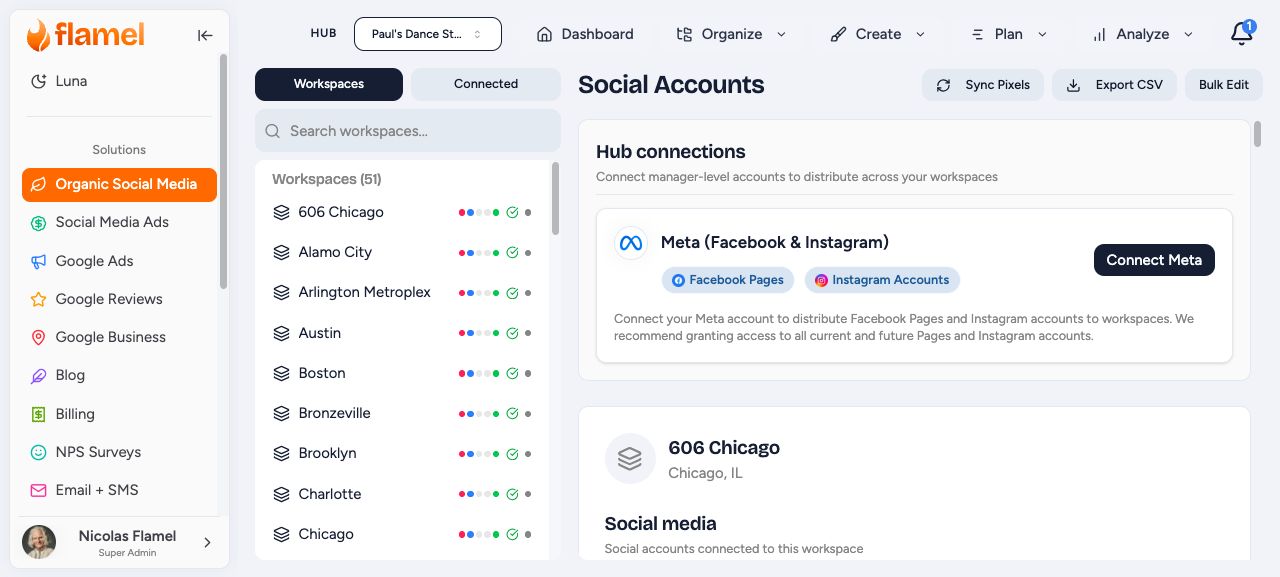
Flamel shows the Pages your account has access to. Confirm the right Pages are listed before continuing.
Select the Pages to manage
Choose the Pages you want to manage through Flamel.
Include linked Instagram accounts
If your selected Pages have linked Instagram Business or Creator accounts, you will see the option to connect those Instagram accounts during the Facebook flow. Select the Instagram accounts you want to include.
Grant permissions and finish
Grant the requested permissions and complete the connection. Your Pages and Instagram accounts now appear in Connected Accounts with a green status indicator.
Permissions requested
The permissions Flamel requests are the minimum needed for content management:
| Permission | Purpose |
|---|---|
| Publish content | Post to your Pages and Instagram |
| Read insights | Analytics and performance data |
| Manage comments | Community management features |
| View account info | Display account details in Flamel |
LinkedIn connections focus on Company Pages. Personal profiles are not supported, since LinkedIn's API is designed for company content.
Admin access required
You must have admin access to the Company Page. Editor-only access is not sufficient for third-party app authorization. You can connect multiple Company Pages if you administer more than one.
Open the LinkedIn connection
In your workspace, go to Connected Accounts and click Connect LinkedIn.
Log in to LinkedIn
Sign in to the LinkedIn account that administers your Company Page.
Authorize Flamel
Authorize Flamel access when LinkedIn prompts you.
Select the Company Page
Choose which Company Page to connect, then complete the authorization. The Company Page now appears in your connected accounts and is available when creating posts.
TikTok
TikTok connections let you publish video content directly from Flamel to your TikTok account.
Open the TikTok connection
In your workspace, go to Connected Accounts and click Connect TikTok.
Log in to TikTok
Sign in to your TikTok account.
Authorize and finish
Authorize Flamel to publish on your behalf, then complete the connection.
TikTok content requirements
TikTok has specific requirements for video content. Flamel warns you if uploaded content does not meet these requirements before you attempt to publish.
| Requirement | Specification |
|---|---|
| Format | MP4 or WebM |
| Aspect ratio | 9:16 (vertical) preferred |
| Duration | Platform limits apply |
| File size | Platform limits apply |
X (Twitter)
X connections allow posting text, threads, and media content.
Open the X connection
In your workspace, go to Connected Accounts and click Connect X.
Log in to X
Sign in to your X account.
Authorize and finish
Authorize Flamel to post on your behalf, then complete the authorization.
After connecting
Once you have connected an account, open Connected Accounts to confirm everything is in order before you start posting.
| What to check | What to look for |
|---|---|
| Status indicator | Green dot = live and working |
| Account name | Confirm the right Page or profile is connected, not a personal account |
| Instagram linked | If you connected a Facebook Page, confirm the linked Instagram account also appears |
| Permissions | If status shows "Limited permissions," reconnect and grant all requested permissions |
Document who authenticated
Write down which team member's personal account was used to authorize each business account. When that person leaves, you will know exactly which connections need to be re-authenticated.
Connection tips
- Use the right account. Make sure you are logged into the correct personal account that has admin access to the business Pages you want to connect.
- Connect during setup. Do not wait until you need to post. Connect accounts as soon as they are created to avoid last-minute issues.
- Reconnect when a connection expires. Social platforms periodically expire OAuth tokens. When a connection turns red, go to Connected Accounts and reconnect.