Blog Editor
Create, format, preview and publish a localized blog post in a snap.
Who this is for
Workspaces usually publish to their own location's website. Hubs can share ideas through Blog Ideas.
Use the Blog Editor to turn an idea into a finished blog post.
Create the Blog Post
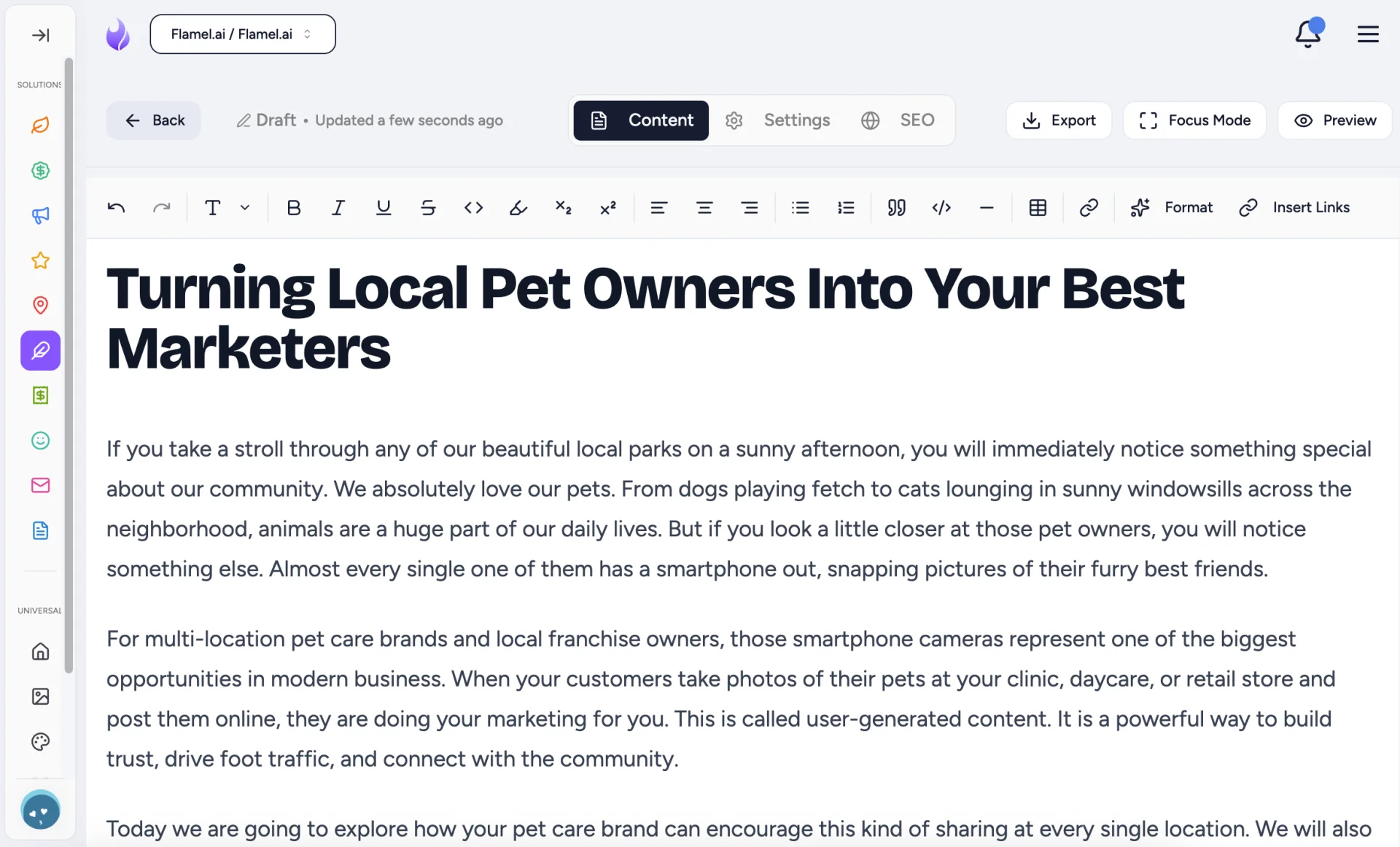
Go to Blog, click Create then choose New Blog Post.
Enter a title that is specific, clear and easy for a customer to understand.
Build the Body
Write the body copy of your post here. Keep it easy to scan:
- use headings to break the post into sections, by selecting Header 1, Header 2 or Header 3 under the T drop-down at the top of the editor
- use bullets when you are listing ideas or steps
- use bold sparingly for emphasis
- keep paragraphs short
- link out to external resources, using the Insert Links button at the top of the editor, to build the blog's credibility
Add Links Where Helpful
Link out to external resources, using the Insert Links button at the top of the editor, to build the blog's credibility.
- Internal links to guide readers to related posts or pages. Ensure these open in the same window.
- Add external links when they add trust or context. Ensure any links leading away from your website open in a new tab.
- Write descriptive link text (like Book An Appointment) instead of vague phrases (like Click Here).
Let It Autosave or Save a Draft
The editor autosaves while you work, even if the post is not ready to go live yet.
Preview the Finished Post
Check the preview before publishing. Proofread, look for descending heading order and broken links.
Publish or Schedule
Use:
- Publish Now and the post should go live immediately.
- Schedule when you want it to publish later.
- Unpublish when a live post needs to be made private, without being deleted.
Simple Writing Rules
Write about one idea per section. Ensure that your blog posts have a variety of clear headings, short paragraphs and a quick preview before publishing.