Seats
Manage active users: change roles, adjust per-user permissions, and remove access from the Seats roster.
For Hub admins
This tab manages people who have already joined. To send a new invitation, use Invite Users.
The Seats tab is your roster of active users. From here you can search by name or email, change a person's role, adjust their per-user permissions, or remove their access.

Reading the roster
Each row on the Seats tab represents one active or pending user. Use these columns to understand who has access and at what level.
| Column | What it shows |
|---|---|
| User | Name and email. |
| Role | The user's role, set from the dropdown. Changes take effect immediately. |
| Permissions | Per-user feature access shown as chips (for example, Organic Management, Paid Ads Management, Paid Analytics View). |
| Status | Active, or pending if they have not accepted their invite yet. |
What each role can do
Flamel has four roles that determine what a user can do. Use this as a reference when deciding which role to assign.
| Role | Access level |
|---|---|
| Super Admin | Manage organization settings, users, and unlimited access to all workspaces, solutions, and features. |
| Admin | Manage all content and settings for the workspaces they are assigned. |
| Editor | Create, edit, and publish content across solutions for the workspaces they are assigned. |
| Viewer | View content, leave comments, and browse the workspaces they are assigned. |
Common tasks
Find a user
Type a name or email into the search box at the top of the roster. The list filters as you type, so you can jump straight to the person you need without scrolling.
Change a user's role
Open the Role dropdown on the user's row and pick a new role. The change takes effect immediately, with no save step. Refer to the role reference above if you are unsure which level fits.
Adjust a user's permissions
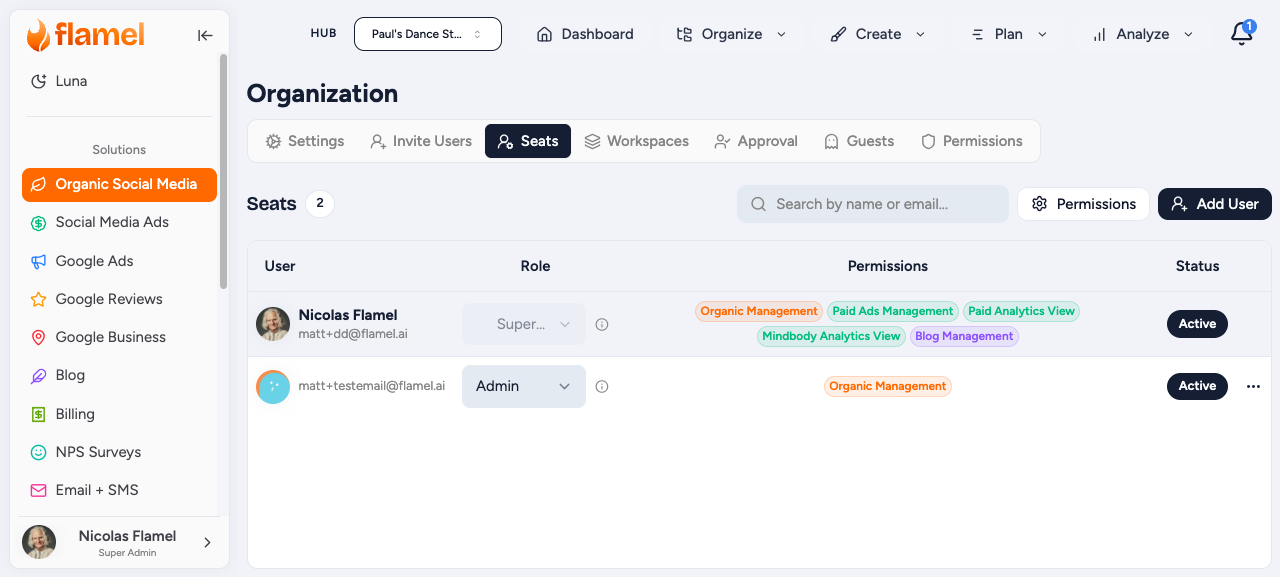
Click the Permissions button (in the top right, or on the user's row) to open the Permissions controls. There you choose which features the user can use.
Roles vs permissions
Roles say what a user can do. Permissions say which features they can do it with. A role sets the broad access level; permissions fine-tune the specific features available to that person.
Add a new user
Click Add User to send a new invitation. This opens the same flow as Invite Users, so the person receives an invite and appears on the roster as pending until they accept.
Remove a user
Open the row menu on the user's row and choose Remove. Their access is revoked immediately. Any content they created remains in place.