Managing budgets
Set, edit, pause, and cancel monthly advertising budgets for your workspaces.
For Hub admins
Setting a budget creates a Stripe subscription that bills the workspace on each cycle. If Stripe is not connected yet, finish Hub setup first.
Set a workspace budget
Open Billing then Budgets
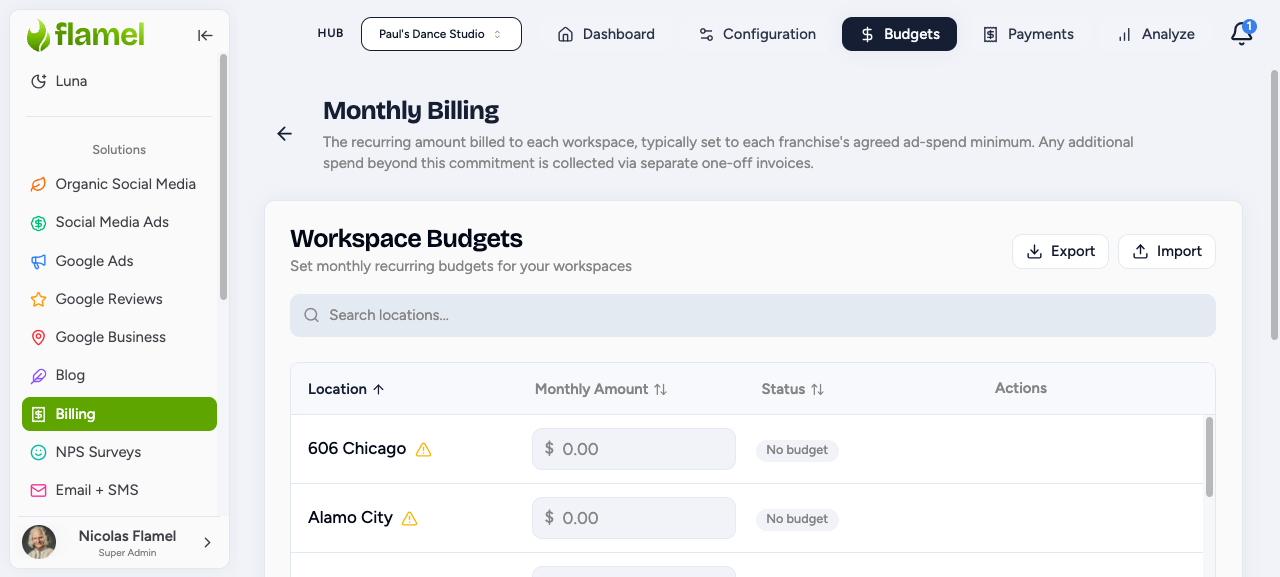
From your Hub, go to Billing and select the Budgets tab. Use the search box to find the workspace you want to fund.
Enter the monthly amount
Type the monthly advertising budget for that workspace.
Save to create the subscription
Click Save. This creates the Stripe subscription, and Stripe charges the workspace automatically on each billing cycle.
Edit a budget
Click the current budget amount
On the Budgets page, click the budget amount shown next to the workspace name.
Enter the new amount and save
Type the new monthly budget and save your changes. The Stripe subscription updates automatically.
Mid-cycle increases
If you increase the budget partway through a billing cycle, the workspace may receive a prorated charge for the difference.
Pause or resume billing
You can temporarily pause billing for a workspace without losing the subscription. Use the action menu next to each workspace on the Budgets page.
Pause to skip the next cycle
Choose Pause from the action menu. The workspace will not be charged on the next billing cycle, and their ads can keep running.
Resume to pick billing back up
Choose Resume from the action menu. Billing picks up on the next cycle at the same budget amount.
Cancel a subscription
Canceling is permanent
Canceling a subscription permanently stops billing for that workspace. To restart billing later, you will need to create a new subscription from scratch.
Open the workspace action menu
On the Budgets page, open the action menu next to the workspace you want to cancel.
Choose Cancel
Select Cancel to stop billing for that workspace.
Approve a budget request
Workspaces can request budget increases. Requests appear on the Budgets page for you to review.
Find the pending request
On the Budgets page, locate the workspace with a pending budget request.
Approve or deny
Approve or deny the request. When you approve, the subscription updates automatically to the new amount.
Read the billing status
The Budgets page shows each workspace's status at a glance. Use this legend to interpret what you see.
| Status | Meaning |
|---|---|
| Active | Subscription is running, the workspace will be billed |
| Paused | Subscription is paused, no charges until resumed |
| Past Due | Payment failed on the last invoice |
| No Payment Method | The workspace has not added a payment method yet |
Track playbook allocations
When workspaces opt into playbooks with budgets, their committed spend appears alongside their monthly budget on the Budgets page. This helps you see how much of each workspace's budget is allocated to active playbooks.