Meta Pixel
Set up and connect the Meta Pixel so conversions track across your franchise locations.
The Meta Pixel is JavaScript on your website that fires when a user takes an action (visit, view content, lead, purchase). Connecting it lets Meta optimize ad delivery, build retargeting audiences, and measure ad-to-conversion attribution across your locations. Create, install, and connect the pixel, then verify that it fires.
Before you start
You need an active Meta connection in Connected Accounts and admin access to your Meta Business Suite. Hub admins typically own pixel strategy (which pixels exist, where they fire); workspaces connect the pixel to their own ad account. If you are unsure which pixel model fits, see Reference: pixel architecture below first.
Set Up and Connect the Pixel
Create the pixel in Meta Events Manager
In Meta Business Suite, go to Events Manager, then Connect Data Sources, then Pixel, then Create. Save the Pixel ID; you will need it when you install and connect the pixel.
Install the pixel on the website
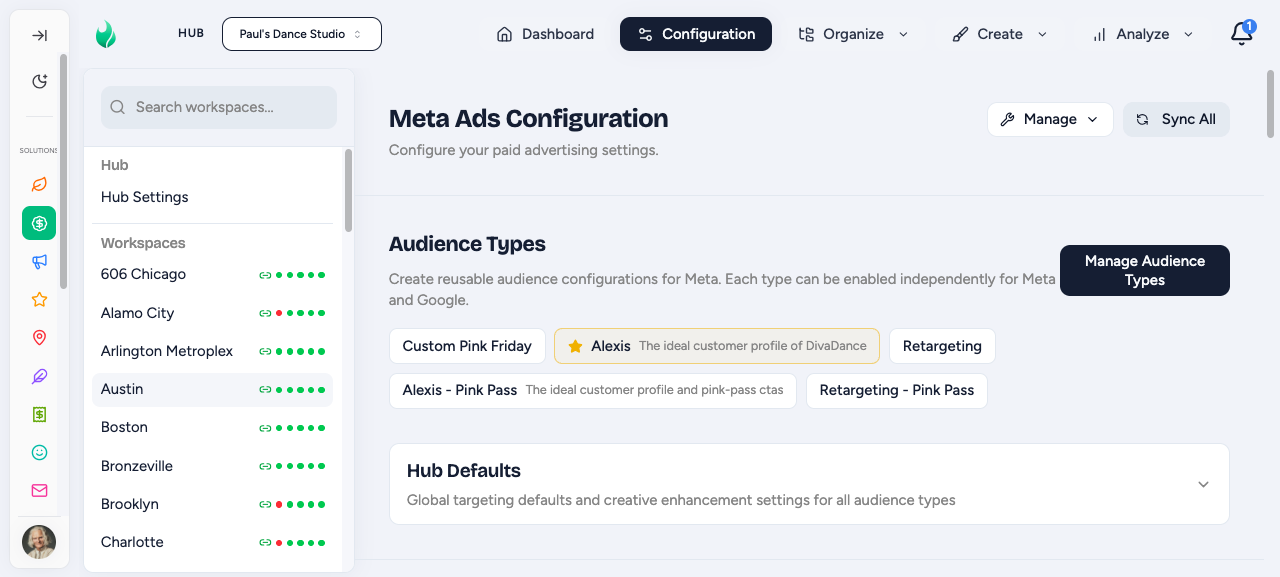
Choose one install method:
- Paste the base code in the site header, or
- Use one of Meta's partner integrations (Shopify, WordPress, and similar), or
- Use the Conversions API for server-side tracking.
Configure the events you care about
At minimum, track PageView (fires automatically) plus Lead or Purchase, depending on your conversion goal. Add custom conversions in Events Manager for any franchise-specific actions.
Roll the pixel out to new locations
As franchisees come online, hand each one their Pixel ID so they can connect it to their own ad account (see the Workspace steps). For per-location setups, create each location's pixel in Events Manager first, then have them connect it.
Open Connected Accounts in your workspace
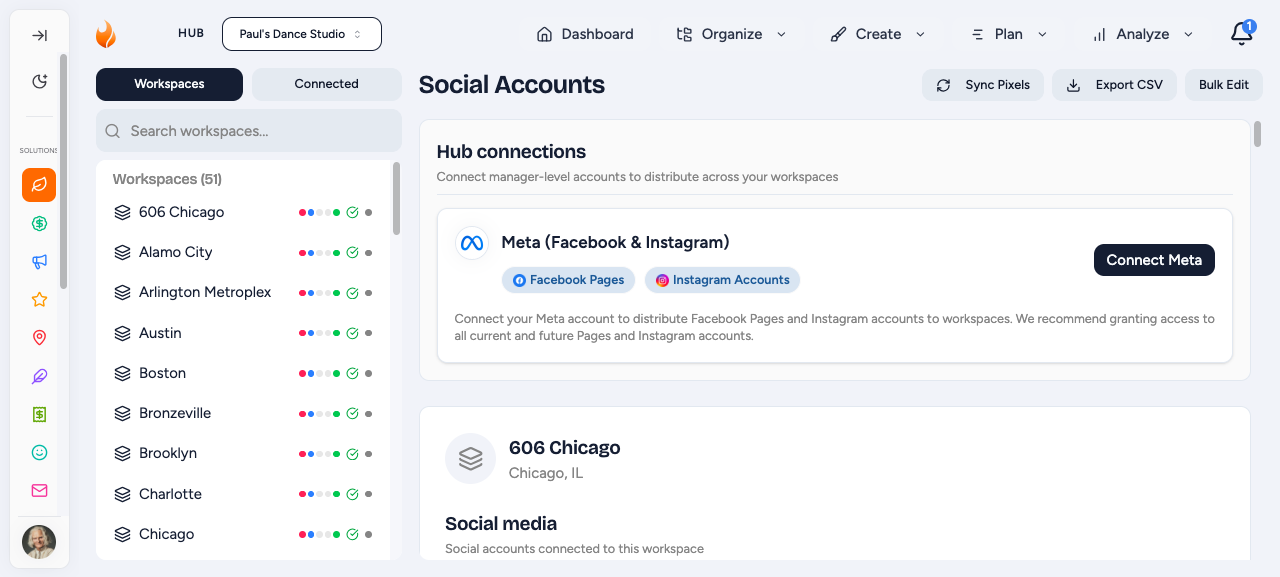
In Flamel, go to your workspace's Connected Accounts. Link your Meta ad account and your pixel there.
Connect your Meta ad account
Sign in with Meta and authorize Flamel. This connects the ad account that will run your campaigns.
Link the pixel and confirm it is firing
Select the Pixel ID your Hub admin gave you (or your own per-location pixel) and link it to the ad account. Flamel confirms the pixel connection status so you can see that it is firing before you launch ads.
Verify the Pixel is Working
Check live pixel fires with Meta Pixel Helper
Install the Meta Pixel Helper browser extension and load a page on your site. It shows which pixels fire on the page.
Confirm events in Events Manager
In Events Manager, recent events should show traffic within minutes of installation.
Confirm the connection in Flamel
In your workspace's Connected Accounts, the pixel connection status should show as connected for the workspace.
Reference
Pixel Architecture
There are three common setups for multi-location brands. Most run hybrid: a shared brand pixel for awareness plus a per-location pixel for conversions, with events deduplicated so the same action is not counted twice.
| Model | Best when |
|---|---|
| One Hub pixel | You run a single brand site and network-wide attribution is acceptable. |
| Per-location pixels | Each franchisee has their own website or wants local attribution. |
| Hybrid | A shared Hub pixel on brand campaigns plus per-location pixels on per-location conversions. |
When you run both the browser pixel and the server Conversions API, attach an event_id to each event so Meta deduplicates the matching browser and server events instead of counting them twice.
Troubleshooting
| Symptom | Fix |
|---|---|
| Pixel installed but no events | Firing is likely blocked by a cookie banner or ad blocker. Test in an incognito window, and consider the server-side Conversions API. |
| Events double-count | You are running both the browser pixel and the server Conversions API without deduplication. Add an event_id to dedupe. |
| iOS 14+ attribution loss | Set up Aggregated Event Measurement in Events Manager and rank your top 8 events per domain. |
| Wrong pixel attributing to the wrong workspace | Use UTM-based segmentation or switch to per-location pixels. |
Ongoing Maintenance
| Event | Action |
|---|---|
| New franchisee onboards | Add their pixel in Events Manager, then connect it in their workspace. |
| Brand rebrand or domain change | Update the pixel domain in Events Manager, then reverify events. |
| Franchisee closes | Leave the pixel in place for historical data, or archive it. |