Basic Info
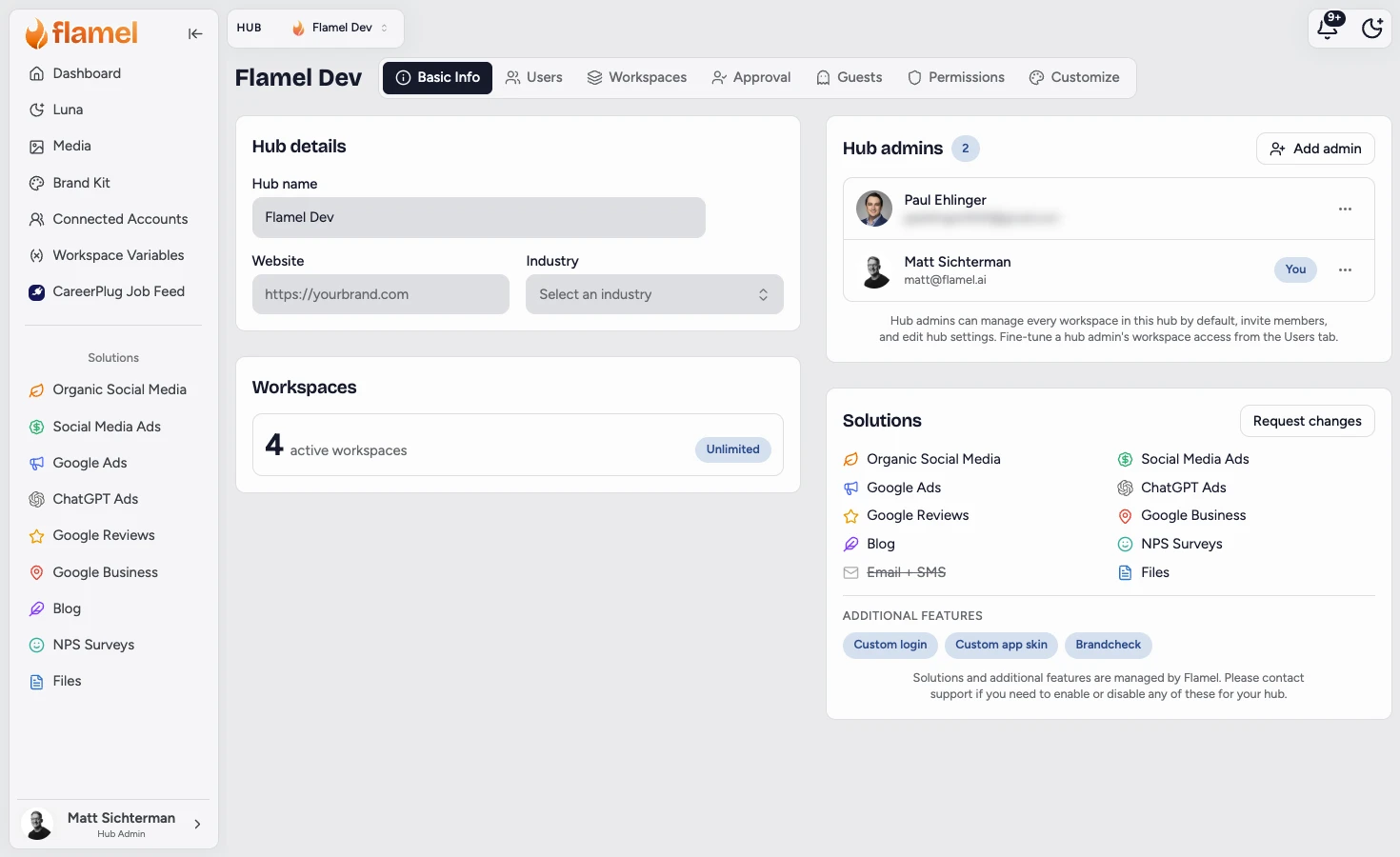
Edit your hub's name, website, and industry. Manage hub admins and view your workspace limit and enabled solutions.
Basic Info is the default tab of the Hub page. It holds your hub's identity, hub admins, and the read-only view of your plan limits.
Everything Autosaves
There is no Save button on this tab. Edits save automatically a moment after you stop typing, and a Saving and then Saved indicator appears next to the tabs.
Hub Details
- Hub name: your brand's name as it appears in the Switcher and across Flamel.
- Website: your brand's site.
- Industry: searchable list of Google Business categories. Pick one, or type your own and choose the custom entry.
Hub Admins
Hub admins can manage every workspace in the hub (including ones added later), invite members, and edit hub settings.
Click Add Admin
The invite dialog opens with the Hub Admin toggle already on. Enter a new email address, or pick someone already in the hub to promote them.
Remove an Admin When Needed
Open the three-dot menu on the admin's row and choose Remove admin. This removes the admin grant, not the person. You cannot remove the last remaining admin.
Fine-Tune From the Users Tab
A hub admin's workspace access is automatic. To give someone access to only some workspaces, make them a regular member and set their workspaces from the Users tab instead.
Workspace Limit
The Workspaces card shows how many active workspaces you are using against your plan's limit, with a progress bar and a count of remaining slots. Dormant workspaces are listed separately and do not count against the limit.
Managed by Flamel
The workspace limit is managed by Flamel. Click Request changes to open a support message with your current usage prefilled; add the limit you need and why.
Solutions and Features
The Solutions card shows which solutions (Organic, Paid Ads, Email, and so on) are enabled for your hub, plus any additional features turned on for your account. This list is read-only.
To enable or disable a solution, click Request changes to contact support with the details prefilled. To transfer hub ownership, contact support.