Workspaces
Add, rename, group, and configure the workspaces in your hub. Control dormancy and assign approval workflows.
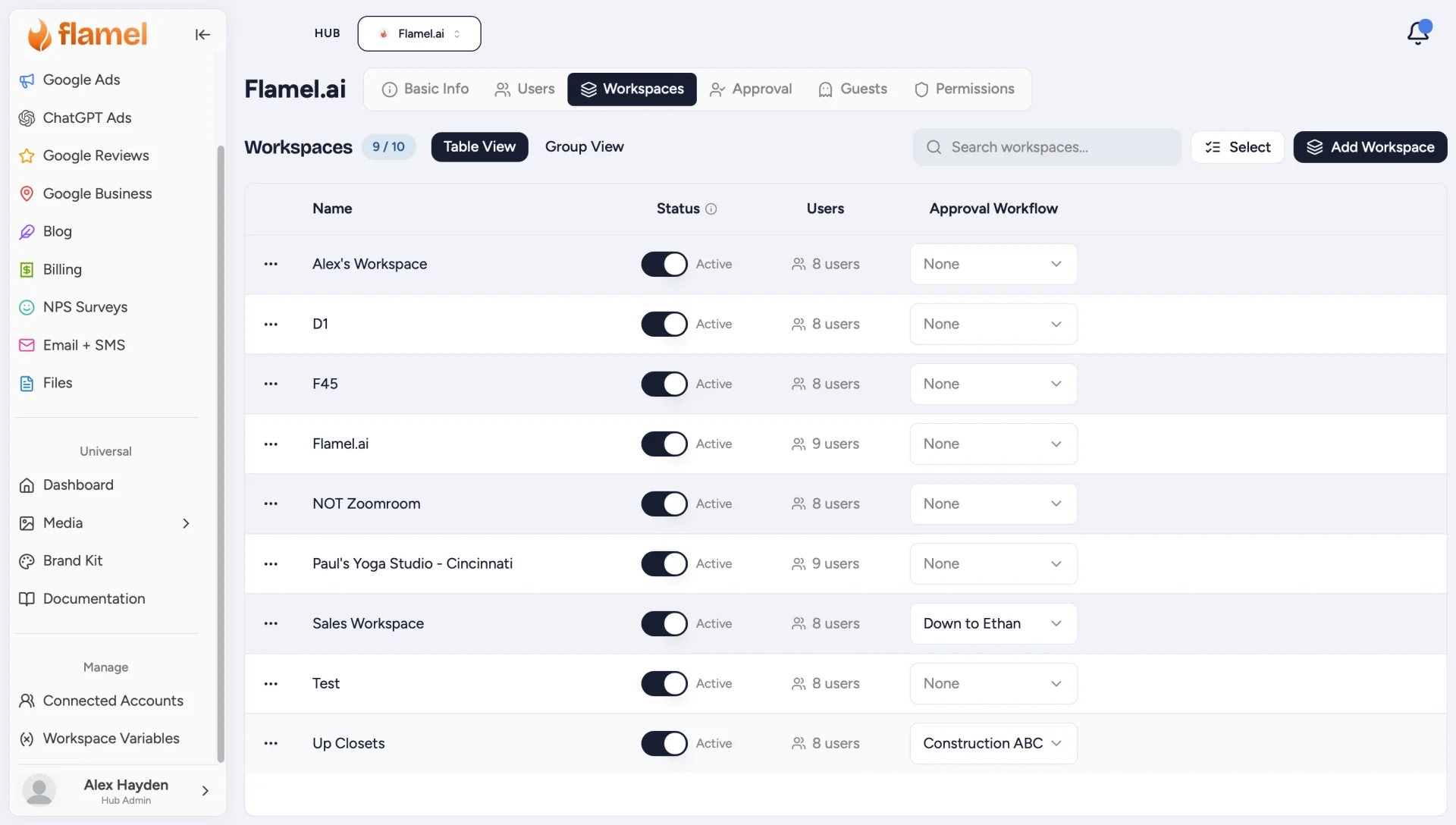
The Workspaces tab lists every location in your hub. Each workspace is one franchisee location with its own connected accounts, content, users, and approval workflow.
Before You Start
This page covers managing workspaces from the Hub page. For the full new-franchisee onboarding workflow, use Onboard a workspace.
Add a Workspace
Click Add Workspace
On the Workspaces tab, select Add Workspace to open the new-location form.
Name the Workspace
Enter a name, for example Downtown Austin. You can add it to workspace groups as you create it.
Create It, Then Connect Accounts
A new workspace has no social or Google accounts attached. Open it and follow Connecting platforms so it can publish and run ads.
Workspace Limit
The Add Workspace button is disabled when your hub is at its workspace limit. Check usage on Basic Info and use Request changes there to ask for a higher limit.
Rename a Workspace
Click the workspace's name in the table, type the new name, and press Enter.
Active vs Dormant
Every row has a status switch. Marking a workspace Dormant hides it from selectors and analytics dashboards; its data is preserved and you can reactivate it anytime. Use it for seasonal closures or locations that have paused.
Per-Workspace Actions
Open the three-dot menu at the start of a row:
| Action | What it does |
|---|---|
| Set as Active | Switches your own session into that workspace. |
| Settings | Opens the workspace's settings. |
| Configure > Workspace Variables | Per-location values used in templates and playbooks. See Variables. |
| Configure > Social Accounts | Jumps to Connected Accounts for that workspace. |
Assign an Approval Workflow
Use the dropdown in the Approval Workflow column to pick a workflow for each row (workflows are created on the Approval tab). Each workspace can have one active workflow at a time; assigning a new one replaces it.
Fix Issues
If a workflow's approvers are not members of the workspace, a red Fix issues button appears on that row. It lets you add the missing approvers to the workspace in one click, or remove the workflow instead.
Bulk Actions
Click Select
A checkbox column appears in Table View.
Check the Workspaces
Use the header checkbox to select everything at once.
Choose Make Dormant, Activate, or Remove
Each action shows a confirmation with exactly what will happen before it runs.
What Removing a Workspace Does
Removing a workspace pauses its campaigns and moves its scheduled posts to drafts. If you only need to pause a location, mark it dormant instead.
Workspace Groups
Switch to Group View with the toggle next to the search box. Workspace groups bundle workspaces together so you can act on all of them at once: broadcast a social post, build a playbook, filter analytics, or compare performance for a whole set of locations.
Common groupings are lifecycle stage (Pre-Sell, Open Studios), ownership (one multi-unit owner's locations), geography, and program cohorts.
- Click New Group to create one and pick its workspaces.
- Edit, delete, broadcast to, or build a playbook for a group from its card.
See Workspace Groups for the full walkthrough, including how to move a workspace between groups and what groups do and do not control.
Workspace List Columns
| Column | What it shows |
|---|---|
| Name | Workspace name; click to rename. A check mark marks the workspace you are currently in. |
| Status | The Active and Dormant switch. |
| Users | Who has access to this workspace. |
| Approval Workflow | Which approval workflow applies, if any. |
Related Articles
Bundle locations into named groups for broadcasts, playbooks, and reporting.
Walk a new franchisee through full setup.
Set up the review steps content must pass before publishing.
Attach a new workspace's social and Google accounts.