Approval Workflows
Require content review before publication, per workspace. Create workflows, assign approvers, and manage submissions.
For Hub Admins
Approval workflows are created once at the hub level, then assigned per workspace. Each workspace can have one active workflow at a time.
Playbook approvals are configured separately
This workflow applies to organic content created in a workspace. To hold a paid playbook before it deploys, turn on Yes, Hub Approval Process in that playbook’s Creative / Media Configuration. Playbook approval is available for Hub-provided media, workspace uploads, and existing posts. See Creating Playbooks to configure the gate and Playbook Review Required for the reviewer workflow.
Create a Workflow
Open the Approval Tab
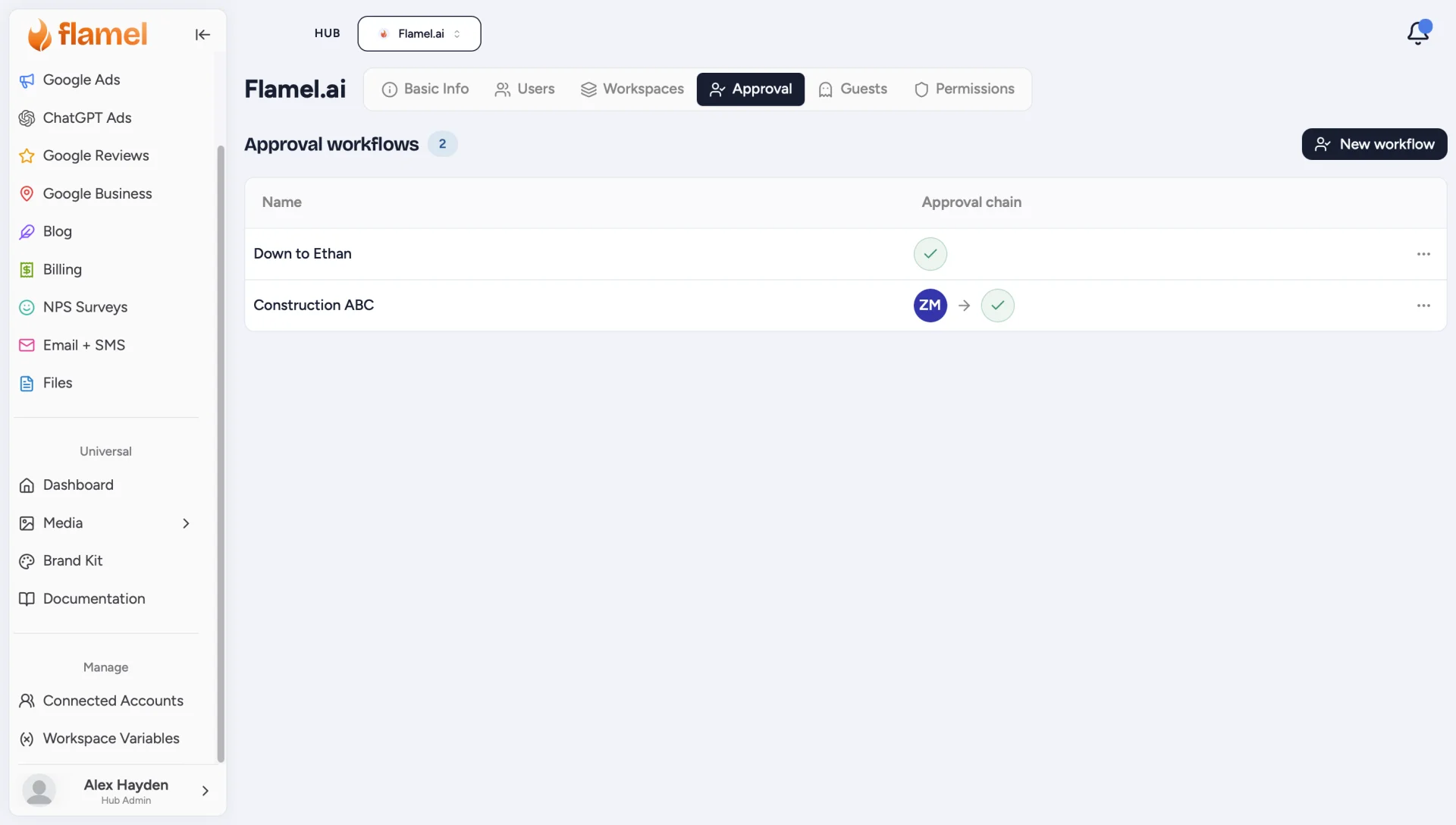
On the Hub page, open Approval to see your brand's workflows.
Click New Workflow
A setup panel opens for the workflow details.
Name the Workflow
Give it a clear, descriptive name your team will recognize, for example "Franchise Location Approval".
Add Approvers
Select the users who sign off on content. They appear as a visual chain showing the order content moves through review.
Pick the Right Reviewers
Choose team members who know your brand standards so reviews stay fast and consistent. Approvers must already be users in your hub.
Assign a Workflow to Workspaces
Open the Workspaces Tab
Go to the Workspaces tab.
Pick the Workflow on Each Row
Use the dropdown in the Approval Workflow column to choose the workflow for each workspace that should require review.
One Workflow Per Workspace
Each workspace can have only one active approval workflow at a time. Assigning a new one replaces the previous workflow for that workspace.
Resolve Any Fix Issues Warnings
If an approver is not a member of a workspace using the workflow, a red Fix issues button appears on that row. Click it to add the missing approvers to the workspace in one click, or remove the workflow from that workspace instead.
How Approval Works for Content Creators
Once a workflow is assigned to a workspace, posts created there must pass review before going live.
Creator Submits for Approval
Instead of clicking Publish or Schedule, the content creator clicks Submit for Approval.
Approvers Are Notified
Every approver in the chain receives an email notification and an in-app alert that content is waiting for review.
Approvers Review and Decide
| Action | What happens |
|---|---|
| Approve | Content moves to the next approver, or becomes ready to publish if they are last. |
| Request Changes | Submission returns to the creator with feedback; they resubmit after editing. |
| Reject | Submission is declined; the creator can revise and resubmit. |
Approved Content Goes Live
Once everyone in the chain has approved, the creator can schedule or publish the post.
Edit or Delete a Workflow
Open the three-dot menu on any workflow's row and choose Modify workflow to change its name or approvers, or Delete workflow to remove it.