Workspace Groups
Bundle workspaces into named groups so you can broadcast, drive playbook availability, and report on a whole set of locations at once.
A workspace group is a saved set of workspaces. Create it once, then act on the whole set in one click instead of ticking the same locations again.
For Hub Admins
Only hub admins can create, edit, or delete groups. Everyone else in the hub can still use them as shortcuts.
A Quick Example
Say four of your markets have signed but have not opened yet, and ten are open and taking clients.
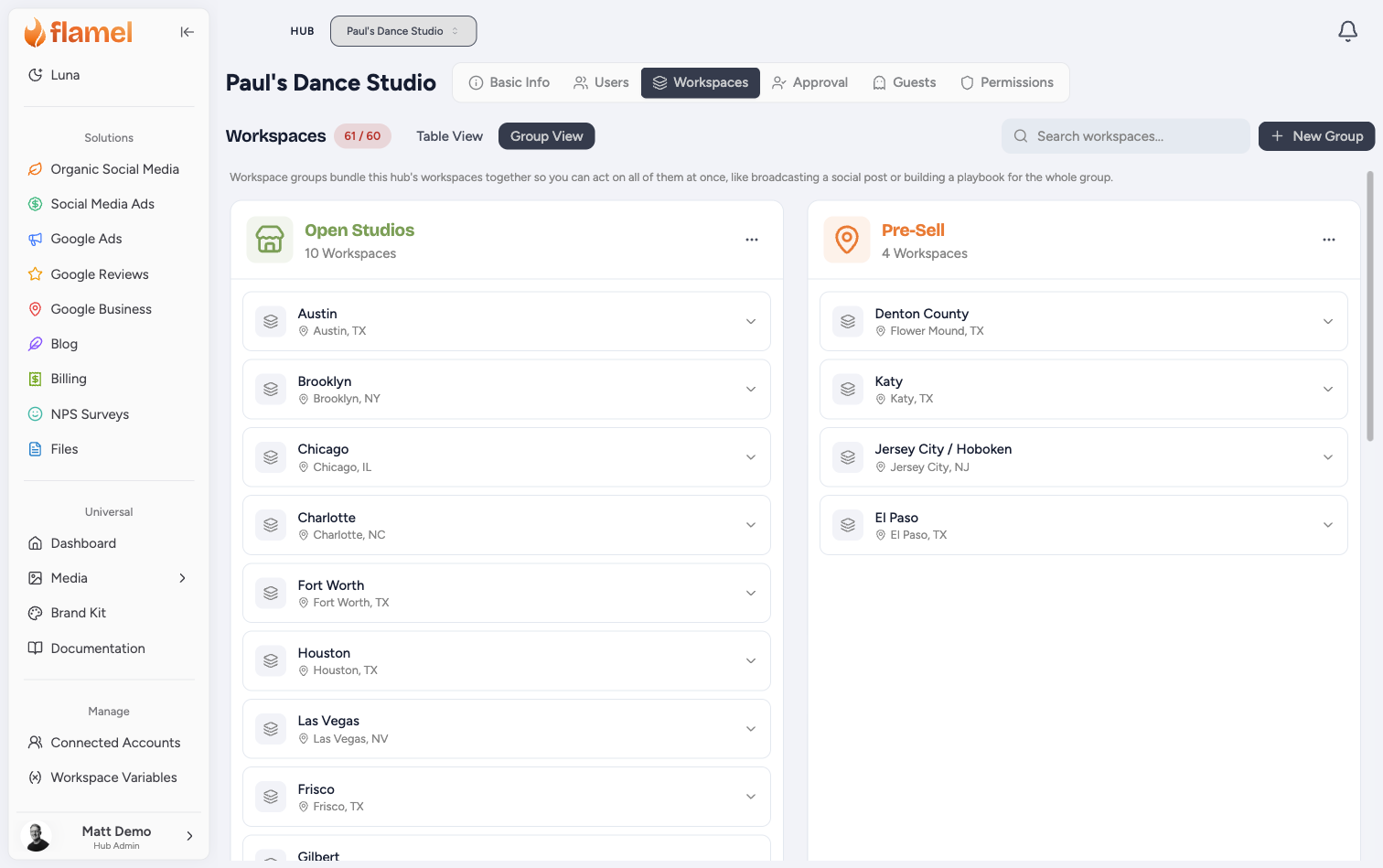
Make two groups, Pre-Sell and Open Studios, and put each location in the one that matches where it is today. Now when you want to send a "we're coming soon" post, you pick Pre-Sell instead of hunting for those four names. When a market finally opens, you move it to Open Studios and everything you do from then on follows it.
Create a Group
Open Hub, then Workspaces
Select the Workspaces tab, then switch to Group View using the toggle next to the search box.
Click New Group
Name It and Pick an Icon
Click the icon square to choose an icon and color. That color shows up on the group's card and everywhere the group appears later, so pick something you will recognize.
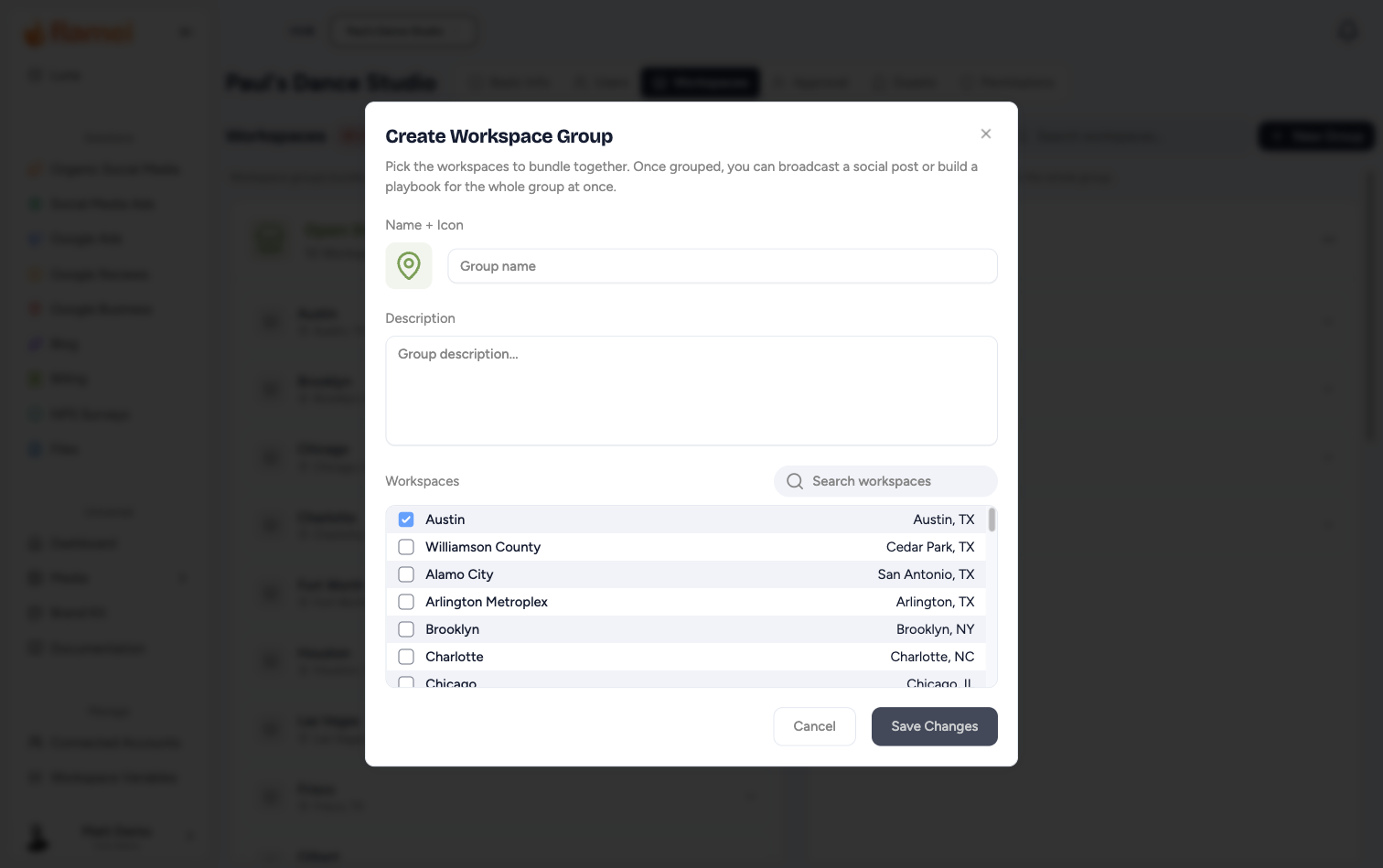
Tick the Workspaces, Then Save
Use the search box if the list is long. A group needs at least one workspace.
Add a Workspace to a Group
Open the group's ⋯ menu and choose Edit group. You get the same form shown above, with the current members already ticked. Tick the extra workspaces and save.
There is also a shortcut worth knowing: when you create a brand new workspace, the Add Workspace form has an Add to Workspace Groups section. Ticking a group there is the easiest way to keep a group like Pre-Sell accurate, because a new location joins the moment it is created and you never have to remember later.
Remove a Workspace from a Group
Click the chevron on a workspace row inside the group card to expand it, then click Remove from Group.
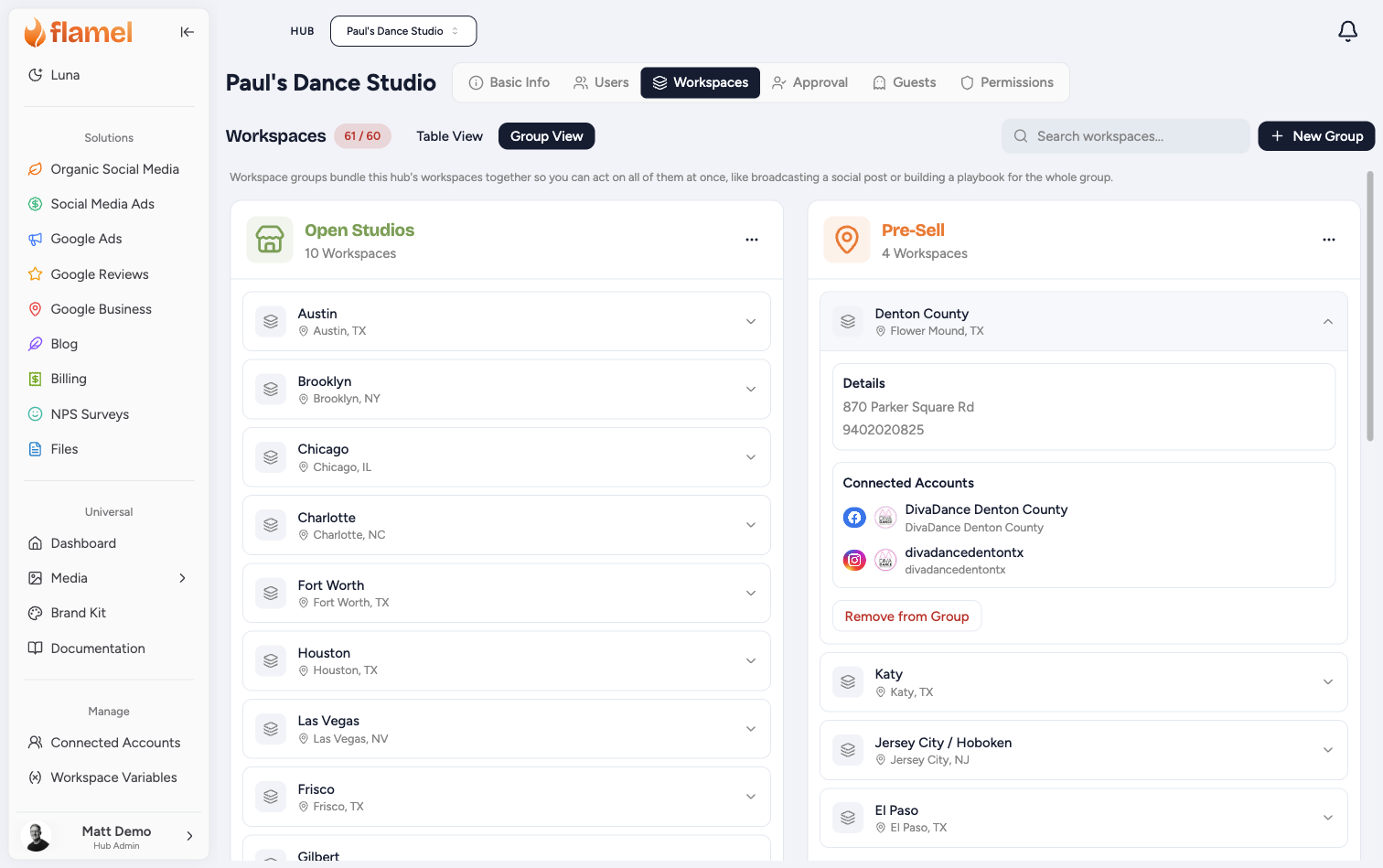
This only removes the membership. The workspace, its content, its connected accounts, and any campaigns it is running are all untouched. Deleting an entire group works the same way: the group disappears, the workspaces stay.
Move a Workspace Between Groups
There is no single "move" button. Remove it from the old group as shown above, then edit the new group to add it.
A workspace does not have to be in any group, and it can be in several at once. One location can sit in Open Studios, Texas Market, and Smith Group at the same time, so you never have to pick one way of organizing and give up the others.
What You Can Do With a Group
Everything below starts from the group's ⋯ menu or from a group appearing as a shortcut elsewhere in the app.
Broadcast one post to everyone in it
Choose Broadcast to group. A new post opens with every connected social account in the group already selected, so you write once and publish across the whole set. See Broadcasts.
Keep playbook availability in sync
Group-synced playbook availability is on for every hub. In the playbook builder, Who Has Access? offers All Workspaces and Specific Workspaces. Choose Specific Workspaces, then tick the group itself.
A ticked group is a living audience. When a workspace joins the group, it automatically gains access to every playbook targeting that group. When it leaves, access is removed for future campaigns, while any campaigns already running continue normally.
Build Playbook Is a Shortcut, Not a Synced Group
Build playbook on the group's menu opens the builder with the group's current members already ticked as individual workspaces. That selection is a snapshot, so it does not follow later membership changes. Tick the group itself in Specific Workspaces when you want the audience to stay in sync.
Two rules keep the audience safe:
- A location never gains a playbook through a group it does not belong to.
- Hub-only playbooks stay hub-only. A group never opens one to a location.
You can add individual workspaces alongside the group for one-off exceptions. See Creating Playbooks for the full setup flow.
Pick the group anywhere workspaces are selected
Groups appear as a Groups section in workspace and account pickers throughout the app, including playbook access, paid campaigns, the post account picker, and document sharing. In most pickers, check the group to select all of its current workspaces at once, then adjust by hand if needed. In Who Has Access? for playbooks, the selected group remains a dynamic audience, so access changes automatically as membership changes.
Filter and compare reporting
The workspace filter on analytics, dashboard, and media pages has a Workspace Groups section, so you can scope a whole page to one group.
Google Reviews Analytics goes further. Compare Workspaces in a Group puts every member side by side, and Compare Groups rolls up to four groups into one aggregated column each. Both export to CSV.
Good to Know
- A group belongs to one hub and can only contain workspaces in that hub.
- Membership lives on the group. To change who is in it, you edit the group, not the workspace.
- Dormant workspaces are hidden from the group card and the picker, but they stay in the group and come back when you reactivate them.
- Groups dynamically control playbook availability when selected in Who Has Access?. They do not assign approval workflows or share settings elsewhere.
- Two groups in the same hub can share a name, so give them names that read clearly on a card.