Users
Manage everyone with a seat: workspace access, permissions, login email resends, removal, and pending invitations, from the hub or from a single workspace.
Users Is Your Active Roster
This tab lists everyone who already has a seat. To add someone new, click Invite (see Invite Users).
What you can do here depends on where you are standing. Hub admins manage the whole roster across all locations. Workspace users see the people who share their workspaces and can add or remove members from those locations. Pick the tab that matches you.
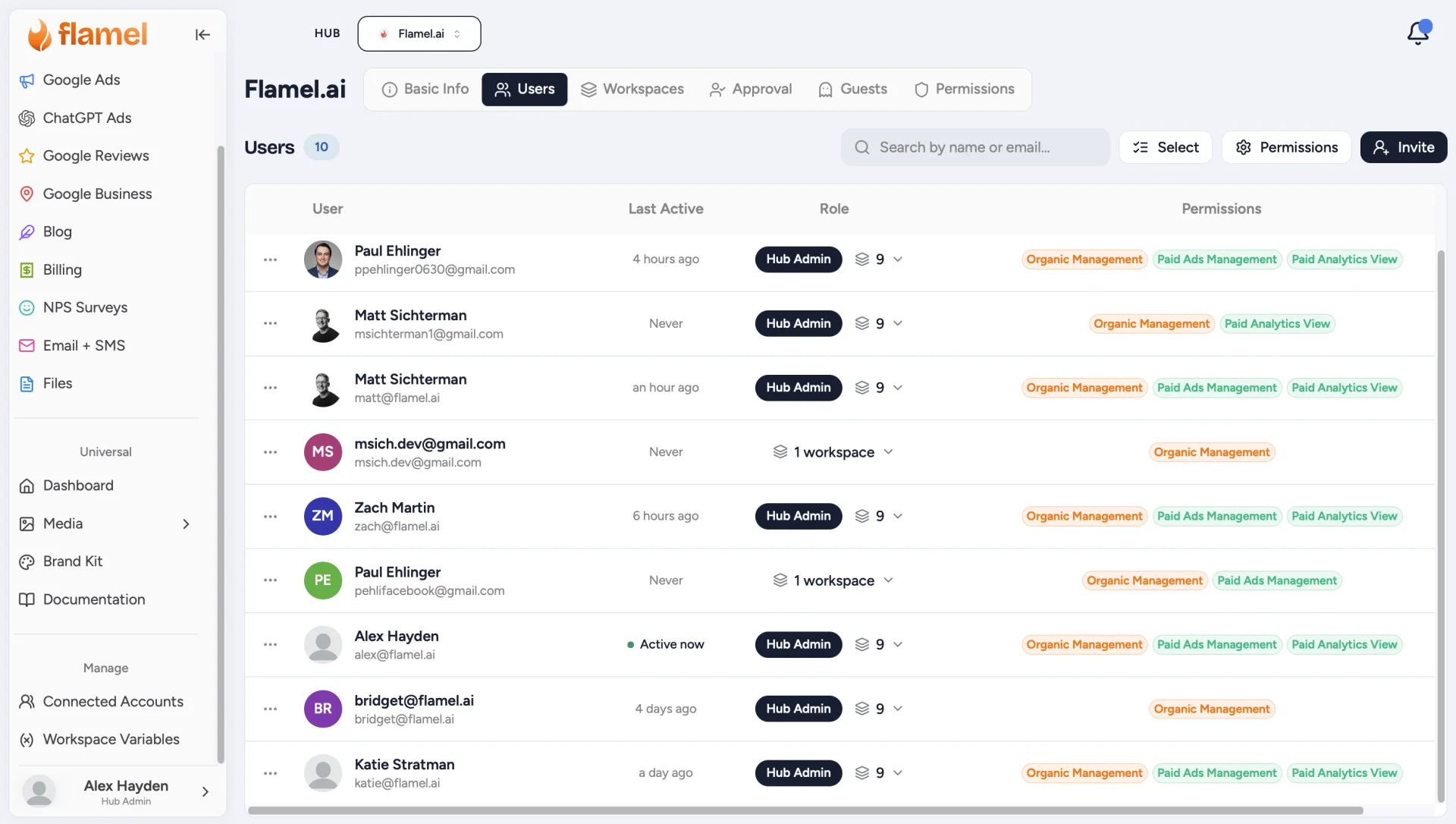
Open Hub Users in Flamel, or open the Hub page and select the Users tab.
What Each Row Shows
- The person's name and email (click the name to edit it)
- Last Active: a green dot means they are online right now
- Role: a Hub Admin badge, or the number of workspaces a member can access
- Permissions: chips showing which solutions that person can use
Manage a Member
Find the Person
Use the search box to jump straight to them by name or email.
Change Their Workspace Access
Click the workspace count in the Role column. A checklist of every workspace in your hub opens: check or uncheck workspaces, or use Select all and Deselect all. Changes apply immediately.
Hub Admins Skip This
Hub admins automatically have access to every workspace, including ones added later. Their access is not edited per workspace; manage the admin grant itself from Basic Info.
Adjust Their Permissions
Use the permission chips on the row to change which solutions that one person can use. See Permissions for what each grant covers.
Remove Access
Open the three-dot menu at the start of the row and choose Remove. Removal is scoped to this hub: their account and any access under other hubs are untouched.
Remove Several People at Once
Click Select
A checkbox column appears on the left of the table.
Check the Members to Remove
Use the header checkbox to select everyone at once.
Click Remove and Confirm
The confirmation spells out the scope: the selected members lose access to every workspace under this hub, and nothing else.
Pending Invitations
Users are usually added to the roster immediately when you invite them. If an invitation still appears below the members table, open the three-dot menu on that invitation and choose Revoke invite to cancel it.
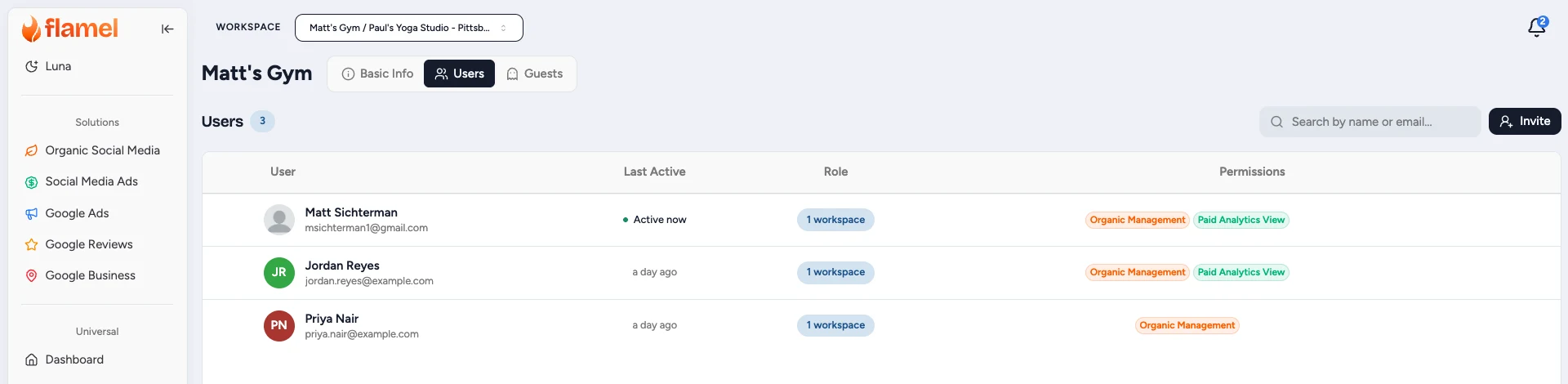
Click your avatar in the bottom-left corner and choose View Hub, then select the Users tab.
Opening this page does not switch your active workspace, and you only see Basic Info, Users, and Guests.
Who Appears in Your Roster
Only people who share at least one workspace with you appear in this list.
Members of unrelated workspaces and hub admins are filtered out, keeping your view focused on your team.
- The person's name and email
- Last Active: green dot when active right now
- Role: shows the full workspace name when they belong to one location you manage. When they belong to multiple locations, clicking the workspaces button opens a popover listing their assigned locations.
- Permissions: badges showing which tools and solutions the member can access
What You Can Do
Search the Roster
Use the search box to find a coworker by name or email before sending an invite.
Invite or Add Someone
Click Invite.
- For someone new: enter their email and select the workspaces you manage.
- For someone already on the hub: Flamel recognizes their email, pre-selects their existing workspaces, and updates their access immediately with no sign-in email delay.
Remove a Member from Your Workspace
Open the three-dot menu at the start of their row and choose Remove.
Your own row and hub admins do not display this menu.
- If the person belongs to one workspace: confirm the prompt to remove them.
- If they belong to multiple workspaces: a checklist opens: your manageable workspaces start checked by default, while any locations you cannot manage are grayed out with a No access to manage badge. Uncheck any location they should keep, or use Select All and Deselect All on the right, then click Remove.
Remove Multiple Members at Once
Click Select in the toolbar to show row checkboxes.
Check the members you want to remove (your own row is disabled), then click Remove in the toolbar to confirm.
Workspace Boundary Safety
You can only remove members from workspaces you have permission to manage. Other locations the person belongs to remain untouched, and workspace users cannot remove hub admins.
Resend a Login Email
Someone lost their invitation or already used the link? Resend login email creates a fresh, single-use sign-in link for the existing member. It expires seven days after creation and goes to the email address on their row. You do not need to invite the person again.
If they still have an expired, unused link, they may be able to request a replacement themselves. If access was removed, correct their membership before resending; a new email does not grant additional access.
Hub Admins Only
Resend login email appears only for hub admins. Workspace users do see a row menu on the people they manage, but it offers Remove rather than Resend login email, so ask a hub admin to resend.
Find Their Row on the Users Tab
Search by name or email to jump straight to them.
Open the Three-Dot Menu at the Start of Their Row
The menu button sits in the narrow first column, to the left of the person's avatar, not at the end of the row.
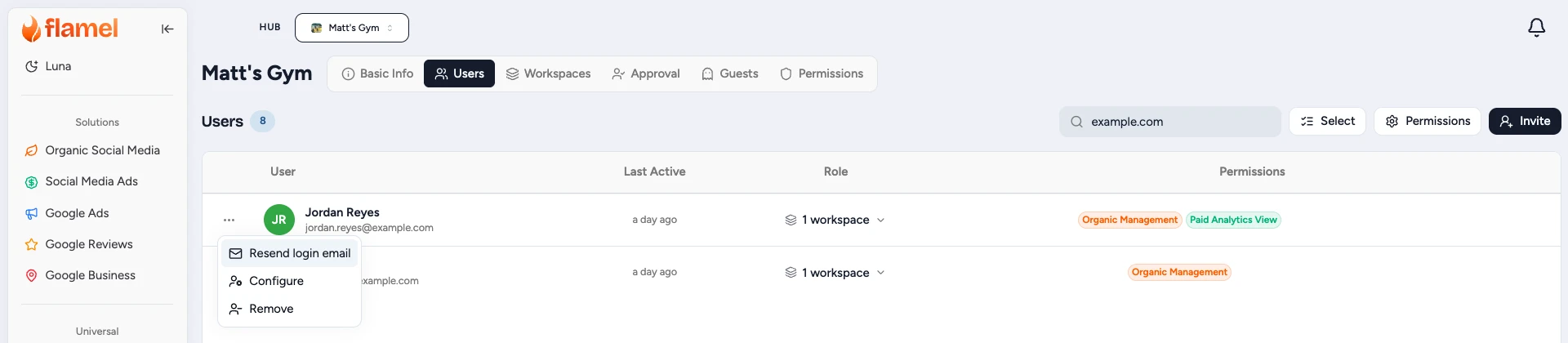
Choose Resend Login Email
A confirmation toast appears when it sends. Ask the recipient to check their inbox and spam folder and open the new email. The link uses their existing access: an accessible workspace, or the hub when appropriate.
They can also use I forgot my password on the login page to set or replace their own password. Password-reset links last 24 hours, rather than the seven days allowed for invitations. See Login Help for expired, used, or invalid links.
Roles
| Role | Access |
|---|---|
| Hub Admin | Manages hub settings, users, and every workspace, current and future. |
| Member | Only the workspaces checked in the Role column, and only the solutions granted on the Permissions tab. Can invite people into the workspaces they can reach and remove members from those locations. |
| Guest | Read-only link access, managed from the Guests tab. Guests do not hold a seat. |
Related Articles
Help an existing member get back into their account.
Send an invitation to someone who is not on the roster yet or add an existing user to another workspace.
Read-only links for people who should not hold a seat.
Bulk and per-member solution access.