Creating alerts
Build performance alerts from scratch or starter templates, set thresholds that match your real variance, and document the response.
Performance alerts watch your paid campaigns and notify you the moment a metric moves past a threshold you set, whether that is a rising cost per click, a stalled conversion rate, or a campaign hitting a lead milestone. This page walks you through building an alert, tuning the threshold, naming it so it scales, and documenting what to do when it fires.
Create An Alert
Open Performance Alerts
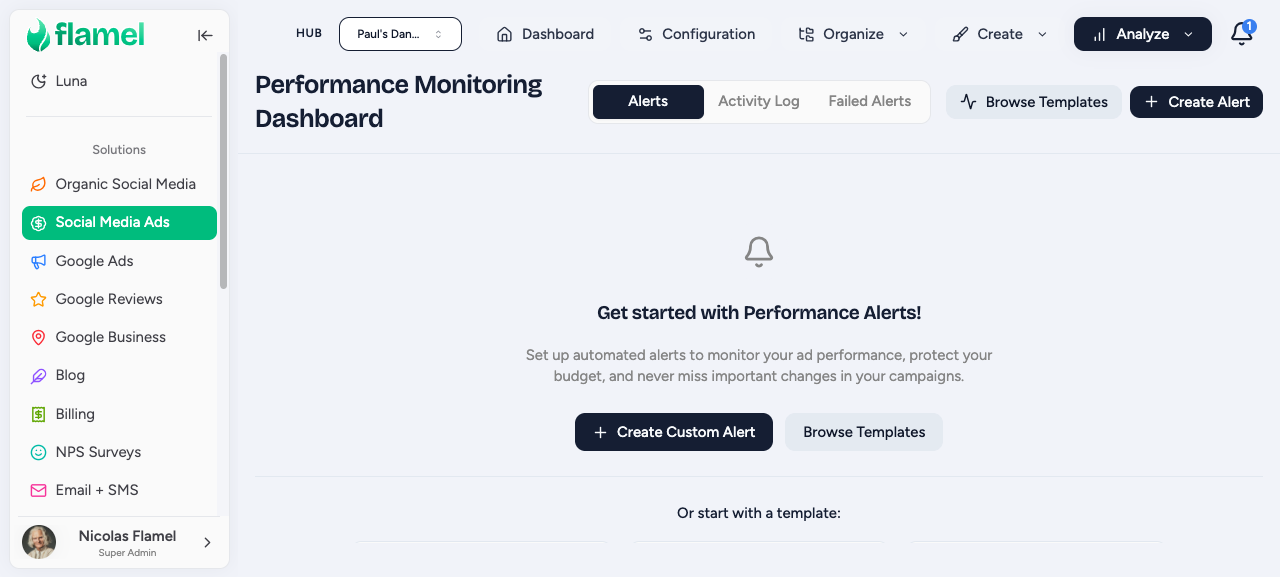
Go to Paid Social Ads, then Manage, then Performance Alerts, and click Create Alert.
Choose the type
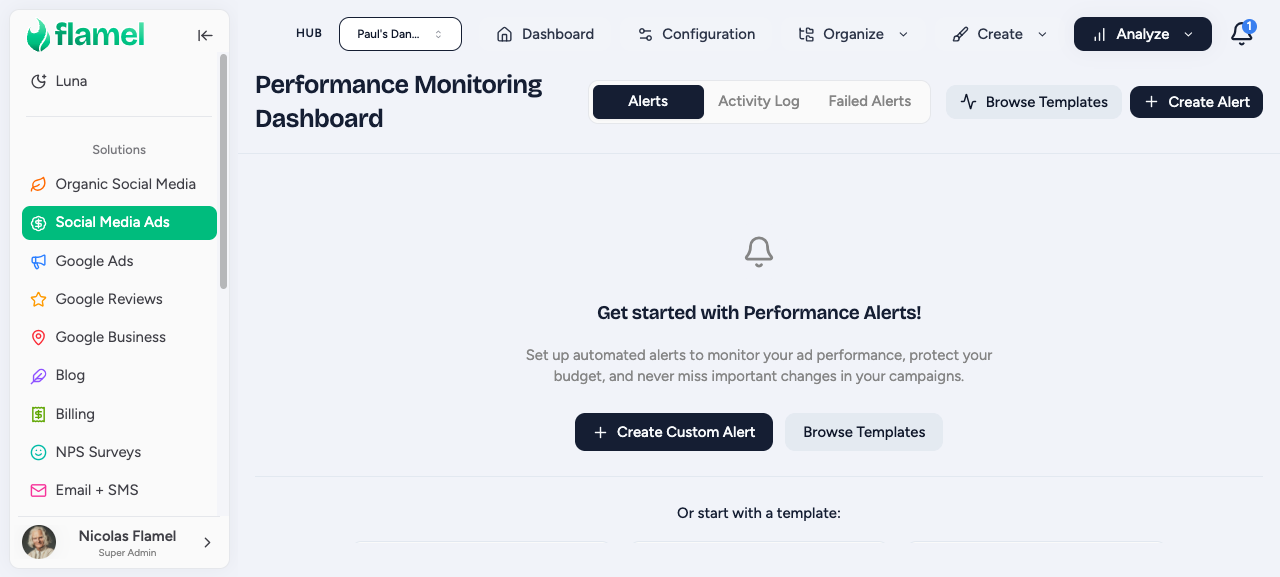
Pick the alert type that matches what you want to catch. See Alert types for what each one watches.
| Type | Triggers when |
|---|---|
| Performance Change | A metric rises or falls past a percentage or absolute threshold vs. a baseline |
| Milestone | A metric reaches a target value (for example, 500 leads) |
| Creation | A new campaign, ad set, or ad is created in the account |
| Change | A setting on a campaign or ad changes (budget, status, creative) |
Configure the trigger
The fields you see depend on the type you chose:
Performance Change:
- Metric: pick the KPI to watch (CPC, CTR, CPA, ROAS, spend, impressions, conversions).
- Direction: rising above or falling below the threshold.
- Threshold: the percentage or absolute change that fires the alert.
- Baseline: the comparison window (7-day average, 14-day average, or previous period).
Milestone:
- Metric: the value to count toward (total leads, total spend, total conversions).
- Target value: the number that fires the alert.
Creation and Change:
- Scope: which campaigns, ad sets, or ads to watch (all, or filtered to specific playbooks or workspaces).
- What to monitor: creation events or specific setting changes.
Start with Performance Change alerts
For most campaigns, a CPC Performance Change alert (up 25% vs. 7-day average) and a Conversion Drop alert (down 40% vs. 7-day average) cover the most common problems. Add the others once you know your normal variance.
Pick the notification channel
Choose where the alert lands:
| Channel | Best for |
|---|---|
| Email (immediate) | Urgent alerts that need a same-day response |
| In-app | Routine monitoring you check during normal work hours |
| Daily digest | Low-urgency alerts you want to review in batch |
Route different severities to different channels: a spend-runaway alert should email immediately, while a milestone hit can go to the daily digest.
Name and save
Give the alert a descriptive name that includes the metric and scope, like CPC +25% - All Campaigns or Lead Goal 500 - Grand Opening. This pattern keeps the alerts list readable as it grows.
Click Save. The alert activates immediately and begins watching on the next check.
Starter Templates
Use these as a starting point, then customize the thresholds to match your own variance. Default templates are starting points, not finished alerts.
| Template | Metric | Threshold | Notification |
|---|---|---|---|
| High CPC | Cost per click | Up 20% vs 7-day avg | |
| Low CTR | Click-through rate | Down 30% vs 7-day avg | |
| Spend threshold | Daily spend | Over 120% of daily budget | Immediate email |
| Conversion drop | Conversion rate | Down 50% vs 7-day avg | Immediate email |
| ROAS target | ROAS | Below 2.0x | |
| Lead milestone | Total leads | 100 per campaign | Email plus in-app |
Setting Good Thresholds
Tune to your real variance
A threshold that fires on normal day-to-day fluctuation creates alert fatigue. One that never fires has no value. Start with a reasonable guess, watch how often it triggers, and refine.
- Use history: look at your actual metric variance over the past 30 days before setting a threshold.
- Avoid too sensitive: triggering on normal fluctuation leads to alert fatigue and ignored notifications.
- Avoid too loose: a threshold set so wide it never fires gives you nothing. If an alert has not fired in 60 days, tighten it.
- Iterate: review your alert list monthly and retire or retune ones that are not working.
Naming
Use a naming pattern that stays readable as your alert list grows:
- Metric, then scope:
CPC - Brand Campaigns - Goal, then target:
Lead Goal - 500/month - Type, then audience:
New Campaign - Network
Document The Response
For each alert, write down what to check when it fires so anyone on the team can act fast.
| Alert | Common causes | First check |
|---|---|---|
| High CPC | Audience saturation, creative fatigue, competitive pressure | Review frequency and creative age |
| Low CTR | Creative fatigue, audience mismatch | Swap creative, broaden targeting |
| Spend threshold | Budget misconfiguration, runaway delivery | Pause and check campaign settings |
| Conversion drop | Pixel issue, broken landing page, offer fatigue | Test the landing page and check Events Manager |