Create and Edit a Command Group
Build a Command Group of campaigns, set its date range, and link playbooks to manage and analyze paid ads at scale.
Command Groups organize related campaigns so you can manage and analyze them together. In Command Center, monitor campaigns across workspaces from one dashboard and change budgets, status, schedules, and creative. The Paid Analytics Dashboard uses each group's date range to report performance by workspace and across the network.
Who manages Command Groups
Command Groups are a hub (franchisor) tool for managing campaigns across all of your ad accounts. Workspace owners view the resulting performance in the Paid Analytics Dashboard rather than building groups themselves.
Create a Command Group
Open the Command Center
Go to the Command Center. This is where every Command Group lives and where you create new ones.
Start a new group
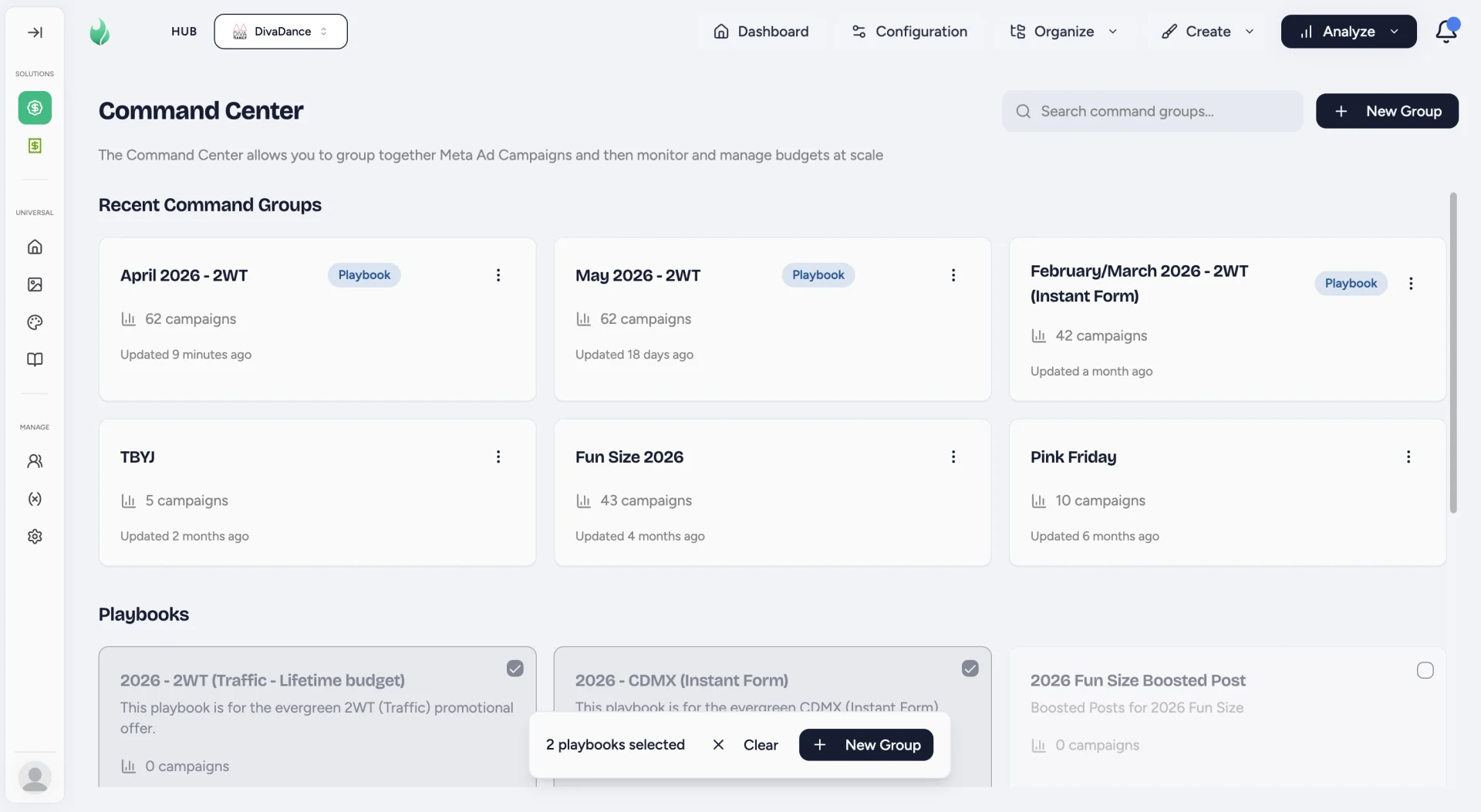
Click New Group in the top right.
You can select one or many cards in the Playbooks section first, and those selections will seed the new Command Group.
Configure your new Command Group
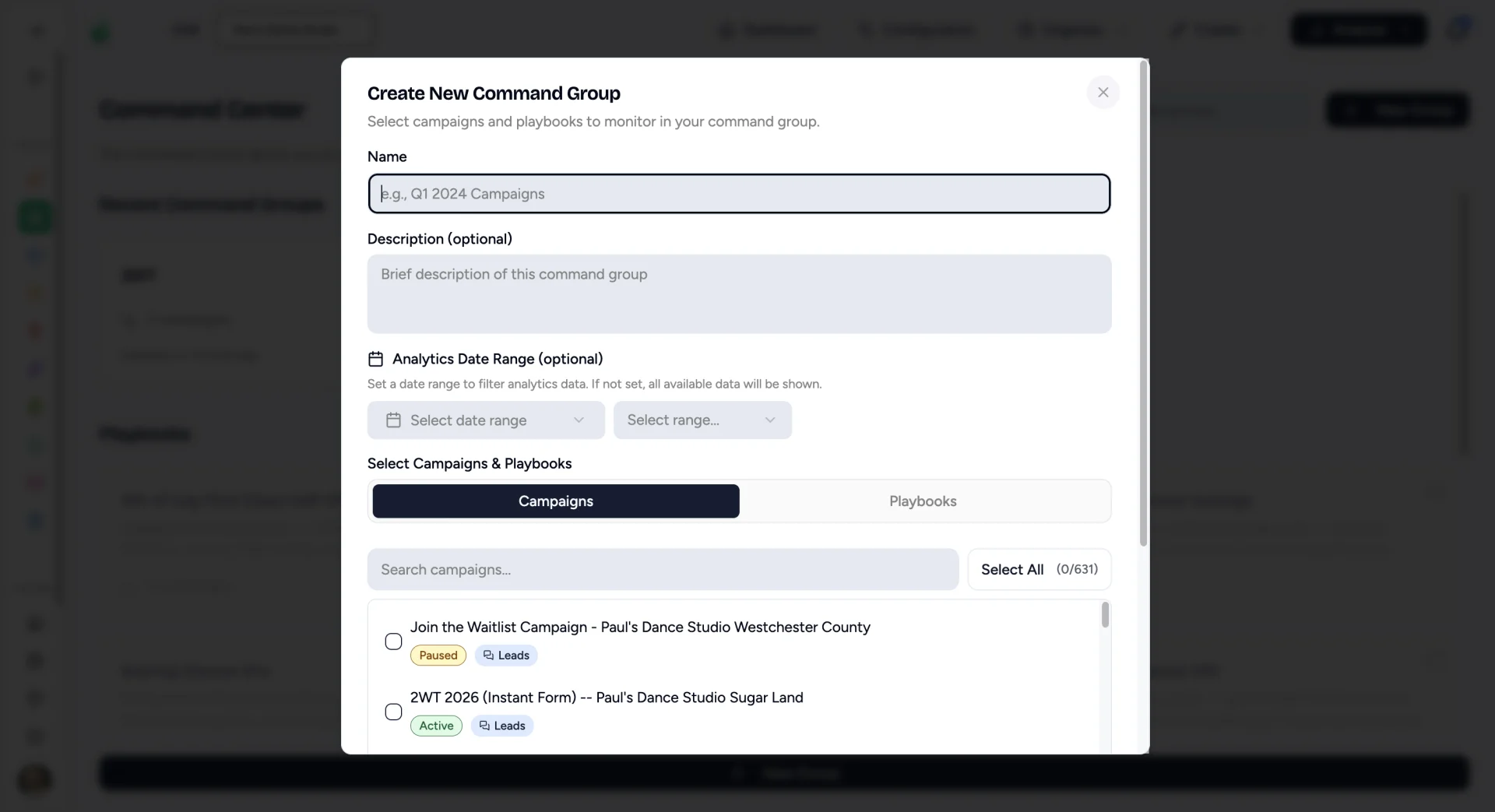
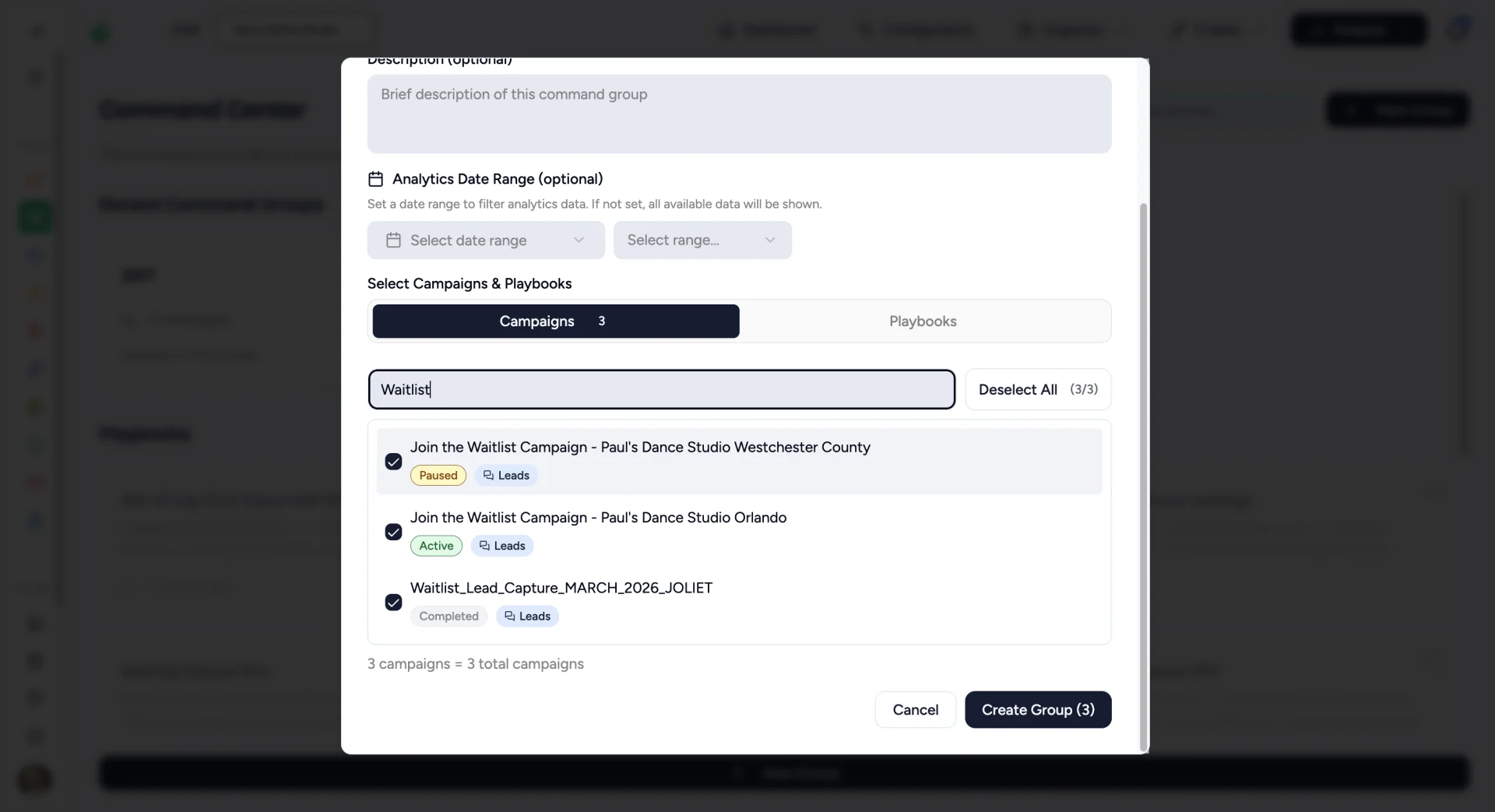
Give it a name and description, then search campaigns and playbooks to associate with the Command Group.
Flamel customers typically use Command Groups to combine campaigns running for a specific Promotion, Month, or by use case like Grand Opening or Waitlist Lead campaigns.
Create your Command Group
Click Create Group to open your new Command Center.
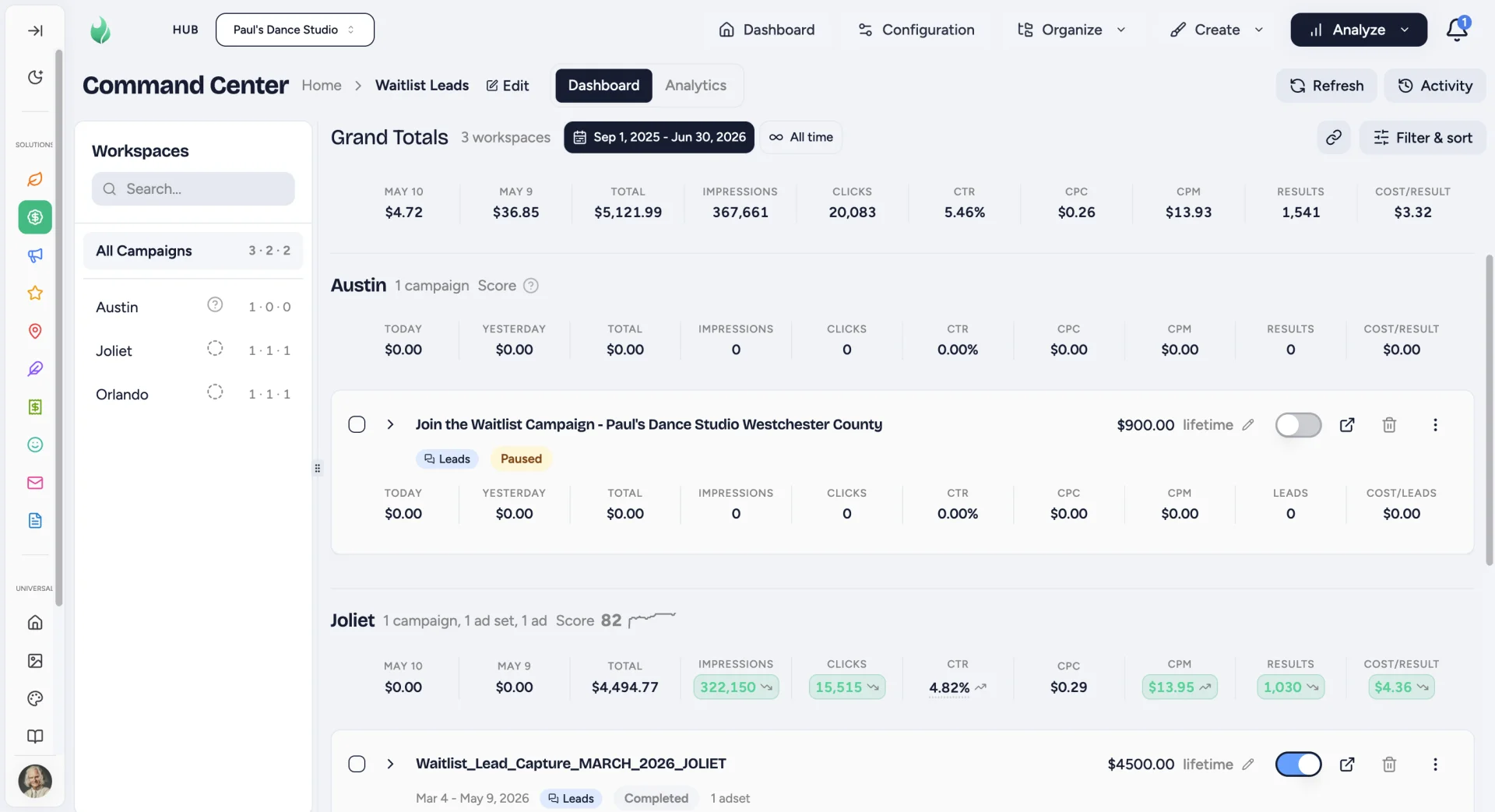
Use the left sidebar to filter the workspaces in the group. The numbers beside each name count its Campaigns, Ad Sets, and Ads.
Expand a workspace's Campaigns and Ad Sets to review each ad's analytics and preview its copy, media, and conversion settings (URL or Lead Form).
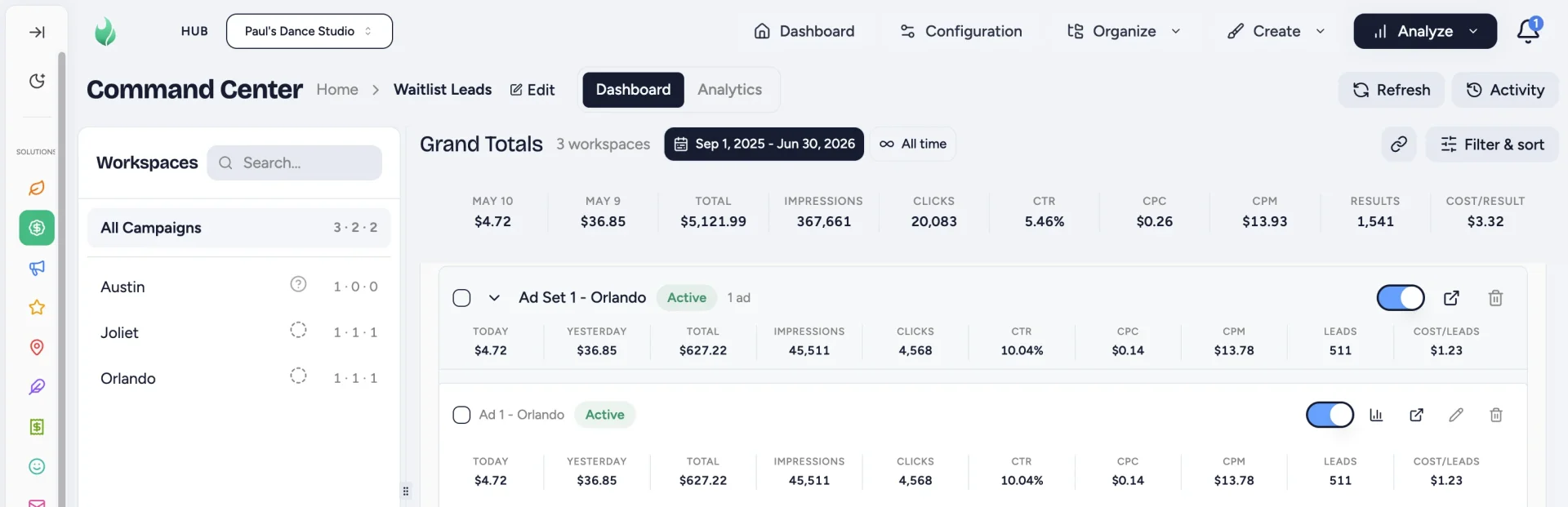
In some cases you may also see Facebook Page names that aren't associated with workspaces in your Flamel account if the Campaigns ran for other Pages that are not yet connected to a Flamel workspace. These campaigns are read-only from the Command Center until you connect the pages to a workspace.
Edit a Command Group
Editing a Command Group lets you curate the right playbooks and campaigns and filter to a specific date range. The date range controls which campaigns are included (those that ran during the selected range) and drives the analytics shown for the group.
Open the group you want to change
From the Command Center, find the Command Group you want to change. Click the ⋮ menu on its card, then choose Edit. If the group is already open, click Edit next to its name at the top of the page instead.
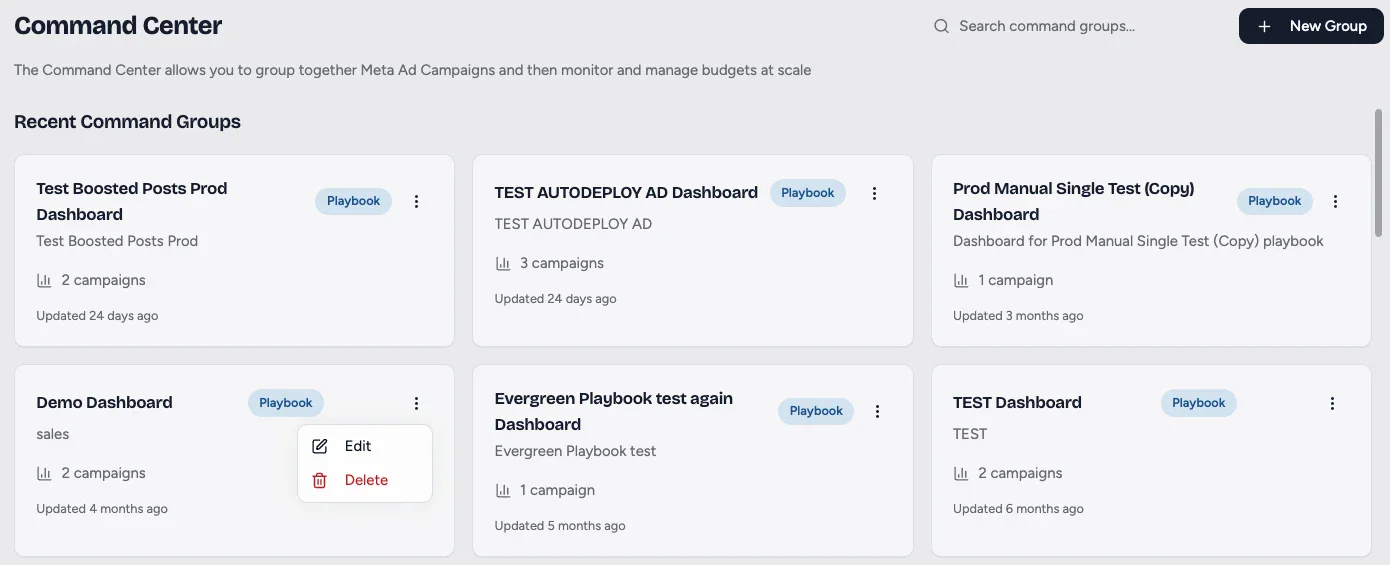
The Edit Command Group dialog opens with the group's details, date range, playbooks, and campaigns.
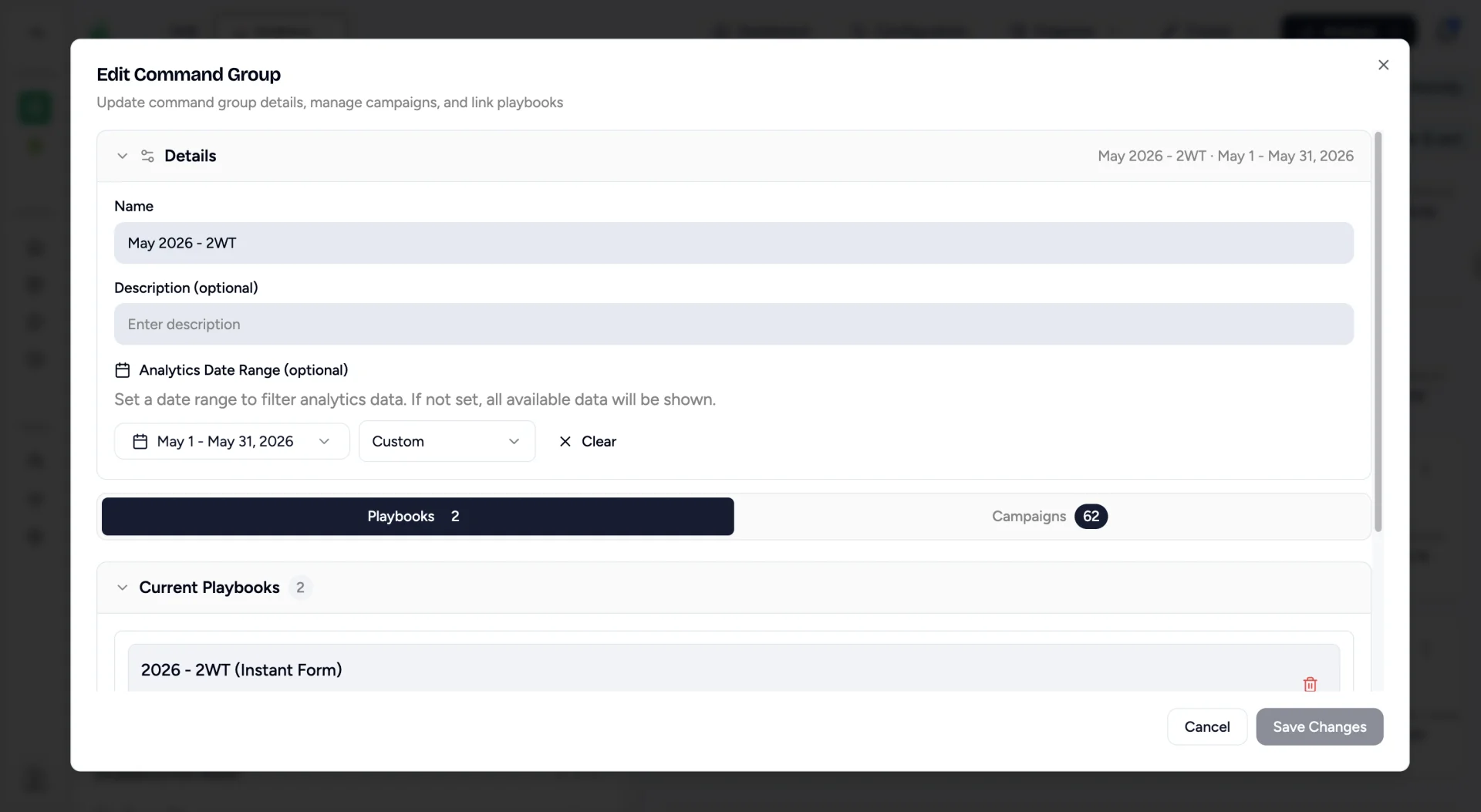
Update the name and description
Give the group a clear Name so it is easy to find later. Add an optional Description to note what these campaigns have in common.
Set the analytics date range
Choose a Start Date and End Date. This range filters the campaigns that ran during the period and sets the window for the analytics shown across the group.
Curate playbooks and campaigns
Use the Selected Playbooks and Selected Campaigns pickers to choose exactly what belongs in the group. Add a playbook to pull in its campaigns, or select individual campaigns (including ones from different ad accounts) so the group contains exactly what you want to manage and report on together. Remove anything that does not belong by deselecting it.
Keep date ranges aligned with reporting
The date range you set here flows straight into the Paid Analytics Dashboard, so pick a window that matches the reporting period you care about (a campaign flight, a promotion, or a month).