Your Locations
See where your workspace's ads reach, what each radius and ZIP code area means, and how to change them.
Who Sees What?
Workspace members can view and edit their own workspace's targeting. Guests can only view it. Hub admins should use Map View.
Your locations decide where your ads can reach. Open Dashboard, then scroll to Your locations.
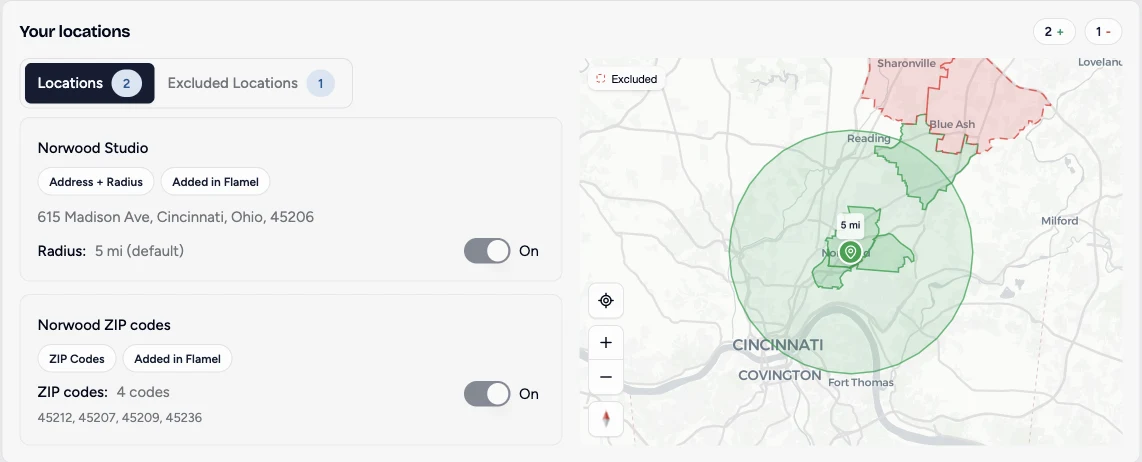
Review Your Targeting
Open Your locations
Open Dashboard and scroll to Your locations. You can open Social Media Ads, then Targeting, instead. If you have Paid Ads Management, find it under Configuration instead.
Check each location
The Locations tab lists the areas your ads reach. Each card shows the type of area, the address or ZIP codes, the radius, and whether it is On. Only areas that are On deliver ads.
Check what your ads skip
Open Excluded Locations to see areas your ads leave out, such as a neighboring franchise's territory.
Read the map
Green shows where your ads reach. Red shows areas your ads skip. Click a red area to see why.
What Each Area Means
| Area | What it means |
|---|---|
| Address + Radius | Ads reach people within this many miles of your studio's address. |
| ZIP Codes | Ads reach people in these ZIP codes. A red code is one Meta does not recognize, so it is not targeted. |
| From a neighbor | An excluded area that follows a neighboring workspace's ZIP codes and updates when theirs change. |
Edit Your Locations
Change a location
Click a location's name, address, radius, or ZIP codes to edit it in place. Use the switch to turn an area on or off.
Add an area
Click Add, then choose Address + Radius or ZIP Codes. On the Excluded Locations tab, Add creates an area your ads skip.
Exclude a neighbor
On Excluded Locations, click Add exclusion next to a detected neighbor to keep your ads out of their ZIP codes.
Flamel asks you to confirm before you remove an area, unlink a neighbor, or turn off an excluded area, because each one can let your ads deliver into a neighbor's territory.
New ads use your changes right away. Running ads update after your hub admin approves the change. Guests see locked fields and can click Request a change.