Locations for Ad Targeting
Use each workspace's Locations as the geography for Meta ads, keep them in sync with your location sheet, and update running ads safely.
Who Sees What?
Hub admins manage every workspace's Locations, connect the location sheet, and approve updates to running ads. Workspace admins and members edit their own workspace's Locations under Meta Ads, then Targeting, or from Your locations on the Dashboard. Guests can only view them.
Each workspace has a list of Locations: your studios with a radius around each, plus any ZIP code territories and areas you exclude. When an ad uses workspace Locations, Flamel builds its geography from that list at each launch, so a studio you update once flows to every new ad. Running ads change only after you review and approve the update.
Review your Locations
Open Workspace Variables
Click Workspace Variables. The Locations column lists each workspace's studios.
Open a workspace's Locations
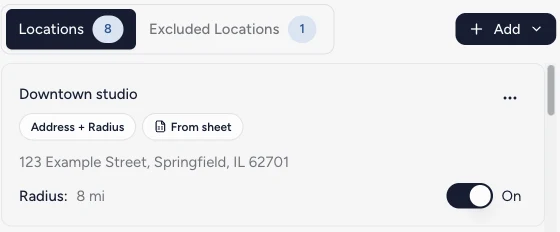
Click Show on a workspace. Each studio card shows its address, its radius, and whether it is On for targeting. ZIP code territories and Excluded Locations have their own tabs.
Check coverage on the map
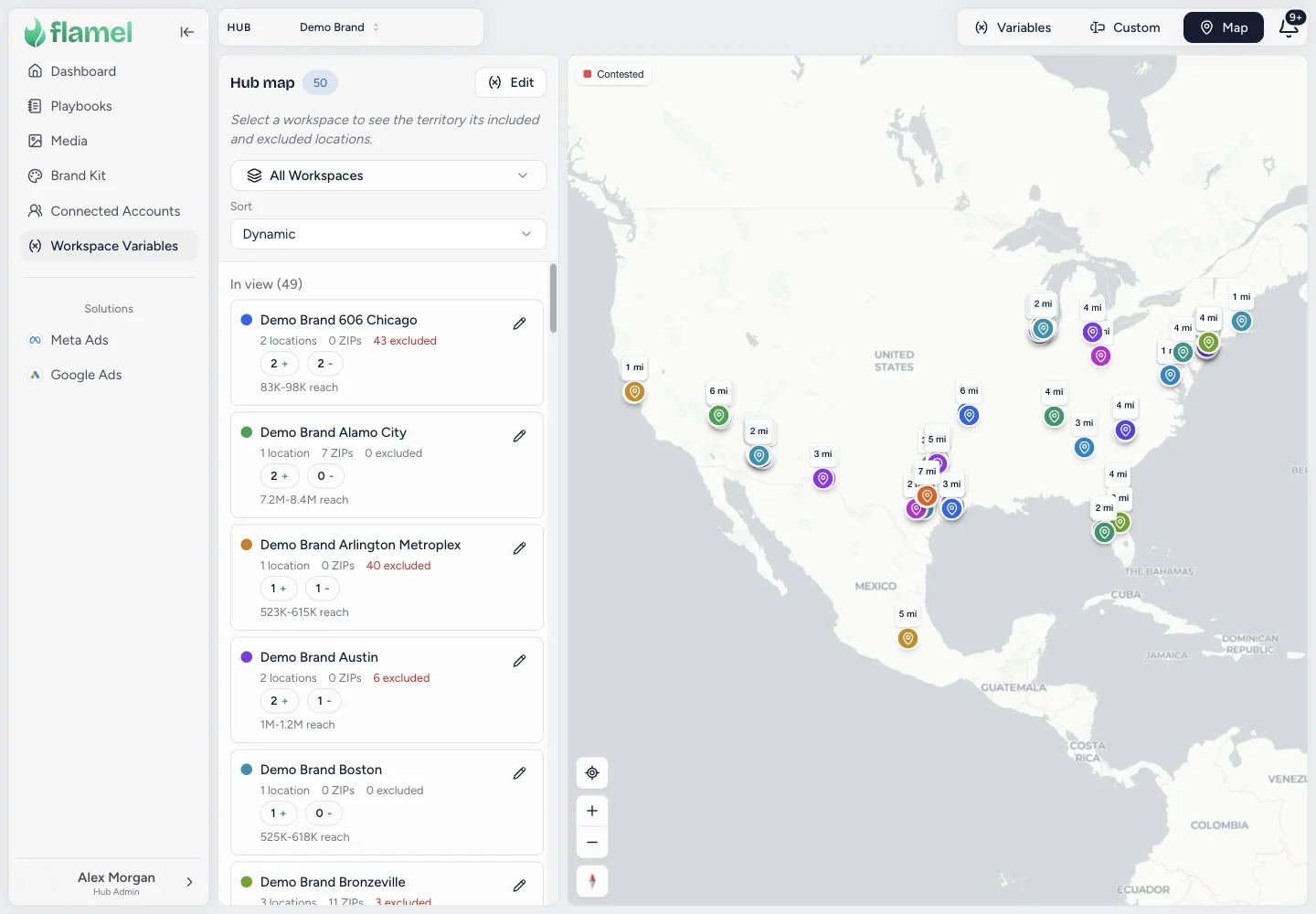
Click Map at the top of the page to see every workspace's territory together. Use it to spot overlapping radii between neighboring studios.
Open Meta Ads, then Targeting. You can scroll to Your locations on the Dashboard instead. You see your studios, the radius around each, which ones are on, and the areas your ads skip.
Workspace admins and members edit all of it: a studio's name, address, or radius, its ZIP code territories, and the areas your ads exclude, including an exclusion that follows a neighboring workspace. Turn a studio On or Off when it opens or pauses classes. Flamel asks you to confirm before you remove an area, unlink a neighbor, or turn off an excluded area, because each one can let your ads deliver into a neighbor's territory.
Renaming the workspace, editing its custom fields, and finishing onboarding still need a hub admin. Guests see the fields locked and can click Request a change instead. See Your Locations for the full workspace walkthrough.
Change what your ads reach
| Change | How | When to use it |
|---|---|---|
| Radius | Open the studio card and choose a new radius. Recommended radii are labeled. | Dense cities usually need a smaller radius than suburbs. |
| Turn a studio off | Switch the card to Off. | A studio is closed or paused. It stays on file, and drops off the Map view until you turn it back on. |
| Exclude an area | Add it under Excluded Locations. | Keep ads out of a neighboring franchise's territory. |
| Extra area for one audience | Open Configuration, pick the audience type, and add it under Overrides. | One promotion should reach a little further than your studios. |
Choose which ads use Locations
Open Meta Ads, then Configuration. Pick a workspace and an audience type, then use Use workspace locations. When it is on, that audience type targets the workspace's Locations. When it is off, the audience type keeps the geography saved on it. Switching back and forth never deletes either one.
Keep Locations in sync with your location sheet
Flamel supports syncing Locations from a Google Sheet. It reads your primary location sheet every day. A studio you add, move, or close in the sheet shows up in Flamel without re-entering it.
Share the sheet with Flamel
In Google Sheets, click Share and add sheets-readonly@flamel-ai-webapp.iam.gserviceaccount.com. Set the role to Viewer and uncheck Notify people. Flamel only reads the sheet and never edits it.
Send the sheet link to your Flamel contact
Flamel connects the sheet to your hub. The Workspace Variables toolbar then shows the sheet's name, whether it is shared, and when it last synced.
Review changes before they apply
Click Sync now to check the sheet right away, then Review sheet changes to see new studios, updated studios, and removals before you apply them.
What the sync changes and what Flamel keeps
The sheet keeps each studio's name, address, city, state, ZIP code, and Google Place ID current. Studios marked No under Sync or Publish Location arrive turned off, so your ads skip them until you turn them on. Flamel keeps everything you set in Flamel: studios you added yourself, excluded areas, custom variables, ZIP code territories you changed, and any radius or on and off change you made. When the sheet and your Flamel edit disagree, your edit stays and the difference appears for review.
Each studio card is labeled From sheet or Added in Flamel.
Removals wait for you
When a studio disappears from the sheet, Flamel holds the removal for your review unless it is small and certain. A studio is never deleted because a filter or a hidden row changed for a day.
Update ads that are already running
Changing Locations never touches live ads by itself. When your Locations look right, send the new targeting to running ads.
Start a review
In Meta Ads, open Configuration, click Manage, then Update targeting across workspaces. Choose the workspaces and audience types, then click Update live ads.
Compare current and new locations
Flamel lists every running ad set with its current locations and the locations it would get. Nothing is sent yet.
Approve
Click Approve and update. Flamel updates one ad set at a time and confirms each change with Meta. If Meta does not confirm one, Flamel stops and shows which ad set needs a look. Budgets, schedules, and on and off status never change.
Good habits
Keep the sheet as the list of real studios and use Flamel for ad decisions such as radius, exclusions, and which studios are on. Review new studios after a sync, because a new studio starts at a recommended radius that you may want to tighten. Update running ads in small batches the first time, then review the results before the next batch.