Merge or Rebrand a Workspace
Combine two workspaces into one or update a workspace name when a location rebrands.
Rebrand a workspace when the business changes its name. Merge two workspaces when they now represent the same business. Both keep the location data you need.
Rebrand a Workspace
Rename the Workspace
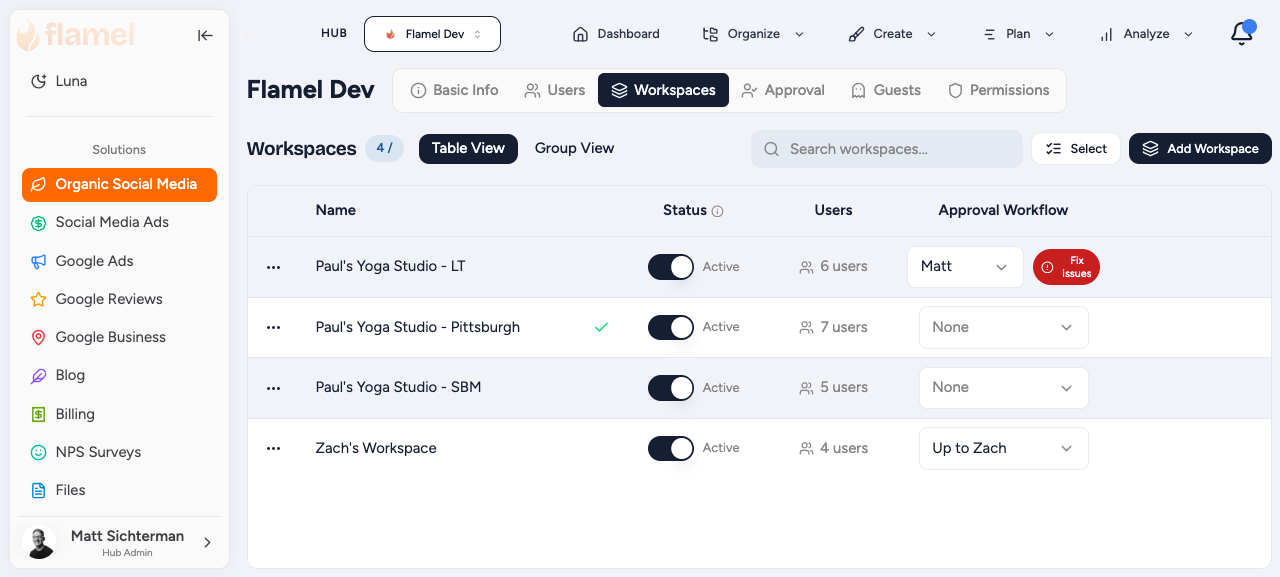
Go to Hub, then Workspaces, click the workspace's name, type the new name, and press Enter or click away to save. Press Escape to cancel.
Update Workspace Variables
Open Workspace Variables and update anything that changed: location name, website URL, phone, address, hours, and custom variables.
Update Branding Assets
If the location uses custom branding, refresh its logos, brand colors, and assets in the Brand Kit.
Verify Connected Accounts
If social page names or permissions changed during the rebrand, reconnect the affected accounts in Connected Accounts.
Verify the Rebrand
Confirm the workspace name, Workspace Variables, branding assets, and Connected Accounts are all current.
Merge Two Workspaces
One workspace survives and the other is deleted, so move everything you need onto the survivor first.
Deletion Is Permanent
Export anything you want to keep (analytics, media, post history) before you merge or delete a workspace.
Choose the Surviving Workspace
Keep the workspace with more historical content and analytics, active connected accounts, and the most complete setup.
Export Important Data From the Closing Workspace
Before deleting it, export anything you may need later, such as analytics reports, media assets, and post history.
Move Users
Go to Hub > Users. Assign users who should keep access to the surviving workspace, and remove those who no longer need it.
Review Connected Accounts
Confirm the surviving workspace has the correct social accounts connected, and reconnect any that are missing.
Delete the Closing Workspace
- Go to Hub > Workspaces and open the closing workspace.
- Open Workspace Settings.
- Click Delete Workspace and confirm.
Last Chance to Back Out
This permanently removes the closing workspace's post history, analytics, media, and settings. Confirm you have already exported anything you need.
Update the Surviving Workspace
If needed, rename it, update Workspace Variables, review branding assets, and verify connected accounts.