Transfer a Workspace
Transfer ownership of a workspace to a new franchisee while preserving all content, history, and analytics.
For Hub Admins
Transfer a workspace to a new franchisee while preserving its content, history, and analytics. Follow these steps in order to maintain access.
Do Not Remove the Old Owner Early
Keep the previous owner assigned until the new owner has logged in and confirmed they can see the workspace.
Before You Start
Confirm the handoff scenario. All of these follow the same steps below:
- A new owner replaces the current owner entirely
- The current owner is leaving this workspace but staying in others
- The new owner is brand new to your network, or already exists in it
Transfer the Workspace
Assign the New Owner
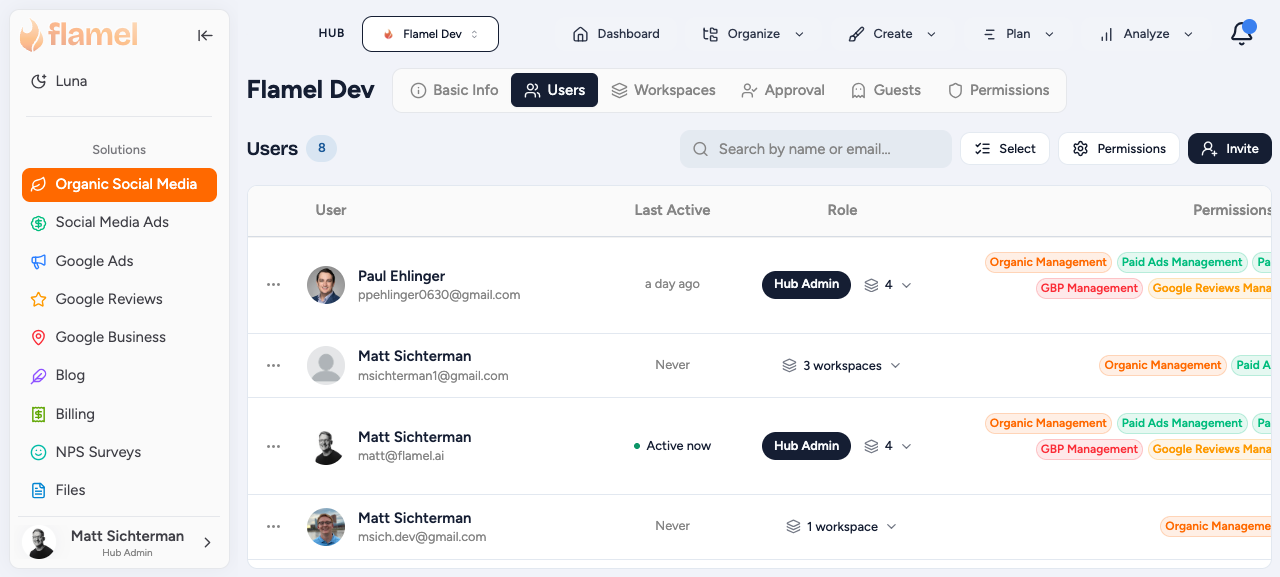
Go to Hub > Users.
- Find the new owner, or invite them if they are new.
- Assign them to the workspace by selecting it under Workspaces.
- Leave Hub Admin off unless they also manage the entire hub.
Once assigned, the new owner appears in the Switcher.
Confirm Access
Have the new owner log in and confirm they can see the workspace, switch into the right location, and reach core features (posts, calendar, analytics). Do not proceed until this is confirmed.
Remove or Unassign the Previous Owner
Once the new owner is verified:
- If the previous owner is leaving the network, remove the user.
- If they still manage other locations, unassign only this workspace.
Reconnect Social Accounts
The new owner opens Connected Accounts, removes any stale connections, and reconnects each platform with their own admin access. This ensures posts publish from the correct permissions.
What Transfers Automatically
These stay with the workspace and need no action:
- Post history and analytics
- Scheduled posts and calendar content
- Workspace variables and location data
- Media library
- Active campaigns and playbooks
What Requires Manual Action
- Social accounts: the new owner must reconnect them.
- Notification preferences: each user sets their own in Profile after logging in.
- Drafts: Drafts tied to the previous user stay under that account and may need to be recreated.