Content Insights
Analyze performance by content type and format to understand what resonates with your audience.
Content Insights breaks down organic performance by what you posted, not just when, so you can see which content types and formats drive the most engagement.
Open Organic Social, then Analyze, then Content to see this view. The view has three tabs: Insights, Top Content, and Memories.
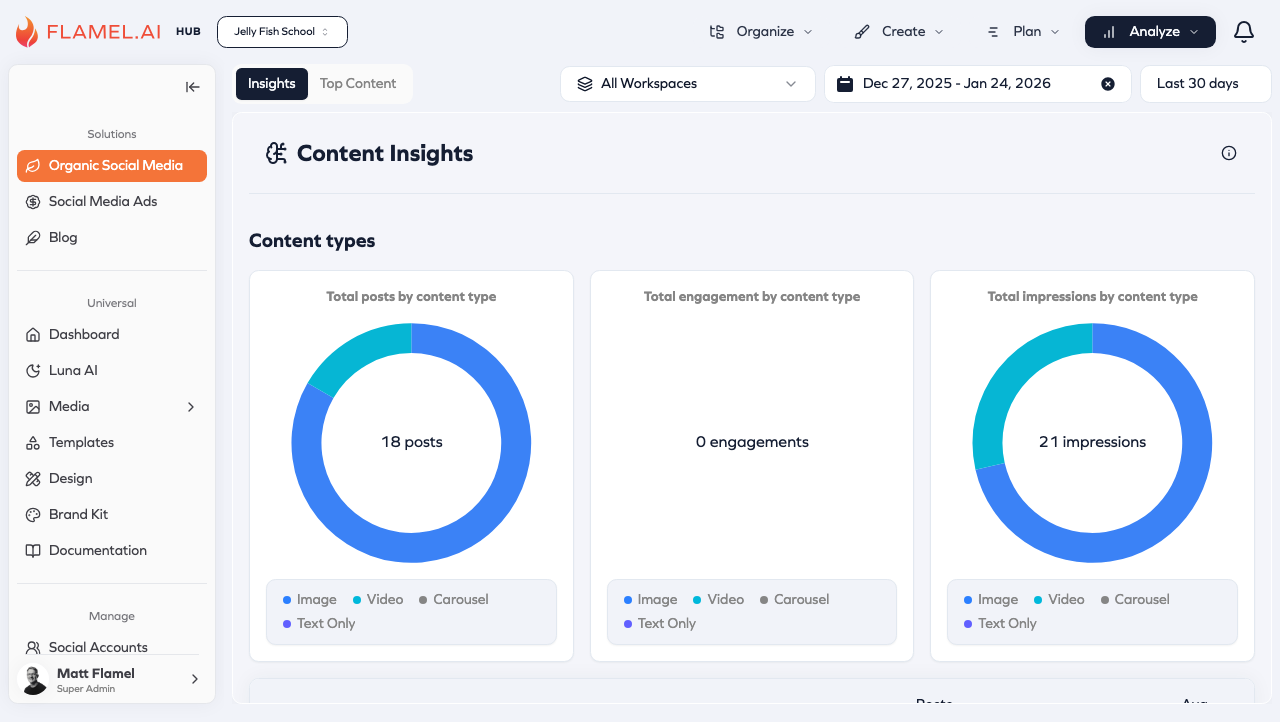
Content Type Breakdown
The report includes the following content types:
| Content type | What it covers |
|---|---|
| Images | Single image posts |
| Carousels | Multi-image posts (swipeable) |
| Videos | Standard video posts, not Reels |
| Reels | Short-form vertical video |
| Text-only | Posts without any media |
| Stories | Facebook and Instagram Stories |
For each content type, you'll see:
- Posts per day
- Total engagement
- Avg engagement per post
- Total impressions
- Avg impressions per post
- Avg engagement rate per post
Use these metrics to identify which formats consistently perform best with your audience.
Best Times to Post
Content Insights also analyzes when your audience is most engaged with your content. The Post Timing report highlights the days and times that have historically generated the strongest performance based on engagement and impressions.
Hashtags
The Hashtags report shows how hashtags have performed across your published content.
For each hashtag, you can review:
- Total count
- Total engagement
- Average engagement per post
- Total impressions
- Average impressions per post
- Average engagement rate
Use this data to identify hashtags that consistently drive stronger engagement and reach.
Reading the data
The numbers above are most useful when you treat them as prompts. As you read the report, ask:
- Timing: do the top-performing posts cluster around a particular time of day or day of week?
- Format: is one content type consistently ahead on engagement rate, not just raw reach?
- Platform fit: is a format winning on one platform and lagging on another?
Then apply your findings to your next round of content.
Memories
The Memories tab resurfaces content you already published. Use it to celebrate milestones and to get more mileage out of the posts that worked.
Three views sit in the toolbar at the top of the tab:
| View | What it shows |
|---|---|
| This day | Posts published on this exact calendar date in earlier years. |
| This week | Posts published within three days either side of this date in earlier years. |
| Surprise me | A mixed set of past posts, refreshed once a day. |
This day and This week group your posts by year. Each group shows a heading such as Last year or 3 years ago, the dates it covers, and the number of posts inside it. The most recent year opens first. Select any other heading to expand it.
Surprise me picks a fresh set each day. The set stays the same until the next day, so you can leave the tab and come back to the same posts.
Repurpose a memory
Select Repurpose on any memory card. Flamel creates a new organic draft, copies the caption into it, and opens the post editor. Any media on the original post copies across too. Edit, schedule, and publish the draft like any other post. See Creating a Post.
Memories ignore the date range
The date range picker does not appear on the Memories tab, because memories span several years by design. Use Filters to change the sort order of the cards.
Memories show organic posts only. Paid ad creative never appears here. Read Analytics Overview to see exactly what Flamel counts as organic.
Related Articles
The cross-platform summary view: reach, engagement, and follower trends.
Your best-performing individual posts ranked by metric.
Build reusable layouts based on what your Content Insights show works.
Hub view: compare content performance across franchise locations.