Playbook Opt-In Walkthrough
Click through the playbook opt-in flow step by step: open the Shop, complete the launch checklist, and deploy your Meta campaigns.
For workspace owners (franchisees)
Hub admins can preview a playbook but cannot opt in from the Hub context. Switch to a workspace first, then follow these steps. (If the Hub Admin user selected the playbook to Deploy Immediately, then there will not be workspace opt-ins)
Opting in to a playbook lets your location run a campaign your Hub has already built and approved. You confirm the schedule, budget, and creative, then Flamel deploys the Meta campaigns for you.
Opt In To a Playbook
Open the Playbook Shop
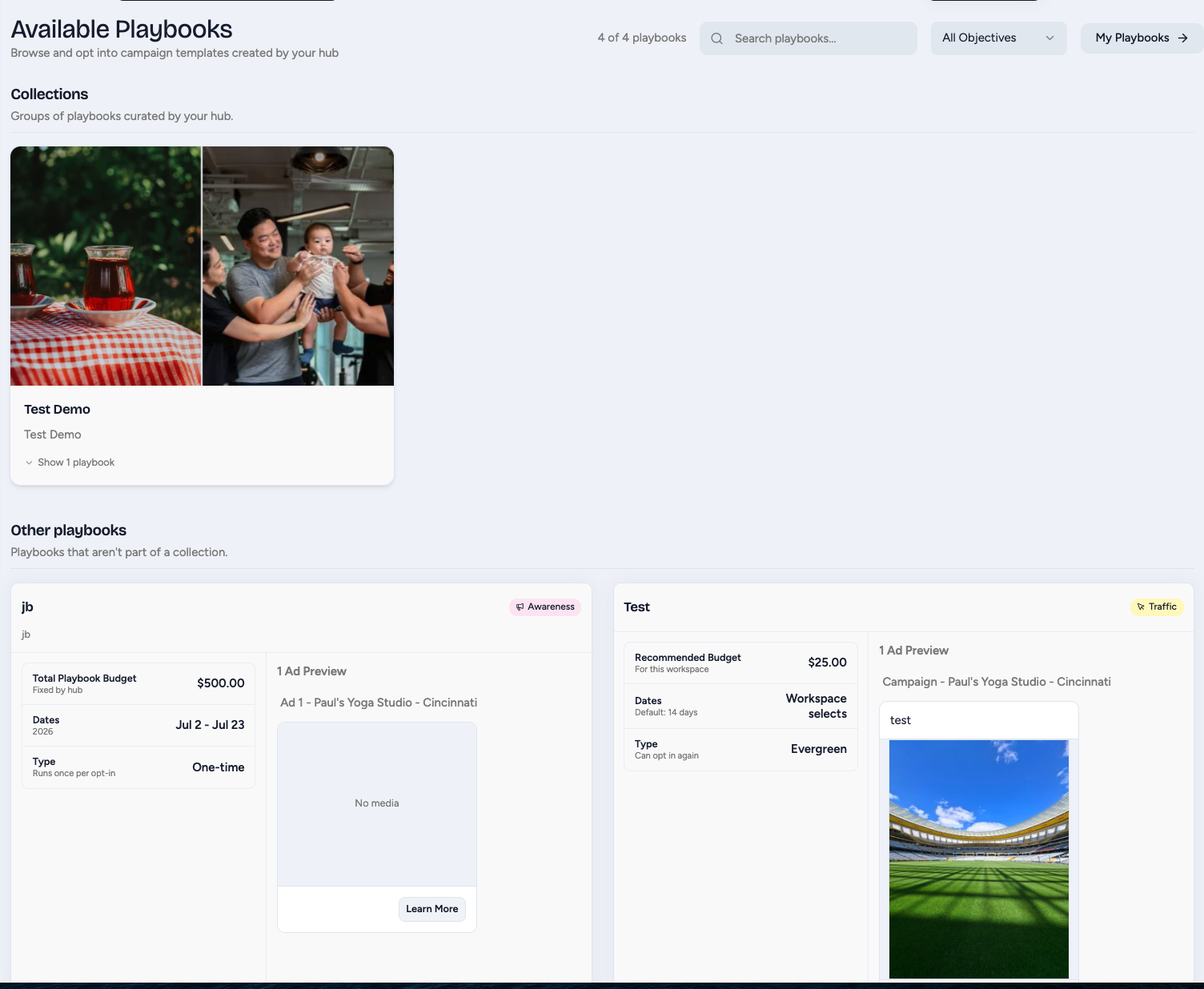
Go to Social Media Ads, then Shop Playbooks. This is where you browse everything your Hub has published for your location.
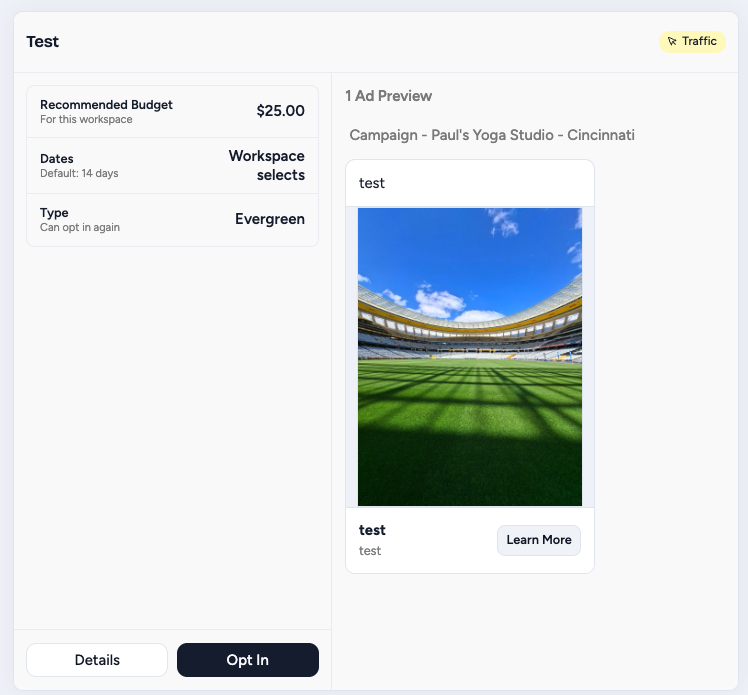
Click Opt In On a Playbook
Each card shows the recommended budget, the schedule, and ad previews. If you want the full description before deciding, click View Details first, then Opt In when you are ready.
Set the Schedule
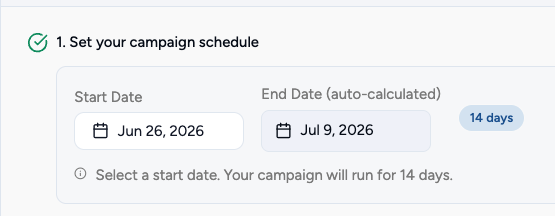
The Schedule section appears for evergreen playbooks or when your Hub left the schedule open. Depending on the Hub settings, you may be able to set start date / end date / duration.
Schedule rules
The start date must be at least 24 hours out. An end date is required when you are using a Lifetime budget.
Choose Your Budget
Pick Use Recommended unless you have a specific reason to deviate:
- First time running this playbook: use the recommended budget.
- Past performance was strong: increase 20 to 30 percent above recommended.
- High-traffic season (holidays, grand opening): increase 30 to 50 percent.
- Testing a new market: start at the recommended budget.

Lifetime vs Daily
Choose Lifetime for fixed promotions that have a clear end date. Choose Daily for ongoing presence with consistent daily pacing.
Pick Your Creative Source
Your creative can come from one of three sources:
- Playbook-Level: use the Hub's pre-approved media. Nothing to upload.
- Workspace-Level: upload your own media. Your Hub reviews it before the campaign deploys.
- Boosted Posts: boost an existing organic post from your location.
As a workspace opt-in, if it is set at the Playbook-level - then there's nothing for you to do!
If it's set at the workspace level, you can choose your media. Follow the Workspace Media guide below.
If it's set as Boosted Posts, you'll be using one of your organic posts. Follow the Boosted Post as Media guide below.
Upload Media (Workspace-Level Only)
If you chose Workspace-Level, upload at least one image per ad.
Accepted formats: JPG, PNG, GIF, and WebP, up to 8MB each. You will see tabs for Marketing, Square, and Logo sizes. Fill the tabs your Hub specifies.
Answer the Questions
Required questions are marked with an asterisk. Be specific, because your answers affect targeting and follow-up.
Just Answering Questions, No Ads?
If you only need to answer questions without launching ads, check I'm not interested in ads at this time at the bottom of the Questions section.
Review and Submit
Confirm the ad previews show your location's name and details. Spot-check the targeting (radius, age, audience) and the final budget. When everything looks right, click Opt In. Flamel creates your Meta campaigns automatically, shows deployment progress, then a confirmation.
Statuses After You Submit
| Status | What it Means | What to So |
|---|---|---|
| Deploying | Flamel is creating your Meta campaigns | Wait 1 to 2 minutes |
| In Review | Hub is reviewing your media | Wait for approval or a change request |
| Active | Campaign is live | Monitor in My Playbooks |
| Changes Requested | Hub asked for media updates | Click Update and Resubmit |
| Failed | Deployment hit an error | Retry, or contact support |
Re-Running an Evergreen Playbook
When an evergreen campaign completes, the card shows Opt In Again with your previous schedule duration and budget pre-filled. Confirm or adjust the schedule and budget, then submit.
For Meta playbooks, you also choose how the re-run deploys:
- Reuse the existing campaign (default): Flamel keeps the same Meta campaign and updates its budget and schedule in place. Reusing the campaign preserves Meta's learning from the previous run, so delivery ramps back up faster.
- Start a fresh campaign: Flamel creates a new campaign labeled with the next run number (Run 2, Run 3, and so on). Choose this when you want cleaner, per-run analytics and do not mind Meta relearning delivery from scratch.
Google Ads playbooks are not affected by this choice and always deploy a fresh run.
Troubleshooting
- Submit button is disabled: a required checklist item is not done. Check the sidebar for empty circles.
- Images will not upload: JPG, PNG, GIF, or WebP only, max 8MB each.
- Shop is empty: your Hub has not published any playbooks yet. Ask them.