Lead Capture Playbooks
Build lead-generation playbooks with Meta Instant Forms across your workspaces.
Who This Is For?
Instant Forms / Lead forms are created in Meta Ads Manager (not Flamel), synced into Flamel, then attached to playbooks. Hub admins build and sync the forms; workspace owners handle lead follow-up.
Set Up Lead Capture
Build the Instant Form template once, copy it to every workspace Page, then sync and attach it in Flamel.
Create Your Instant Form in Meta
Follow these steps in Meta to build your Instant Form: https://www.facebook.com/business/help/397336587121938
Open the Instant Forms Tool in Meta
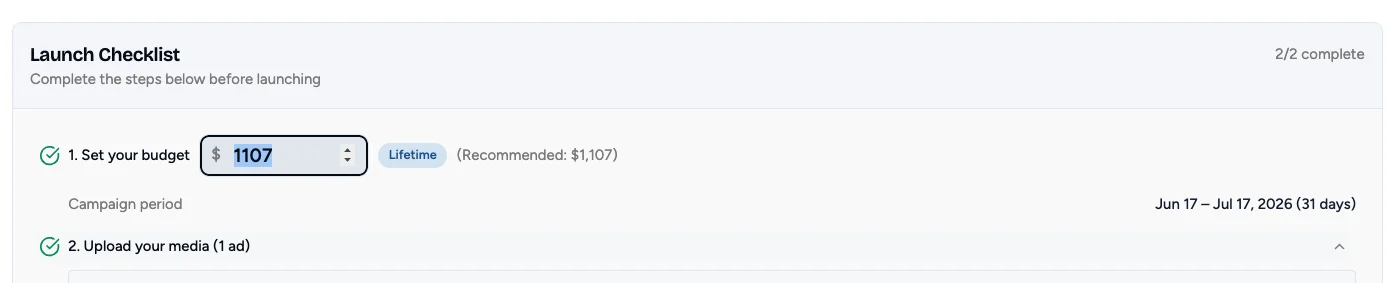
In Meta Ads Manager, go to All Tools, then Instant Forms, then click Create Form.
Pick a Form Type
Choose More Volume for a simple form, or Higher Intent to add a review step before the lead submits. Higher Intent trades some volume for better-qualified leads.
Add Your Questions
Keep questions minimal. Lead with the pre-filled standard fields (name, email, phone, city) that auto-populate from the user's Facebook profile, and save any custom questions for the end.
Set the Thank You Screen
Tell people exactly what happens next, for example "we'll call you within 24 hours". Clear expectations improve the quality of every conversation that follows.
Copy the Form to Each Workspace's Page
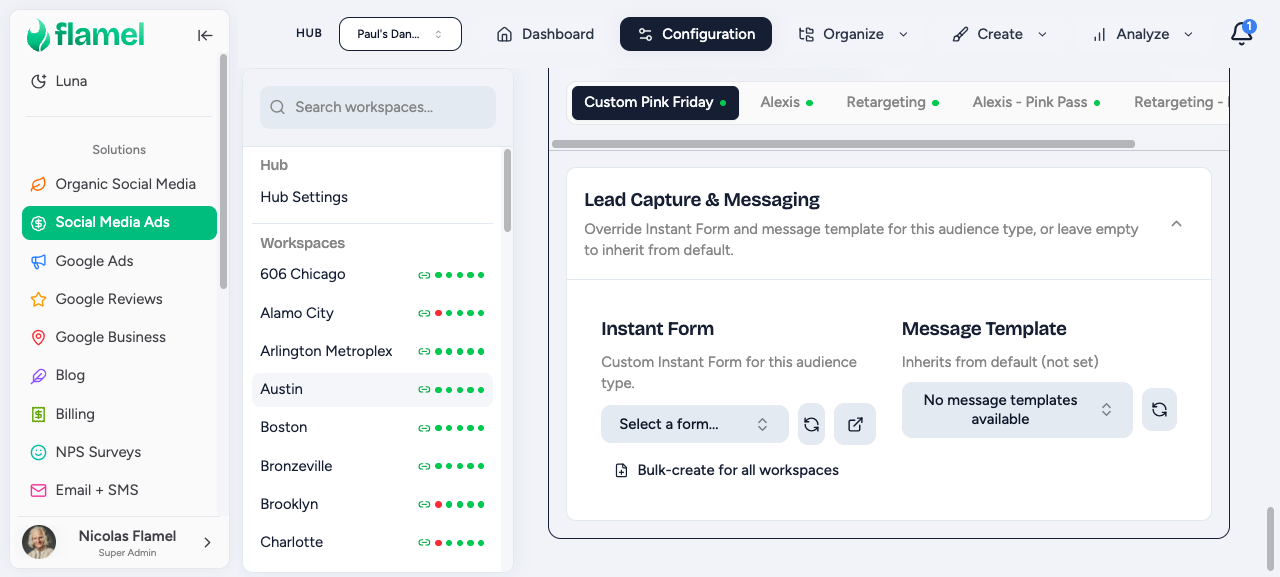
Each workspace needs its own copy of the form so leads land in that location's own CRM or Page Inbox. Navigate to Social Media Ads > Configuration. And click the Manage > Bulk-create instant forms.
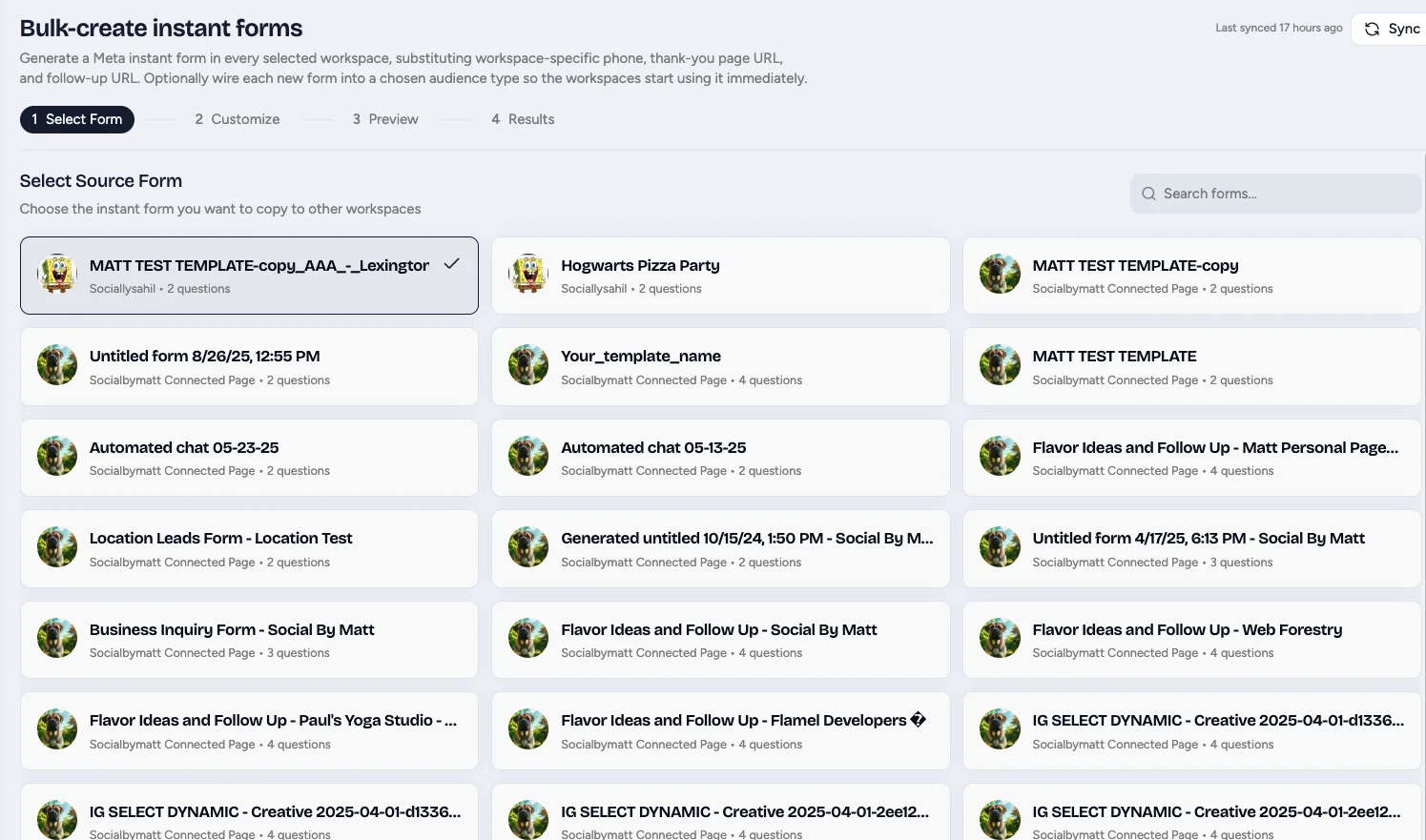
Select the Source Form, the Instant Form you want to copy.
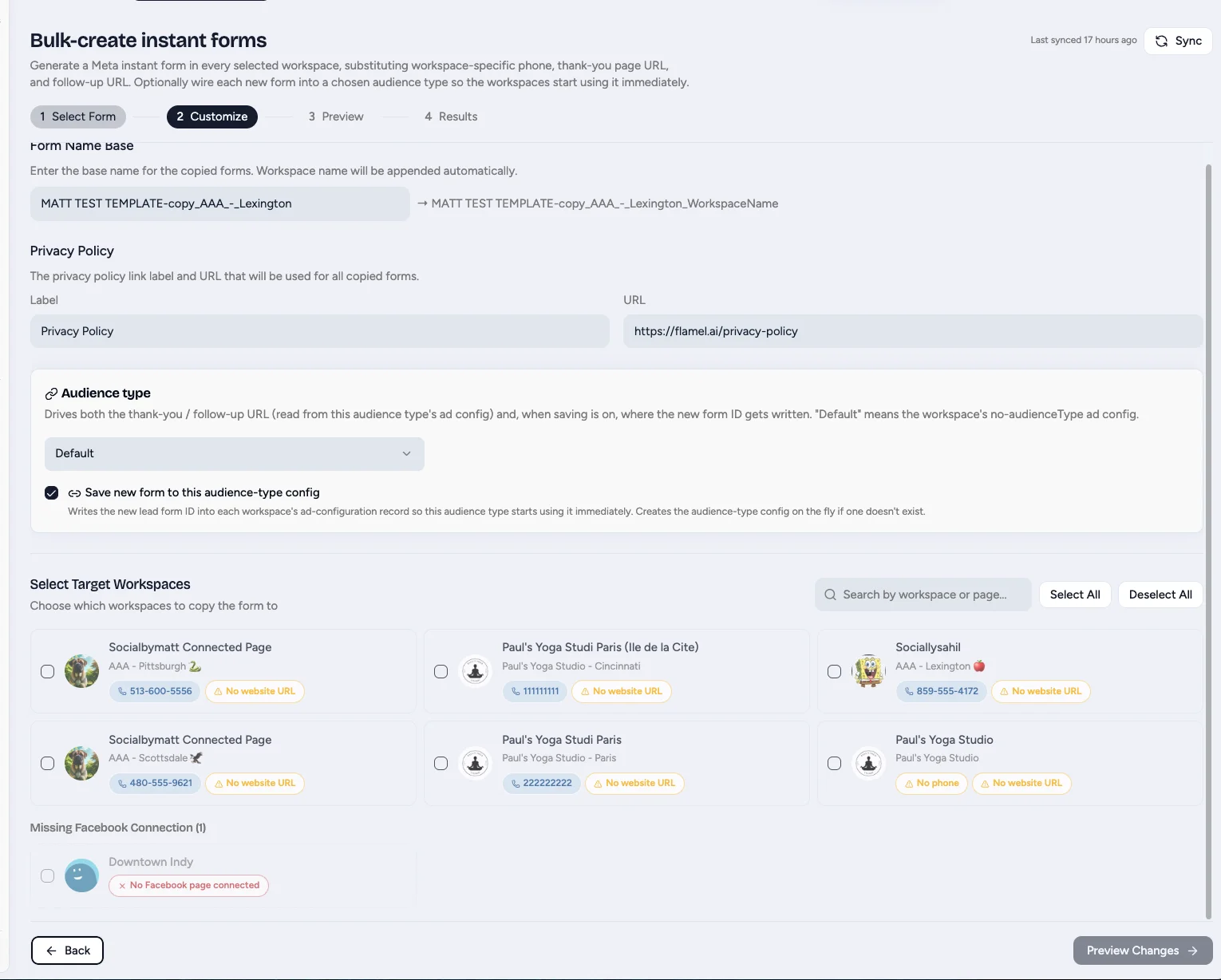
Then, customize the form. You can:
- Give the instant form a name. (The Location Name will automatically be added).
- Add your brand's Privacy Policy URL
- Select which Audience Type this form should be matched.
- Select which workspaces you want to build this Instant form for.
Select Preview Changes, review the result, then click Copy to X Workspaces. Flamel generates an Instant Form for each workspace.
Why a Per-Page Copy
A single shared form cannot split leads by location. Each Facebook Page needs its own copy so leads route to the correct location's inbox or CRM.
Sync Forms into Flamel
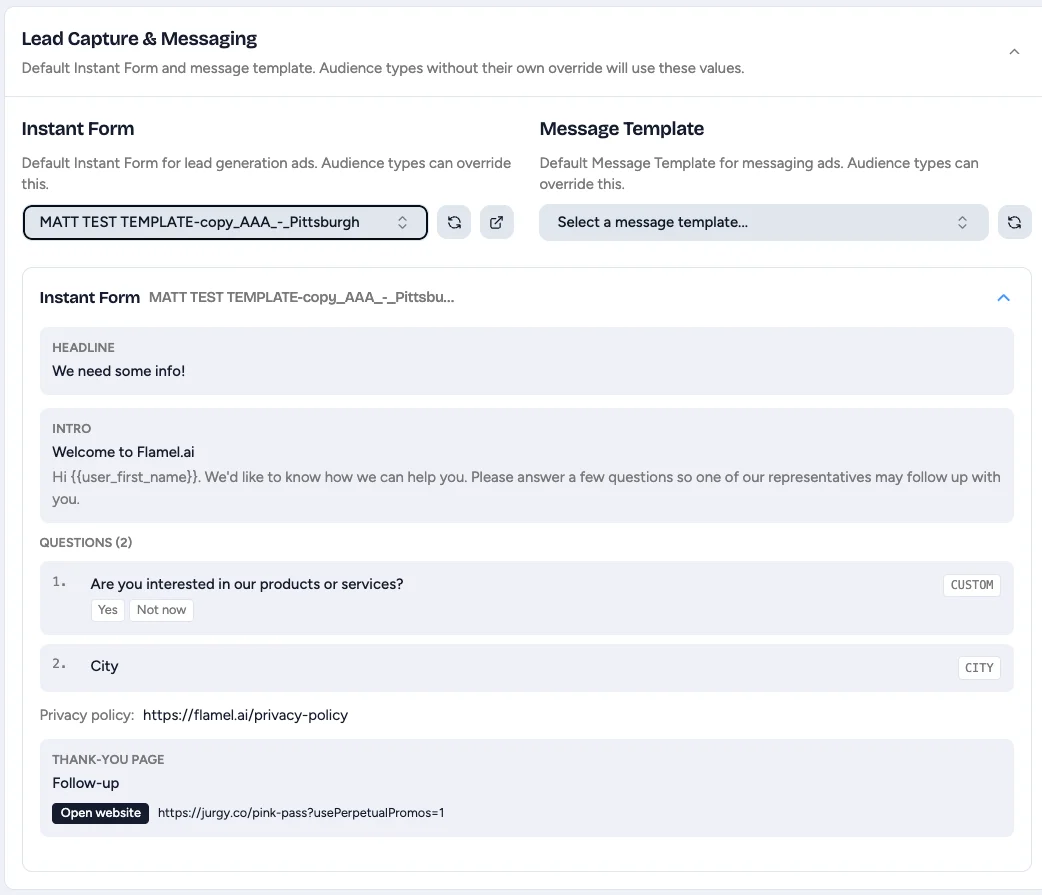
In each workspace, open Social Media Ads > Configuration, then Lead Capture, and click Sync Forms to pull the latest forms from Meta.
Attach the Form in Ad Configuration
In the workspace's Ad Configuration, open Lead Capture for the relevant audience type tab and set the synced Instant Form as the active lead form for that audience type. This tells Flamel which form to use when an ad goes live. See the Ad Configuration walkthrough for the full Lead Capture field reference.
Create the Playbook With a Leads Objective
When creating the playbook, pick Leads as the objective and reference the audience type you configured above. See Creating playbooks.
Once a lead form is live on your Page, your job is to respond fast. Leads contacted within minutes convert far better than hours-later follow-ups.
Turn on Page Inbox Monitoring
Enable notifications for your workspace Page so a new lead pings you immediately instead of sitting unseen.
Connect your CRM
Route new leads into your CRM automatically through Meta's native CRM integration or Zapier, so nothing gets lost.
Set Up an Auto-Responder
Send an automatic confirmation email so the lead knows their request was received while you prepare to reach out.
Speed Wins
A lead contacted in the first few minutes is far more likely to convert than one you reach hours later. Treat every new submission as time-sensitive.
Accept Meta's Lead Ad Terms
Before a leads-objective ad can go live, the Facebook Page it runs on must accept Meta's Lead Generation Terms of Service once. If it has not, the playbook fails to deploy with Meta error 100:1815089. A Page admin accepts the terms in a one-minute step on Facebook.
One-Time, Per Page
Follow Lead Ad Terms not accepted for the exact steps to accept the terms and clear the 100:1815089 deploy error.
Form Best Practices
Shorter Forms Convert Better
Name, email, and phone is usually enough. Every extra field lowers conversion. Pre-filled fields (name, email, phone, city) build momentum, so put any thinking-required custom questions last.
Common Questions
Why do I need separate forms per workspace? Each form submits leads to a specific Page Inbox or connected CRM. Sharing one form across workspaces would funnel all leads to a single location instead of the right one.
Can I edit the form after launch? Edit in Meta Ads Manager. Existing submissions stay attached to the old form version; new submissions use the new version.
My form isn't appearing in Ad Configuration. Click Sync Forms under Lead Capture in the workspace's Ad Configuration. If it is still missing, confirm the form is published (not draft) in Meta and that the workspace Page has a copy of it.
My lead ad fails to deploy with error 100:1815089. The Page has not accepted Meta's Lead Generation Terms of Service yet. See Lead Ad Terms not accepted for the one-time fix, then re-run the deployment.