Managing Playbooks
Monitor opt-ins, approve workspace creative, amend live runs, and track network performance.
For Hub Admins
Use Command Center for cross-workspace bulk operations. Use the playbook detail view for per-opt-in actions.
The Playbook List
Open Paid Social Ads, then Playbooks, to see every playbook you have published. Each row shows:
- Total eligible: workspaces that can see it
- Opted in / Active / Pending review counts
- Spend to date across the network
Click a playbook to open its opt-ins, performance, and controls.
The Page Follows Your Context
A Hub admin who switches into one workspace sees that workspace's own runs on the playbook page, including its run status and its budget breakdown. In Hub context you keep the Hub view and pick the workspace you want to inspect.
Approving Playbook Opt-Ins
When Approval is Required
A playbook can require Hub approval regardless of its creative source: Hub Provides Media, Workspaces Upload Media, or Use Existing Posts. The approval gate holds the full opt-in before deployment, so review the submitted media or post, budget, schedule, question responses, and any required pre-launch confirmation. For the workspace and reviewer lifecycle, see Playbook Review Required.
Open the Playbook Detail
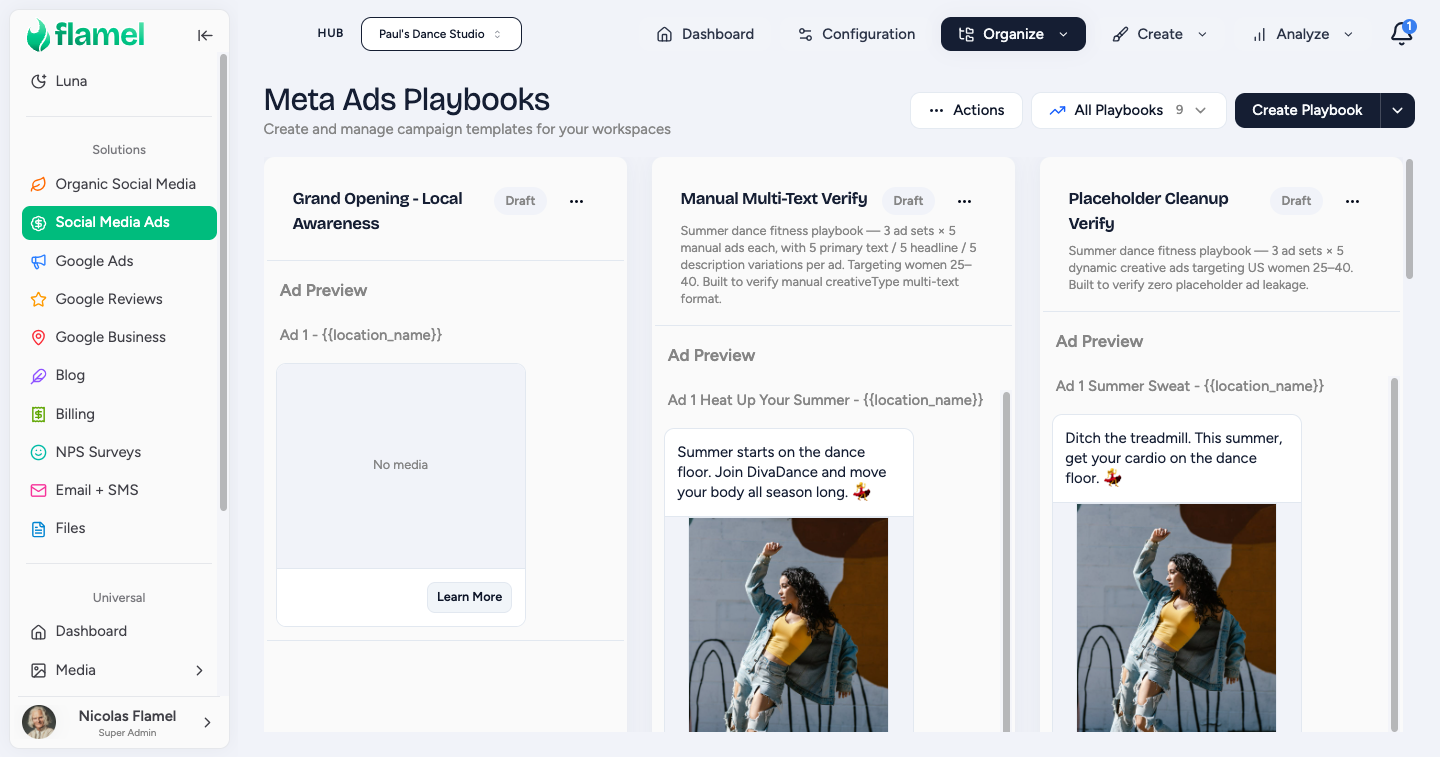
From the playbook list, click the playbook, then filter the opt-ins by status Awaiting Approval.
Review the Submission
Check the workspace name and location, the submitted media or selected post, the opt-in answers, the budget, and the schedule. If the playbook requires a manual pre-launch task, verify the workspace's confirmation and linked evidence before approving.
Approve, or Request Changes
Choose one:
- Approve: deployment starts immediately and the workspace is notified.
- Request Changes: enter your feedback. The opt-in then reads Changes Requested until the workspace resubmits.
Playbook Review Recipients (Hub admins)
When a workspace submits an opt-in that needs review, Flamel emails the playbook-review recipients set for your Hub. Configure them on the Hub Opt-Ins page, or from Notification Settings in the notifications bell (top-right of the app). Add a backup reviewer here when the usual reviewer is unavailable. See Review Email Reminders for recipient precedence and reminder timing.
| Selection | Who Gets Notified |
|---|---|
| Specific admins selected | Only those selected admins |
| No admins selected, no extra emails | All Hub admins |
| No admins selected, extra emails added | Only the extra email addresses |
Recipients set here are always notified. Individual playbooks can add more on top, but cannot remove these.
Opt-In Statuses
Use this legend to read the status on any opt-in and know your next move.
| Status | What's Happening | Hub Action |
|---|---|---|
| Scheduled | Cleared to launch, with a start date still in the future | Wait, or open it to change the date |
| Deploying | Creating campaigns on the ad platform | Wait |
| Stuck | Still deploying more than 30 minutes after it started | Retry, or contact support |
| Awaiting Approval | A submitted opt-in awaits your approval | Approve or request changes |
| Changes Requested | You asked the workspace to change its submission | Wait for the workspace to resubmit |
| Pending Billing | Saved and held because the ad account refused billing | Ask the workspace to fix billing, then Retry |
| Running | Campaign live | Monitor |
| Partial | Some campaigns succeeded, some failed | Investigate failures |
| Launch Failed | All campaigns failed | Retry, or the workspace can retry |
| Cleanup Failed | Both deploy and rollback failed | May need manual cleanup in Meta |
| Finished | Hit end date | For evergreen, workspace can re-opt |
| On Hold | Workspace paused the run | None |
| Cancelled | Workspace cancelled | None |
| Questions Only | Answered questions, opted out of ads | Review responses |
Duplicate Protection
A workspace cannot submit a new opt-in while another one for the same playbook is still queued, awaiting approval, deploying, running, or held for billing. This prevents duplicate campaigns. A run on Pending Billing keeps the workspace's place, so the fix is to resolve billing and retry that run rather than opting in again.
Reading the Budget Card
Open an opt-in to see its Budget card. The card answers two questions in order: what this run costs, and what the playbook has cost so far.
The band at the top names one run and its dates, for example "Run 2, Mar 4 to Mar 18". Under it sit three amounts:
- Opt in: the amount the workspace committed for that run.
- Meta spend: the amount Meta has delivered for that run.
- Total due: the ad spend plus your Hub fee, when your Hub charges one.
While a run is still live, its amounts keep moving. Flamel marks those figures so far, and marks the opt-in amount committed, so nobody reads a mid-run number as final.
Below the band, View receipt opens the lifetime breakdown for that workspace. The receipt lists every run as its own line with its status, dates, and three amounts. Then it totals the arithmetic in steps: ad spend across the runs, your Hub fee on its own line, and the total due. Each step is separate so a workspace can check the total instead of trusting it. A playbook with only one run shows no receipt, because the band already says everything.
Editing a Published Playbook
Edits Apply to Future Opt-Ins Only
Editing a published playbook changes what future opt-ins receive. Campaigns already deployed stay unchanged in Meta.
Update Creative for Future Opt-Ins
Edit the playbook and save. New opt-ins pick up the updated creative.
Change Deployed Creative on a Specific Campaign
Open the opt-in, then click Open in Ads Manager to edit that live campaign directly in Meta.
Change Targeting
Edit the Ad Configuration audience types. The next opt-in picks up the change.
Add New Copy Variations
Open the playbook, go to the ad you want to expand, and add additional body, title, or description variations. Save the playbook. Future opt-ins will rotate through the new copy.
Amending a Live Run
Manage Opt-In edits a run that is already live or scheduled. Flamel updates the campaign in place instead of creating a second one.
The amount you enter is the total for that run
When you amend a running campaign, the amount you enter is the total for that run. Flamel does not add it to what the run already spent. Flamel raises the amount only when Meta demands it, because a lifetime budget cannot sit below the spend a campaign has already recorded.
Evergreen renewals behave differently, and they should. When a run finishes and the workspace opts in again, Flamel adds the new run's budget on top of the finished run. Meta can reuse one campaign across runs, so its lifetime total must cover every run to date.
A failed amendment keeps the live campaign
If an amendment fails, the campaign that is already live stays live. Flamel keeps the existing campaign records, leaves the opt-in Running, and reports that the update failed while the existing campaigns remain active. A running campaign never appears unlaunched, so you can correct the input and save again.
A schedule with too little time left is refused first
A lifetime budget needs a real delivery window. Flamel checks the time that remains before it changes anything at the ad platform, and it names the problem instead of failing vaguely:
- An end date less than 24 hours after the effective start time is refused. The message gives the effective start time and the hours that remain.
- An end date already in the past is refused. The message gives the earliest start Flamel can use.
- An end date before the start date is refused. The message gives both dates.
Because the check runs first, a refused change leaves the ad platform untouched. Adjust the schedule, then save again.
Some changes need the ad platform's own permission
A change that raises spend or extends delivery is checked against the permission for that ad platform, not against Paid Ads Management alone. From Hub context, extending a schedule, dropping a start or end date, switching between daily and lifetime budgets, or setting a date the opt-in never stored all count as raises. A Hub admin who holds Paid Ads Management but not Google Ads Management can therefore read a Google Ads opt-in and still be refused when changing its schedule or budget type. The check runs before any write, so a refused change leaves the ad platform untouched. See Permissions.
Who Changed a Live Budget
When the live Meta budget no longer matches the opt-in amount, the opt-in row shows a Running $X badge. Hover the badge to read who last changed that budget, whether the change came from Ads Manager, Flamel, or another app, the old and new amounts, and the date.
Bulk Operations in Command Center
For changes across many workspaces at once, use Command Center. Common workflows:
Bulk Schedule Update
Select the campaigns you want to extend, then set a new end date to push the promotion further out across all of them at once.
Bulk Budget Update
Adjust spend by percentage or dollar amount across the selected campaigns.
Bulk Pause or Activate
Stop or restart a promotion across the network in one action.
A bulk pause marks the run On Hold only after the ad platform confirms the pause. The playbook record and the ad platform therefore agree, and an opt-in never reads as live while its ads are stopped. A run that deployed several campaigns flips to On Hold only when every one of them is paused.
Adding a New Location to an Active Playbook
When a new franchisee onboards while a playbook is live:
Finish Onboarding the Workspace
Complete the onboarding workflow so the workspace exists with a budget and ad configuration.
Add the Location to the Playbook Scope
Open the playbook and add the new location to its scope.
Confirm the Ad Configuration Row
Check the workspace row for audience, URL, and lead form so the deployment has everything it needs.
Set the Playbook Back to Active
The playbook auto-deploys for the newly added workspace.
Verify in Command Center
Open Command Center and confirm the new location appears.
Stopping an Evergreen Playbook
You Cannot Delete a Playbook with Active Opt-Ins
Instead, use one of these options.
- Unpublish: removes it from the shop. Existing opt-ins continue running.
- Pause all opt-ins: use the Command Center bulk pause.
- Cancel the playbook: stops future re-runs but keeps the history.
Performance Review
Open the playbook detail and go to the Performance tab for network-wide spend, impressions, CPC, CTR, and conversions. Filter by workspace or date range, and export a CSV for stakeholder reports.