Opt in to a playbook
Browse the Shop, complete the checklist, choose your creative source, and confirm your campaign budget.
Role: Workspace Owner (Franchisee)
Playbooks are campaigns built by your Hub. You choose your location's budget, schedule, and media, then Flamel deploys directly to your connected ad account.
Your Hub admin builds the playbook. You complete the local details and confirm the exact cost, and Flamel launches and paces the campaign on Meta or Google.
How to Opt In
Open the Playbook Shop
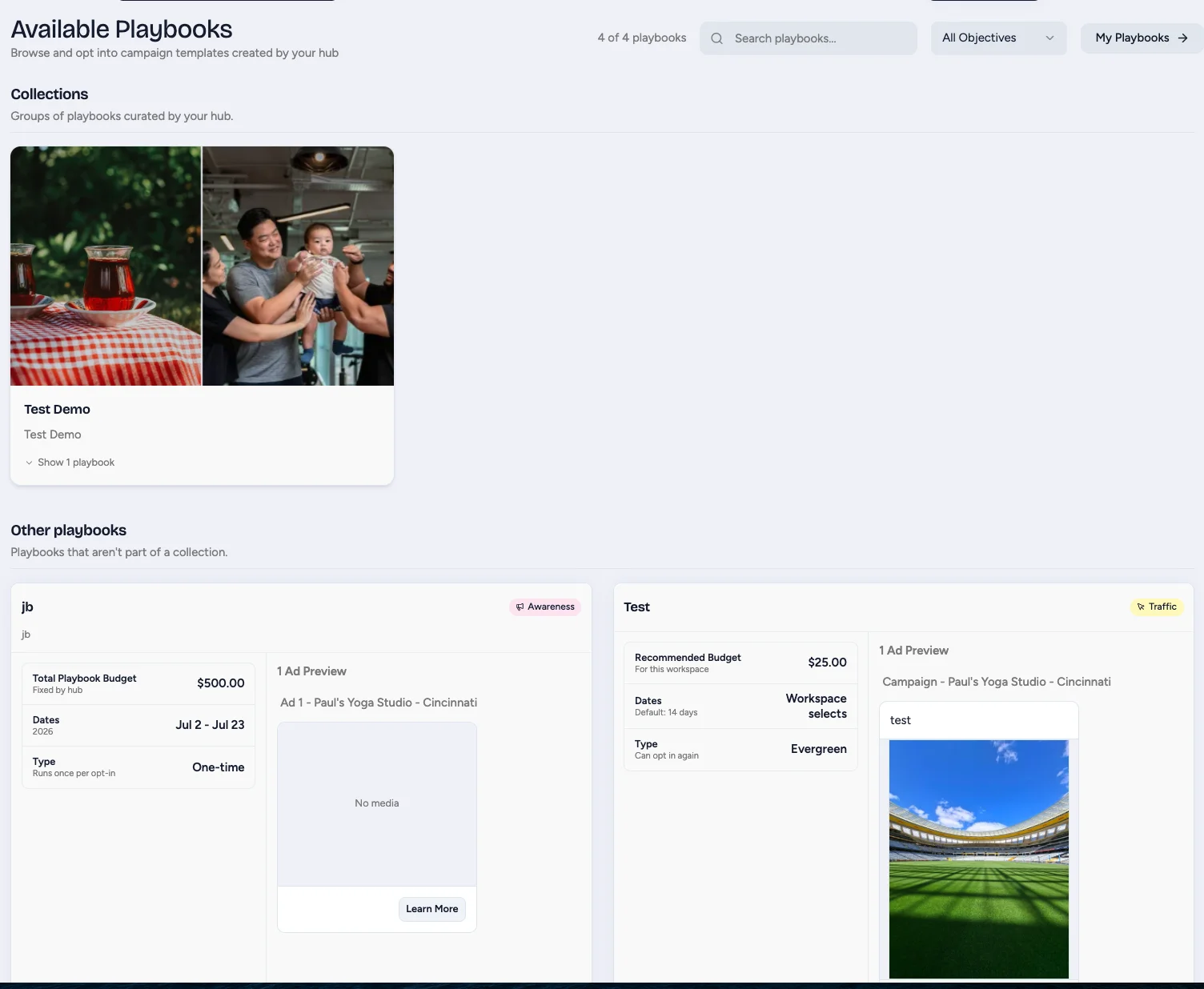
Go to the Shop under Paid Social Ads > Playbooks > Shop. It lists every campaign your Hub has published for your location.
Select a Playbook
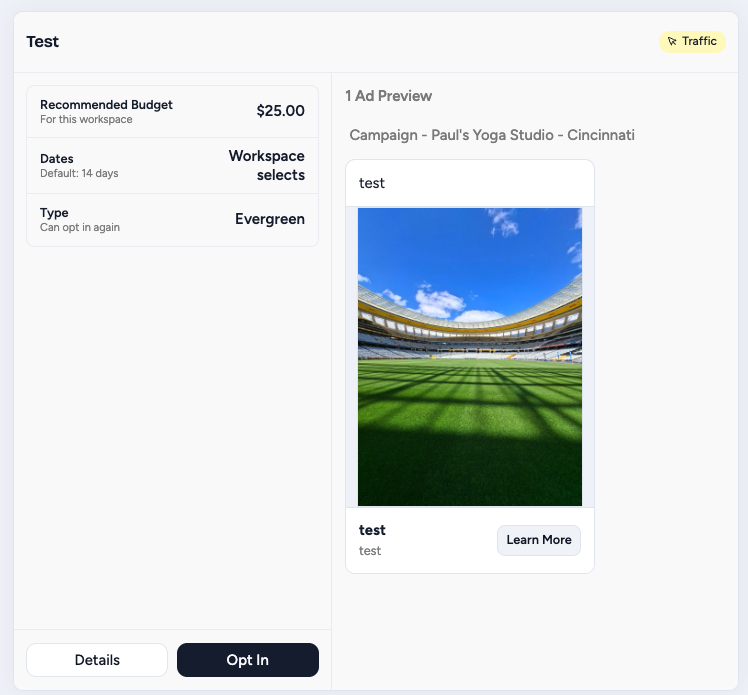
Each card displays recommended budget guidance, the target schedule, and ad previews. Click View Details to read the full description and targeting strategy, or click Opt In when you are ready to configure your run.
Set the Schedule
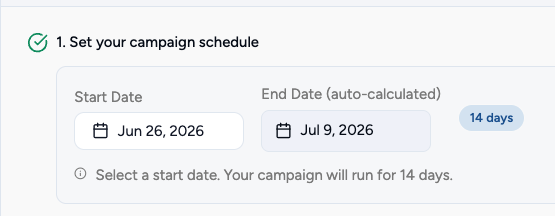
Set your start date and end date. The start date must be at least 24 hours in the future to allow ad platform review. An end date is required for Lifetime budgets; open-ended runs run on a daily budget until paused.
Choose Your Budget

Select Use Recommended unless you have a specific operational reason to adjust:
- First time running: Use the recommended baseline.
- High-traffic or grand opening: Increase 30% to 50% above recommended.
- Testing a new market: Start at the recommended baseline.
Hub-Locked Budgets & Minimums
If your Hub locked budget control, the budget input is hidden and you will see the exact amount your Hub configured. Flamel also enforces ad platform minimums (approximately $1 per ad set per day) and will notify you immediately if your schedule requires a higher amount.
Select Your Creative Source
Depending on the playbook configuration, choose your creative source:
- Hub-Provided Media: The Hub supplies pre-approved brand assets. Nothing to upload. See Hub-provided media.
- Workspace Media: Upload, crop, or trim your location's own photos and video. See Workspace media.
- Boosted Posts: Select an existing organic post from your Facebook or Instagram page. See Boosted posts.
Answer Hub Questions
Answer any questions requested by your Hub (e.g. promo codes, local event names, or specific offers). On a recruitment playbook, select your open job from CareerPlug.
Review Previews and Confirm Cost
Check the ad previews for your location name and details. Click Opt In to open the Confirm opt-in window.
| Line | What it means |
|---|---|
| Campaign period | Start and end dates. Open-ended runs read ongoing. |
| Selected ad budget | The amount that goes directly to the ad platform. |
| Your Hub's fee | Management fee charged by your Hub, if applicable. |
| Total | Ad budget plus fee. |
Click Confirm opt-in. Flamel records this exact approved total. Deploys, retries, and evergreen re-runs cannot exceed this approved amount.
Your Confirmation Summary
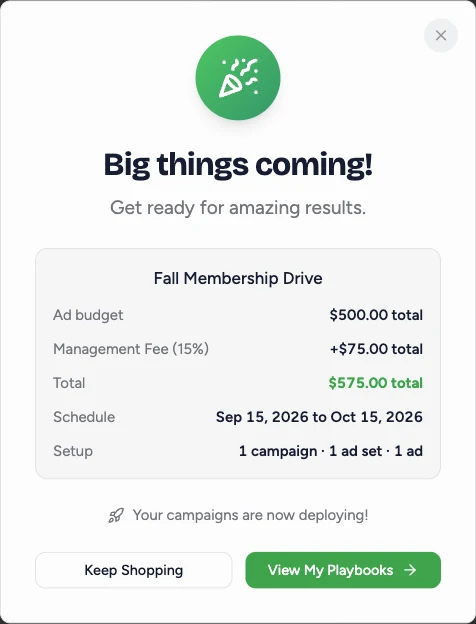
When you confirm a new opt-in, Flamel shows a summary of exactly what you committed to:
| Row | What it shows |
|---|---|
| Ad budget | Your budget as a daily amount ($5.00/day) or as a single total ($150.00 total), matching the budget type on your schedule. |
| Management Fee | Your Hub's fee and its percentage, when your Hub charges one. The row uses the label your Hub set. |
| Total | Ad budget plus fee. This is the same total as the Confirm opt-in window. |
| Schedule | Your start and end dates (Oct 1, 2026 to Oct 30, 2026), or Starts Oct 1, 2026, no end date for an open-ended run. |
| Setup | The structure your run creates, such as 1 campaign, 2 ad sets, 4 ads. |
The Setup row counts only the ads you left switched on, so an ad you turned off in the media step is not counted, and an ad set or campaign whose ads are all off does not appear. Google and ChatGPT playbooks show the campaign count only.
When your opt-in covers more than one solution, the summary shows each paid campaign's setup inline by default rather than tucking it behind a box you have to open. Every campaign lists its objective, what it optimizes for, its conversion event, its ad sets and ads, and its dates, so the whole structure is readable before you confirm.
Opting In Again
A re-run confirms with a short message instead of this summary. To check the budget and dates on a re-run, open the run in My Playbooks.
After You Submit
Once confirmed, go to My Playbooks.
- Awaiting Approval: Your Hub must approve your creative before launch.
- Scheduled: Cleared to launch, waiting for your start date. The badge names the date, for example Scheduled · Oct 14. Because a start date has to be at least 24 hours out, most runs sit here first.
- Deploying: Flamel is assembling campaigns, ad sets, and creatives on Meta or Google.
- Running: Ads are live and delivering.
- Paused: Delivery is stopped. See Edit an opt-in to resume or adjust. A paused run that already has an approved resume date reads Paused · Resumes Oct 14.
For the complete guide on reading active runs, see After you opt in.
Evergreen Re-Runs
When an evergreen campaign finishes, its card shows Opt In Again. You can opt in again before the current run ends:
- Reuse existing campaign (default): Keeps the same Meta campaign and extends dates/budget in place, preserving Meta's delivery learning.
- Start a fresh campaign: Creates a new numbered campaign and automatically pauses the previous one when the new one begins.
Common Questions
- No playbooks in the Shop? Your Hub has not published playbooks for your location yet.
- Submit button disabled? A required checklist question or media upload is incomplete. Check for open items.
- Budget too low? Shorten the flight duration or increase the total to meet the ad platform minimum.
- Cannot change the budget? Your Hub locked budget control for this playbook.